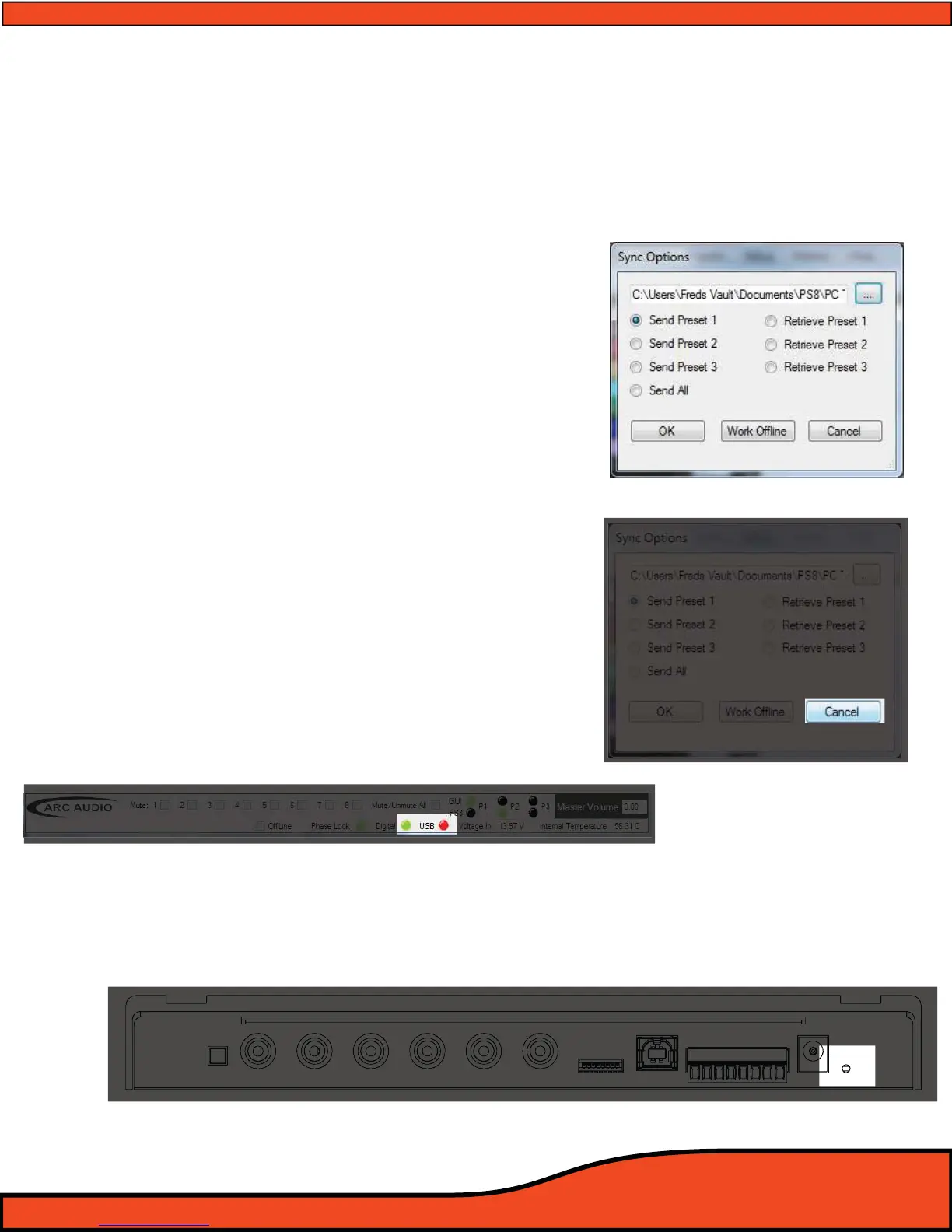
Diagram 8.1
Diagram 8.2
Diagram 8.3
Diagram 8.4
8) UPDATING THE PS8 FIRMWARE
Please follow the instructions below exactly for a successful PS8 rmware update. These
quick steps will allow you for a smooth, easy and trouble free update of the PS8's opera-
tion rmware. (Please note your PC must be able to connect to
the internet to complete this process!)
Step 1- Connect your PC to the PS8 by inserting the
USB end of the A to B cable into your PC and
the type B end into the USB connection port on
your PS8.
Step 2 - Power up the PS8 as if using in normal
operation.
Step 3 - Launch the PS8 Software already installed on
your PC.
Step 4 - After launching, you will be prompted to
sync your PS8 to the PC.
(See diagram 8.1)
Step 5- Locate and click on the button labeled as
"Cancel"
(See diagram 8.2)
Step 5 - Next verify that your PC is communicating with
the PS8 by looking at the ashing USB indicator
located on the bottom of the PS8 software user
utility
(See diagram 8.3)
Step 6 - Using a toothpick, pick tool, or small pointed
straight object insert and press the PS8's
rmware update button. This button is located on the PS8's main chassis inside the small
hole to the right ofthe main power terminal
(See diagram 8.4).


 To Next Page