Step 7 - Press and hold this button for a
period of about 5 seconds. When
this task has been completed
correctly the lights on the top of
the PS8 will ash and go solid and
all of your ampliers hooked up
to the Remote turn on output will
shut o thru the remainder of the
update process.
Now that you have entered Firm-
ware update mode you will see
that the ashing USB indicator on
your user software is no longer
ashing. No worries this is normal.
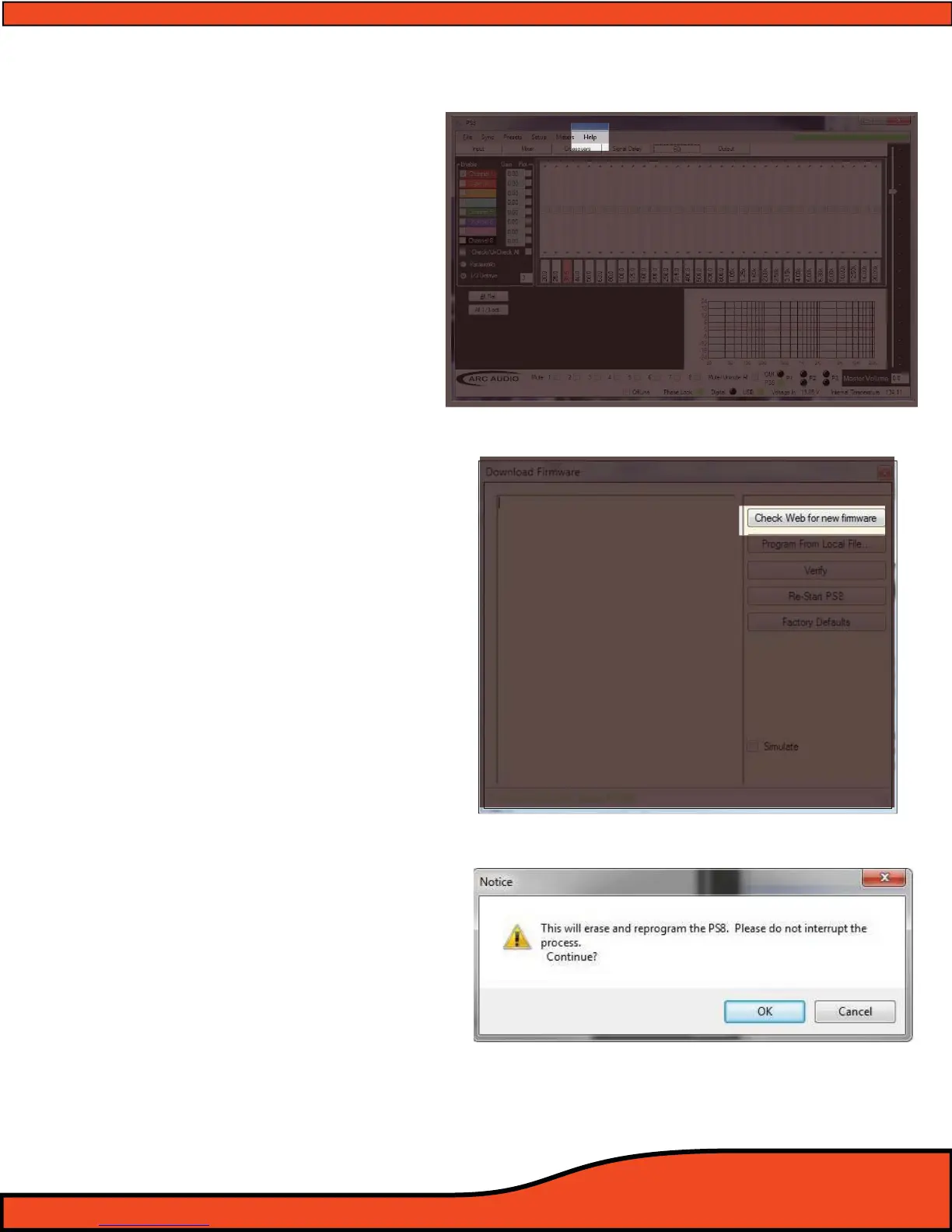
Step 7 - Return to your PC and on the PS8
software user utility nd and locate the
"Help" tab and click on it
(See diagram 8.5).
Step 8 - Find and locate on the new drop down
window the header "Check for new PS8
Firmware"
(See diagram 8.6).
Step 9 - After completing the previous step a
new pop up window will appear advising
you of one of three things
A) "Cannot read hardware version,
continue?"
This is ok and will not delay your update
press ok and proceed with the installation.
After clicking on you will be prompted by
option 2.
B) "This will erase and reprogram the PS8.
Please do not interrupt the process.
Continue?"
(See diagram 8.7)
This is the normal indicator step for the
rmware update. Press ok and do not turn
Diagram 8.5
Diagram 8.6
Diagram 8.7


 To Next Page