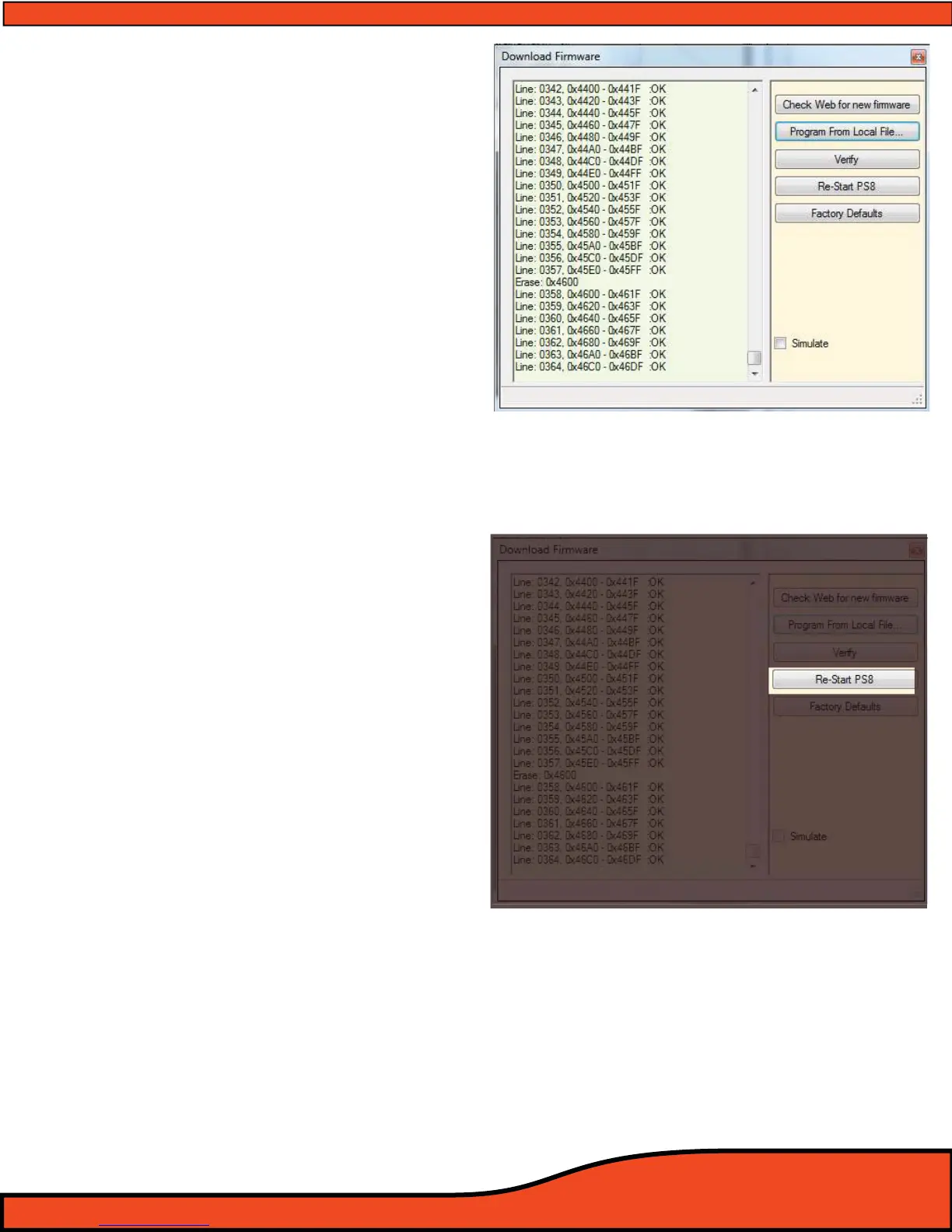
Diagram 8.8
Diagram 8.9
o or interrupt the update process. If you
have received this message please
proceed to step 11 and nish the update
process
C) "The current version and the updated
version is the same. Continue?"
This message means you are already
updated with the current version of the
PS8 rmware. Please proceed to Step and
enjoy the wonderful sound of the PS8.
Step 10 - After clicking "Ok" the rmware update process
will begin. You will begin to see a lot of scrolling
information in the Firmware update window.
(See diagram 8.8).
This information is the update code and will
continue till it is completed. You will know when it
is completed once it stops (Typically between
"Line 1100 and Line 1500" depending on the
update.) Once this process is complete proceed to
Step 12.
(If after pressing "OK" the process begins and then stops
and the status window stops with "Erase failed" this
means you did not follow the exact steps above and you
will be required to shut down your PS8 software, restart
the software and then redo all of the steps once again
involving the PS8 user utility.)
Step 11 - Once the successful update is complete, nd and
locate the button labeled as "Re-Start PS8", Press
this button once and then wait several seconds
while the PS8 reboot's
(See diagram 8.9).


 To Next Page