User’s Manual—SNAP™ 500 Gen 1 and Gen 2 75
Classification: Avery Dennison - Public
4. Choose one of 3 upgrade files. For example, for version 3.36.15.10:
a. V3_36_15_10.upg – This is the complete upgrade and includes English
and all alternate language messages and prompts
b. V3_36_15_10_OS.upg – This is the upgrade with English only
c. V3_35_15_10_ALT_LANGUAGES.upg – This upgrade contains only the
alternate language messages and prompts. This version does NOT
contain the printer operating system.
The file that downloads has “zip” extension. You must
unzip and extract the UPG file from this download.
8.4 Performing the Upgrade
8.4.1 Unzipping the file
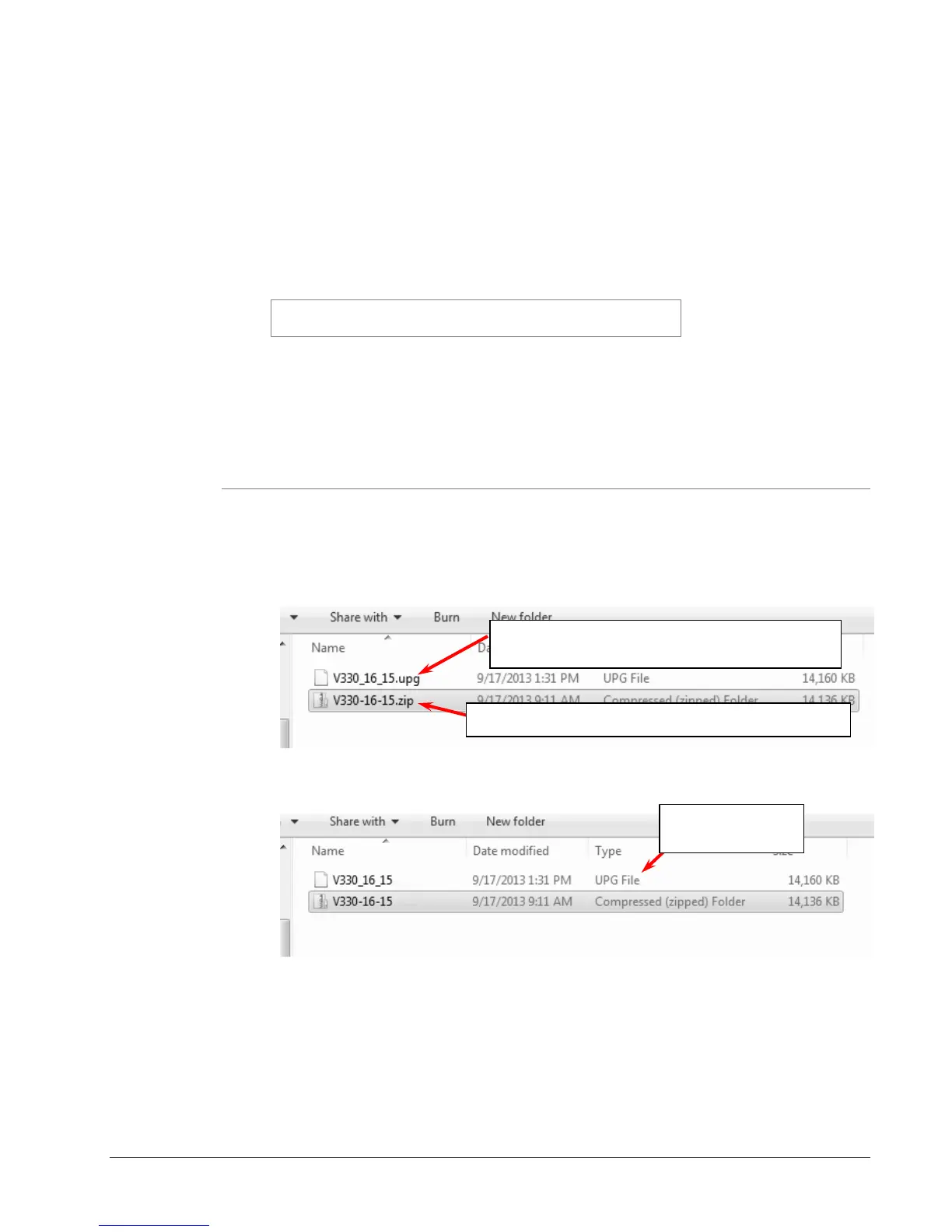
1. Once you have received the upgrade file through D2Comm or the website, make
sure it has the “.upg” extension or is an UPG file “Type”. If it has the “.zip”
extension, then unzip/extract the file to the desired folder.
With extensions
Without extensions
2. If you have a “.zip” file or the “Type” is “Compressed (zipped) Folder”, and then
extract/unzip the file by right-clicking on it and selecting “Extract All…” Some
version of Windows will allow you to double click on the zip file and copy the
internal .upg file to another folder.
This is the .upg file that the printer uses. It is
inside the .zip file.
Extract/unzip this file to get the .upg file










 To Next Page