18
General
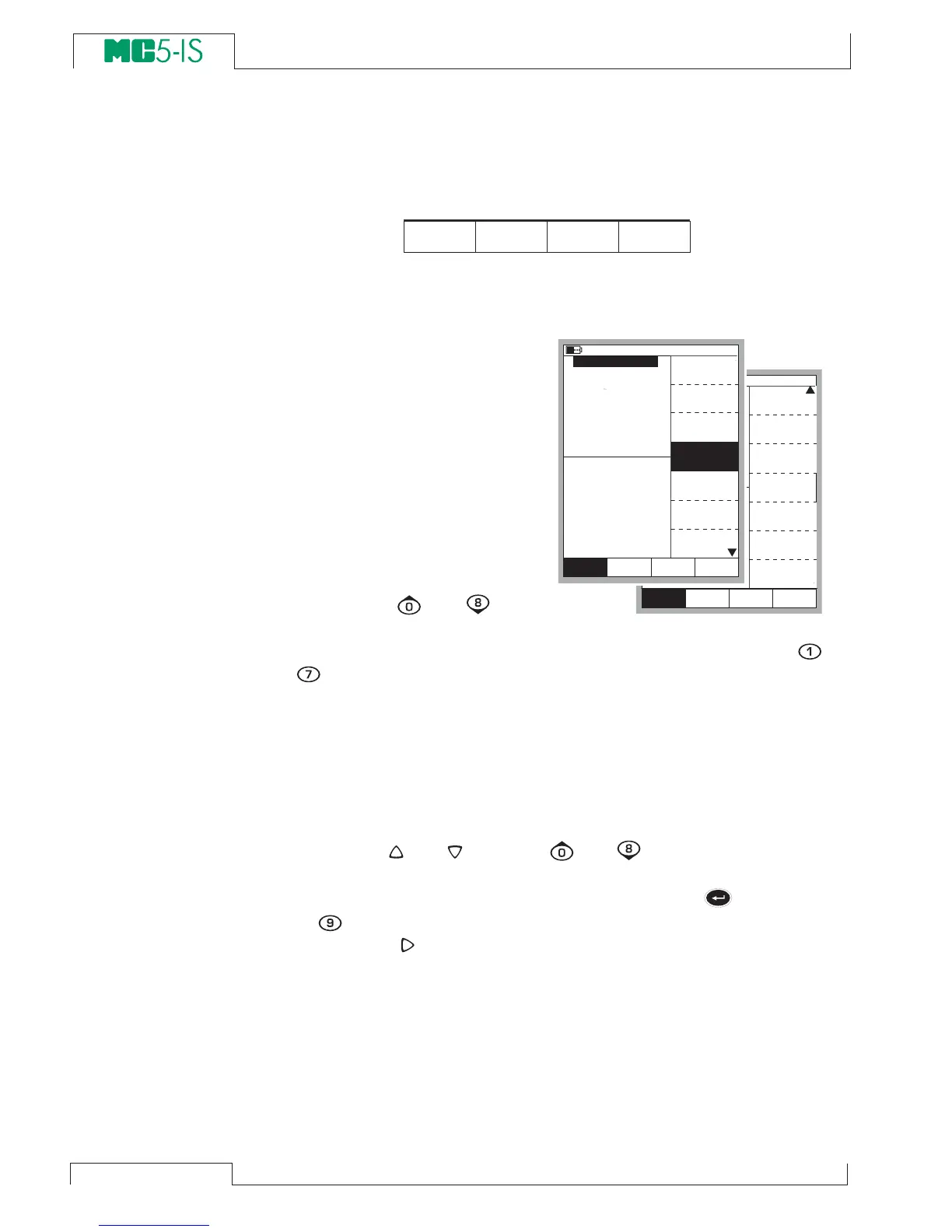
The Function Key Bar
The Function Key Bar at the bottom of the display is visible all the
time. The meaning of the Function Keys varies depending on the
situation.
Menus
The Function Key for opening
the menu is always D/Menu. The
same key is used when closing
the menu. If a menu is not
needed for the current subject,
the fourth Function Key is used
for other needs.
If the opened menu has several
pages, the menu’s uppermost
and/or lowermost item includes
an up/down triangle. In that
case, use the
and
keys
to browse through the available
menu pages. A menu option is selected with the numeric keys
to
. Selecting a menu option results in one of the following events:
1. An immediate action follows and the menu closes automati-
cally, e.g. when selecting the
Zero Pressure Module option
in the picture above.
2. A pop-up list opens for selecting one of the available options.
The current selection is displayed inside brackets in the menu.
Use the
and
keys, the
and
keys or the same nu-
meric key that opened the pop-up list to scroll the list. To se-
lect an option in the pop-up list, use either the
key or the
key. To close the pop-up menu without selecting anything,
press the
key or the D/Close Function Key.
3. Another menu with new options replaces the previous menu.
Sometimes the Function Keys can also open another menu.
In the previous picture, the Window 1 setup menu is opened.
In this case Function Key
B/Window 2 Setup and Function
Key C/Others can be used for opening other menus.
4. A new window opens for, e.g. viewing additional information or
for configuring the selected task.


 To Next Page