- 46 -
second panel on the string. A dotted red line will be drawn which will go solid as the
line becomes pinned to the centre spot of the next panel in the string. You can now
move on to the third fixture in the string and so forth until the string is complete.
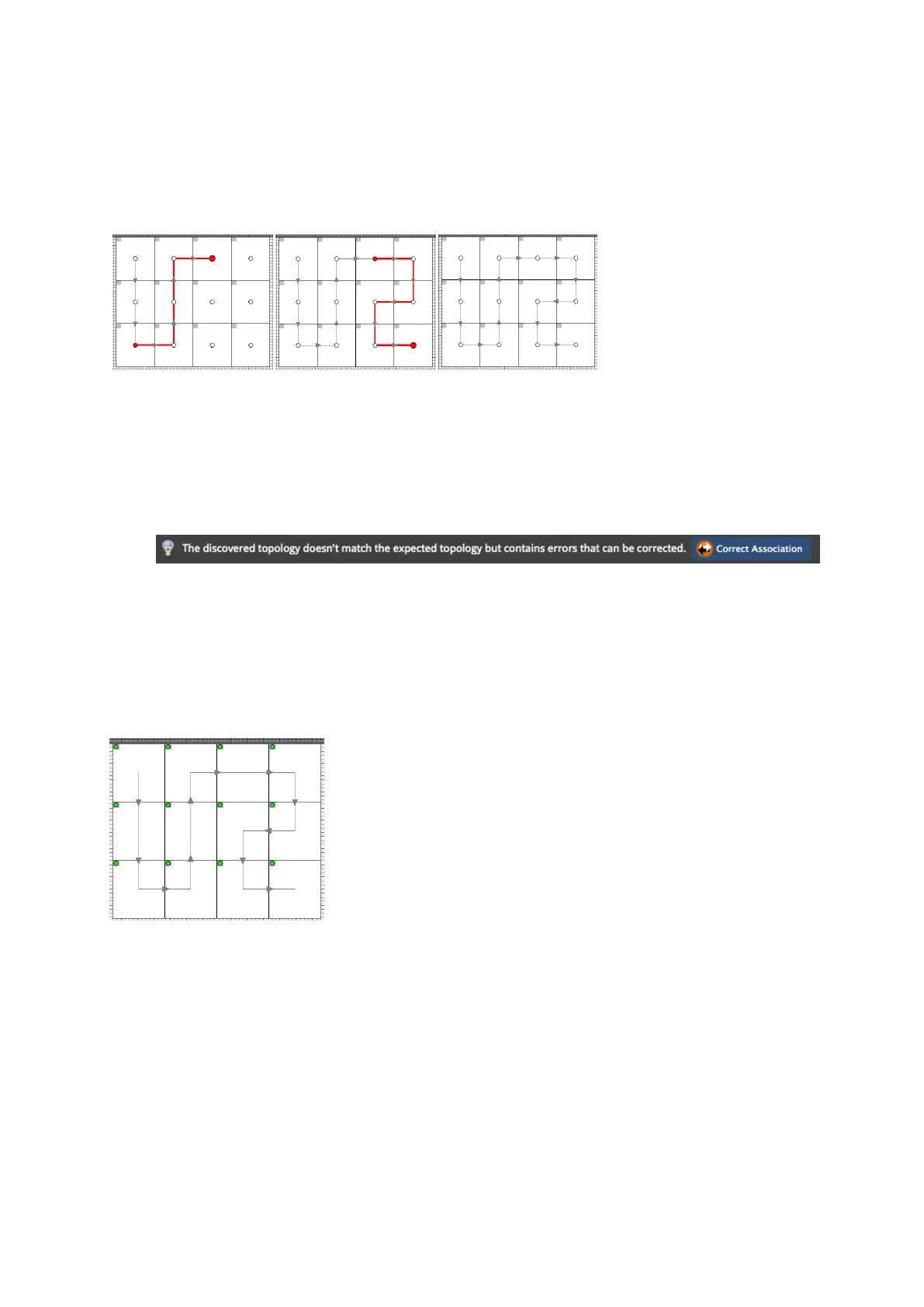
Figure 5-15. Changing the topology by clicking and dragging the mouse pointer
5. Return to the main project toolbar by clicking on the green arrow. The processor will
recognise that there is a new topology which doesn’t match the current association
and will display the Correct Association message for 10 seconds.
Figure 5-16. The Correct Association message
6. Click the Correct Association button to finish the process. The fixture icons will display
the green dot in the canvas window and content can be displayed on the fixtures "The
panels are online and associated." below).
Figure 5-17. The panels are online and associated.
After this time you can correct association by right clicking on the icon of the affected fixture
or by selecting Correct Association from the Edit menu.



 To Next Page