Citrix SD-WAN Platforms
Setting up the appliance
1. If you are configuring the appliance using Zero Touch Deployment (ZTD), refer to the following
link on the docs.citrix.com site; Zero Touch Deployment
2. If you are configuring a hardware SD-WAN appliance, physically connect the appliance to a PC.
Refer to the following link on the docs.citrix.com site; configuring SD-WAN hardware
To set up your Citrix SD-WAN appliance hardware, do the following:
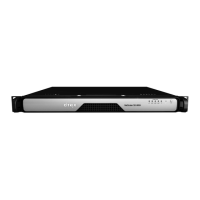
1. Set up the chassis.
• Citrix SD-WAN appliances are installed in a standard rack. For desktop installation, place
the chassis on a flat surface. Ensure that there is a minimum of 2 inches of clearance at the
sides and back of the appliance for proper ventilation.
2. Connect the Power.
• Ensure that the power switch is set to o.
• Plug the power cord into the appliance and an AC outlet.
• Press the power button on the front of the appliance.
3. Connect the appliance Management Port to a PC. Connect the appliance to a PC in preparation
for completing the next procedure, setting the Management IP address for the appliance.
Note: Before you connect the appliance, ensure the Ethernet port is enabled on the PC. Use an
Ethernet cable to connect the SD-WAN Appliance Management Port to the default Ethernet port
on a PC.
To configure the management IP address for a hardware SD-WAN appliance, do the following:
Note: Repeat the following process for each hardware appliance you want to add to your network.
1. If you are configuring a hardware SD-WAN appliance, physically connect the appliance to a PC.
• If you have not already done so, connect one end of an Ethernet cable to the Management
Port on the appliance, and the other end to the default Ethernet port on the PC.
Note: Ensure that the Ethernet port is enabled on the PC you are using to connect to the appli-
ance.
2. Record the current Ethernet port settings for the PC you are going to use to set the appliance
management IP address. Change the Ethernet port settings on the PC before you can set the
appliance management IP address. Record the original settings so you can restore them aer
configuring the management IP address.
3. Change the IP address for the PC. On the PC, open your network interface settings and change
the IP address for your PC to the following: 192.168.100.50
4. Change the Subnet Mask setting on your PC to the following: 255.255.0.0
© 1999-2021 Citrix Systems, Inc. All rights reserved. 52

 To Next Page
 Loading...