User's Guide
- 104 -
Scanning to a computer
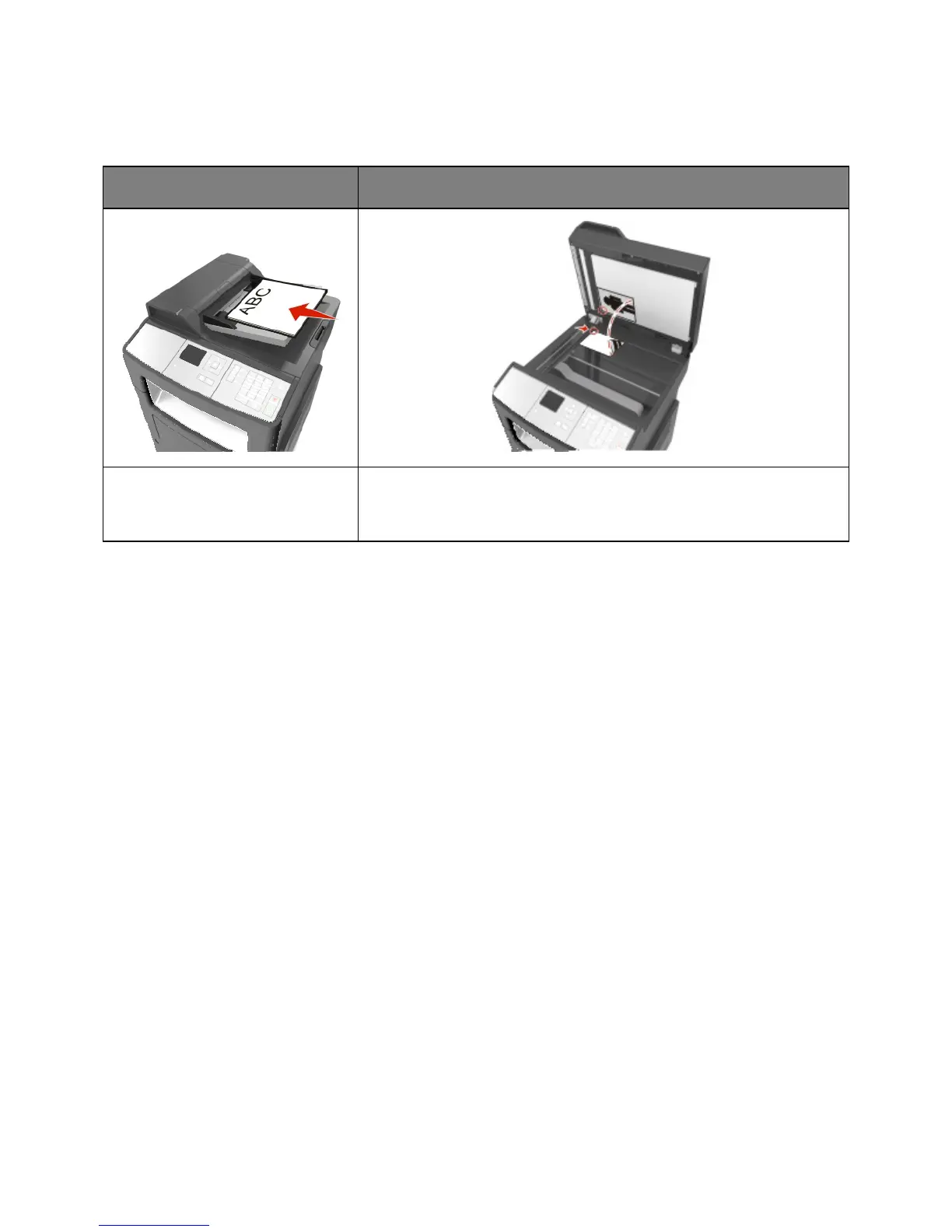
Automatic document feeder (ADF)
Use the ADF for multiple-page
documents.
Use the scanner glass for single pages, small items (such as postcards or
photos), transparencies, photo paper, or thin media (such as magazine
clippings).
The scanner lets you scan documents directly to a computer. The computer does not have to be directly
connected to the printer for you to receive Scan to PC images. You can scan the document back to the
computer over the network by creating a scan profile on the computer and then downloading the profile to
the printer.
Scanning to a computer
1. Open a Web browser, and then type the printer IP address in the address field.
Notes:
- View the printer IP address in the TCP/IP section in the Network/Ports menu. The IP address
appears as four sets of numbers separated by periods, such as 123.123.123.123.
- If you are using a proxy server, then temporarily disable it to load the Web page correctly.
2. Click Scan Profile >Create Scan Profile.
3. Select your scan settings, and then click Next.
4. Select a location on your computer where you want to save the scanned output file.
5. Type a scan name.
The scan name is the name that appears in the Scan Profile list on the display.
6. Click Submit.


 To Next Page