Vigor2760 Series User’s Guide
275
4
4
.
.
1
1
2
2
.
.
3
3
T
T
r
r
u
u
s
s
t
t
e
e
d
d
C
C
A
A
C
C
e
e
r
r
t
t
i
i
f
f
i
i
c
c
a
a
t
t
e
e
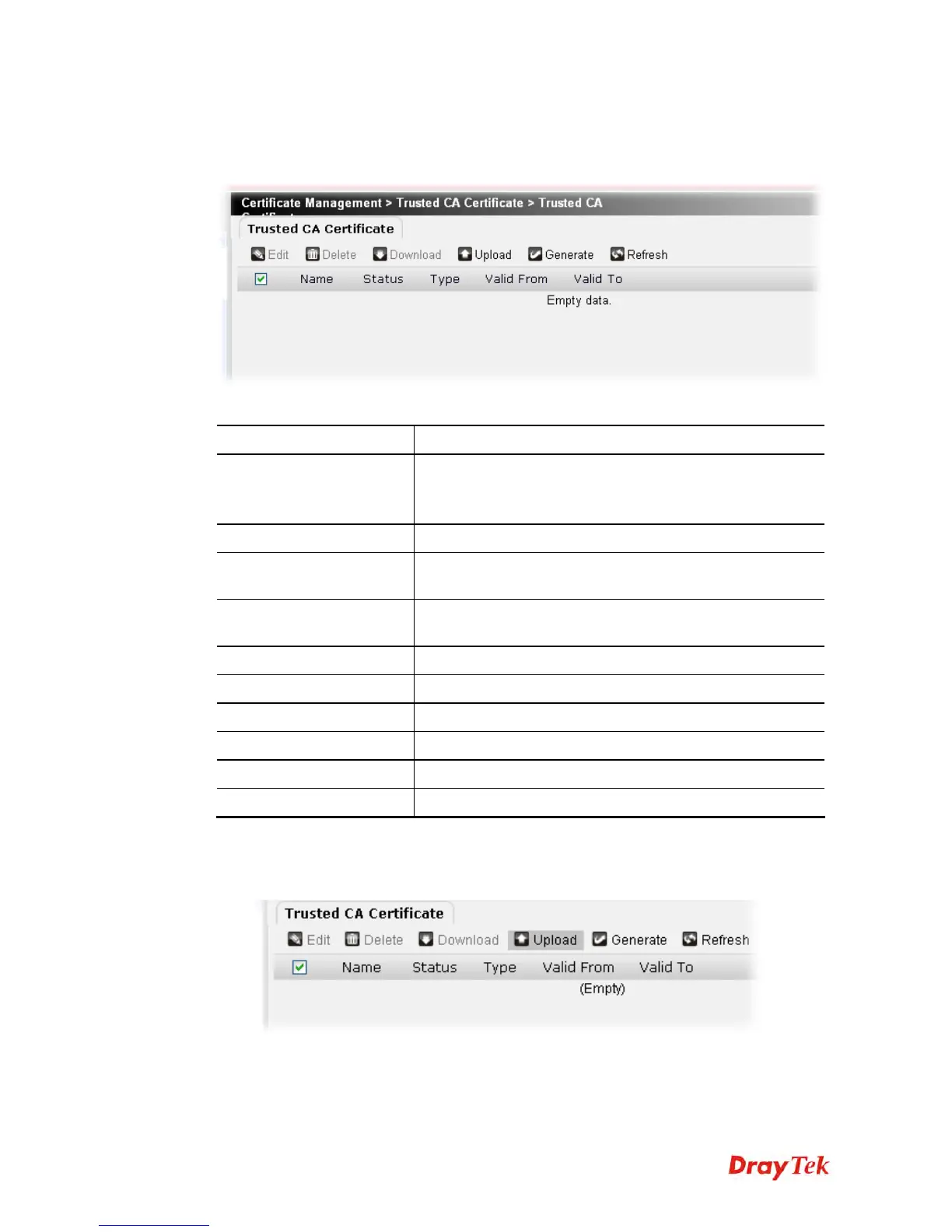
Trusted CA certificate lists three sets of trusted CA certificate. You can upload a pre-saved
trusted CA certificate to Vigor router through this page.
Each item will be explained as follows:
Item Description
Edit
Edit the selected certificate.
To edit the profile, simply check the profile box you want to
edit and then click this button.
Delete
Remove the selected profile.
Download
Allow you to download an existing CA certificate request
from the router to your PC.
Upload
Allow you to download an existing CA certificate request
from the PC to your router.
Generate
Open a window to generate certiface request.
Refresh
Click it to refresh the web page.
Name
Display the name of the certificate.
Status
Display the status of the certificate.
Valid From
Display the starting point of the valid time of the certificate.
Valid To
Display the end point of the valid time of the certificate.
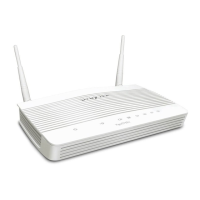
Trusted CA certificate obtained from other sources and stored on the PC can be uploaded to
Vigor router, do the following:
1. Click the Upload button.







 To Next Page