Saving, Reading, and Managing DSL/IP Test Results
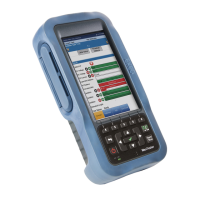
406 MAX-635G
Saving Results
Customer Name is the name of the customer for which the test
was run.
Circuit ID allows you to create/edit a unique identifier for the
circuit under test.
Comments allows you to add any relevant information.
Save Result
Select Result File button displays a list of existing file names
where you can save your results.
Result File Storage Location gives you the option of storing results
either in the MT internal memory or USB device. The default
selection comes from Setup/Application Settings/General tab.
Result File Name allows you to preview and edit the result file
name. The proposed file name is based on current auto-naming
parameters configured in Setup/Application Settings/File Name.
Out-Band Upload & Save button is enabled when test is stopped
and out-band upload method is not disabled in System
Settings/Upload Setup.
Save button confirms if the Result File Name is saved successfully.
Export to ECC & Save button replaces the Save button when
Export to EXFO Connect Client is enabled in System
Settings\Upload Setup. This feature allows you to save test results
and export XML test reports to be uploaded to the EXFO Connect
platform using the EXFO Connect Client application.
Export Report
Report File Storage Location is dependent on whether Export to
EXFO Connect Client is enabled or not, in System
Settings\Upload Setup. If enabled, you can select either USB or
EXFO Connect Client as your test report storage location. If
disabled, USB is automatically selected.
Report Format is MaxTester, HTML, MHTML, or XML.






 To Next Page