Setting Up Copper Tests
100 MAX-635G
Saving Results
Saving Results
Save Result
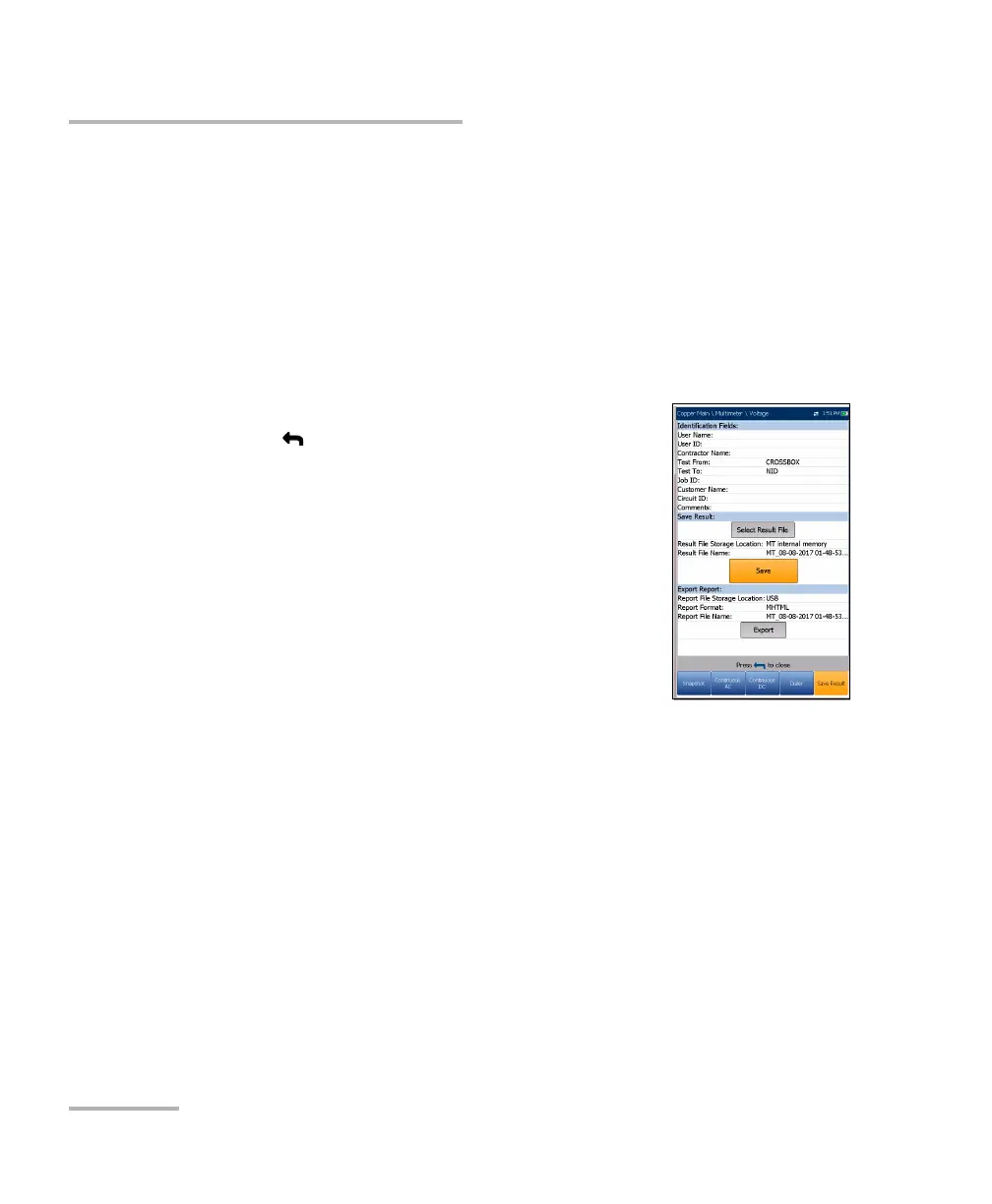
You can save a snapshot of test results into a result file during or after a test
performed with the MAX-635G. Each copper test includes a Save Result
tab to do so. The tab allows you to save your test results to an internal
memory file or export results to an HTML, MHTML, or XML report using a
USB key.
Alternately, when a test is completed or stopped and
you press , Confirm Save dialogue box pops up.
Selecting Save displays the Save Result screen where
the following information can be entered:
Identification Fields
User Name/User ID display the values set up
in the Application Settings/Identification
tab. You can edit this field using the editor
screen.
Contractor Name allows you to enter the
name of a contractor used to perform the
tests.
Test From/To display the values set up in the Application
Settings/Identification tab. You can edit this field using the
choices from the list box.
Job ID allows you to create/edit a unique identifier for the task.
Customer Name is the name of the customer for which the test
was run.
Circuit ID allows you to create/edit a unique identifier for the
circuit under test.
Comments allows you to add any relevant information.






 To Next Page