Setting Up the MAX-635G
Copper and G.fast/VDSL2/ADSL2+ Multi-play Test Set 37
Upload Setup
Upload Setup
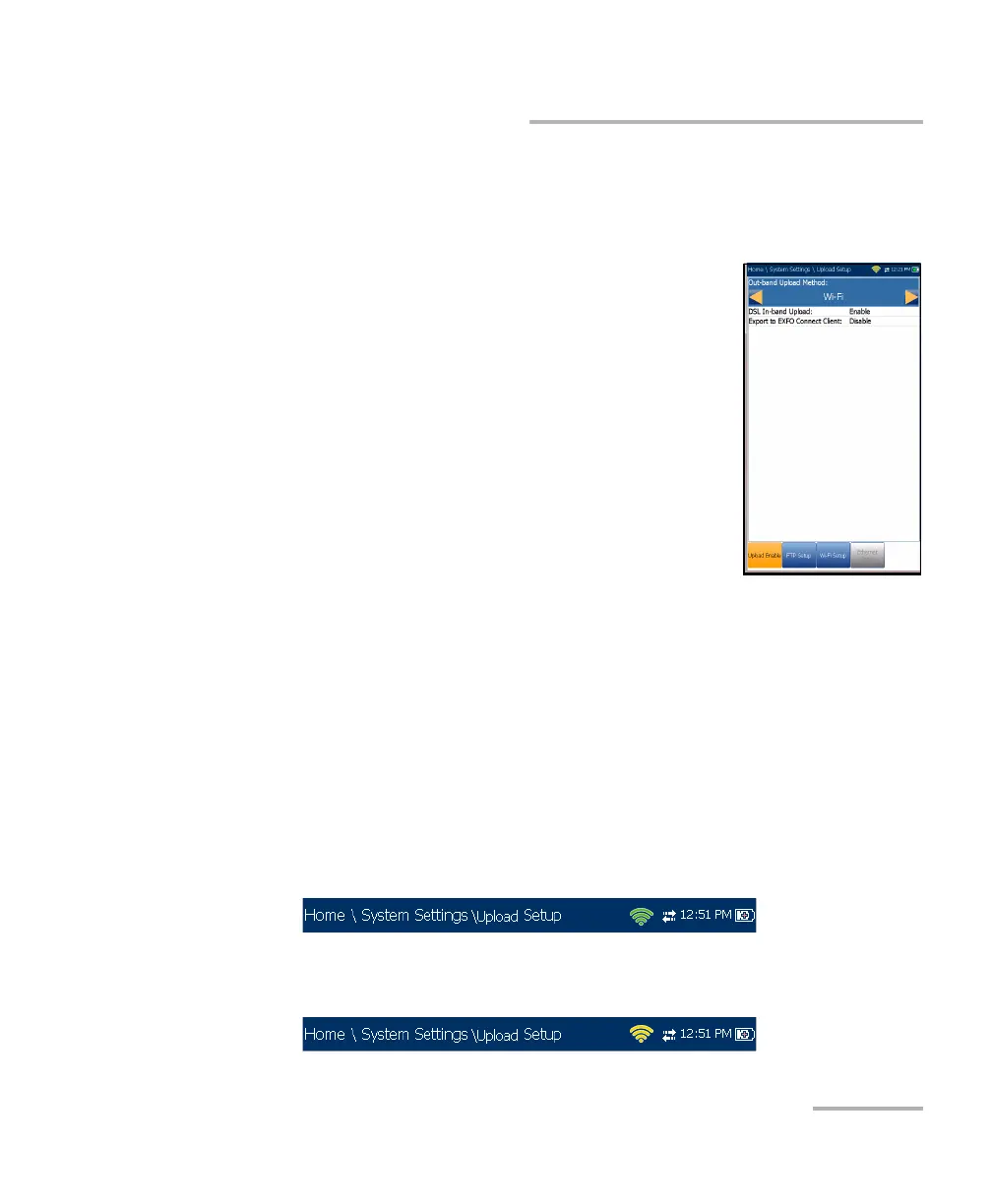
Upload Enable
The Upload Enable function allows you to upload
your test result files. (FTP Result Upload option must
be enabled.)
The Out-band Upload Method allows you to use one
of the following methods:
Wi-Fi allows you to upload files from the
MaxTester via a Wi-Fi hotspot/router and is
available from the following results pages:
Copper User Auto Test from Upload/Save
Result tab
Copper User Auto Test from Result
Manager/Summary/Upload
All DSL tests from Upload/Save Result tab
All Copper and DSL results from Result Manager/Upload
Note: Only channels 1 to 11 are supported on the Wi-Fi hotspot/router.
A Wi-Fi symbol, in the top right-hand corner of the navigation bar,
identifies whether or not a connection is present. The Wi-Fi status is
indicated as follows:
Green icon indicates that the MaxTester is connected with a Wi-Fi
hotspot.
Yellow icon indicates that the Wi-Fi dongle is powered up and ok,
but that the MaxTester is not connected to any Wi-Fi hotspot.






 To Next Page