Setting Up the MAX-635G
38 MAX-635G
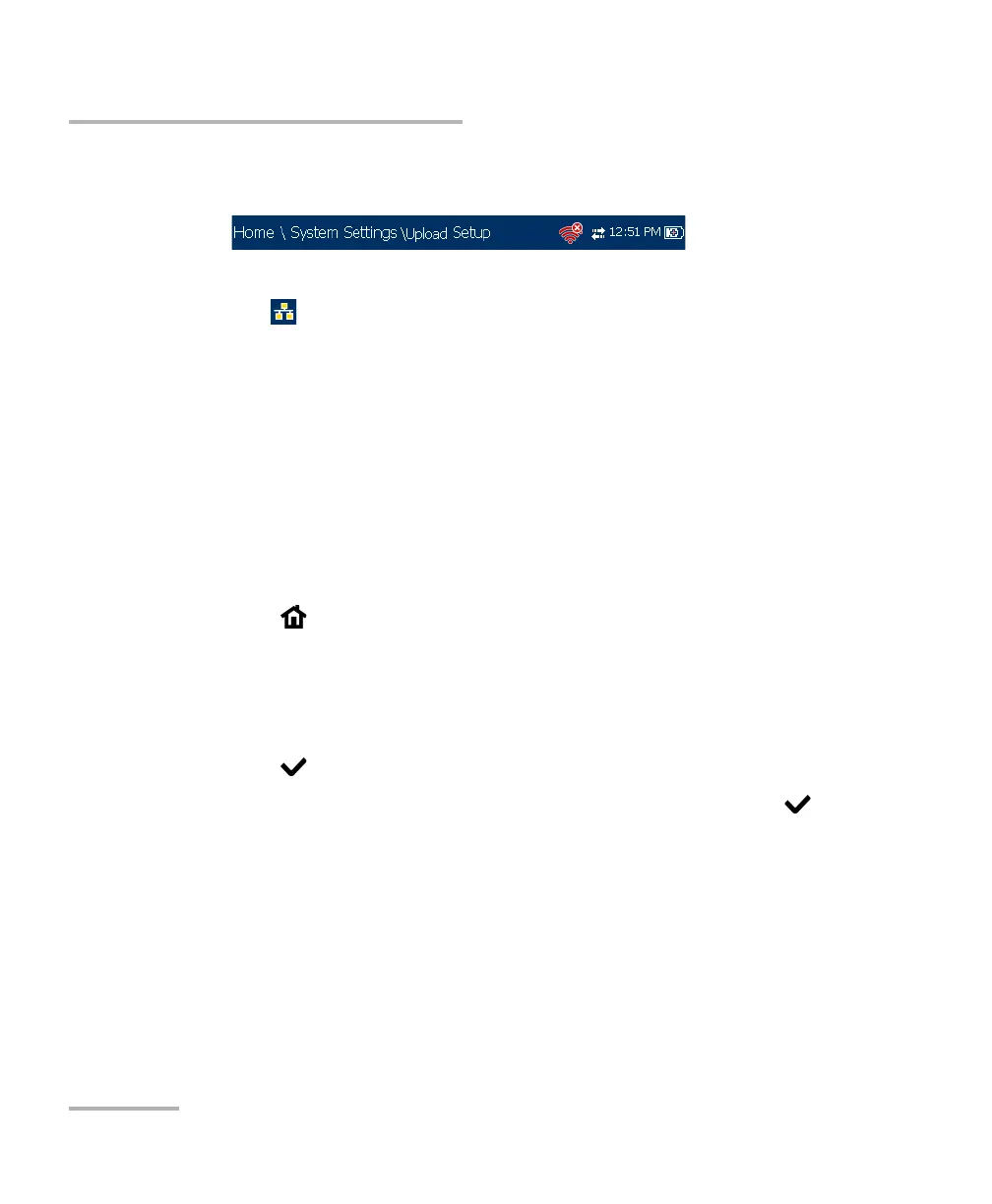
Upload Setup
Red icon indicates a problem with the Wi-Fi (dongle not attached,
etc.).
Ethernet is the default upload and if selected, displays an ethernet
icon in the top right-hand corner of the navigation bar. It identifies
whether or not a connection is present displaying a green or yellow
icon similar to the Wi-Fi symbol described above.
Disable Upload option disables uploading your files via Wi-Fi or
Ethernet. You can export results to a USB memory device.
The DSL In-band Upload method supports DSL or Ethernet, and can be
set to either Enable or Disable.
Export to EXFO Connect Client allows you to Enable/Disable this
location to export your CQ and DSL test reports.
To select the Upload method:
1. Press , select System Settings, and then Upload Setup.
2. Select the Upload Enable tab.
3. Use the left/right arrow keys.
OR
4. Press to view the list of available choices.
5. Use the up/down arrow keys to make your selection and press to
confirm.






 To Next Page