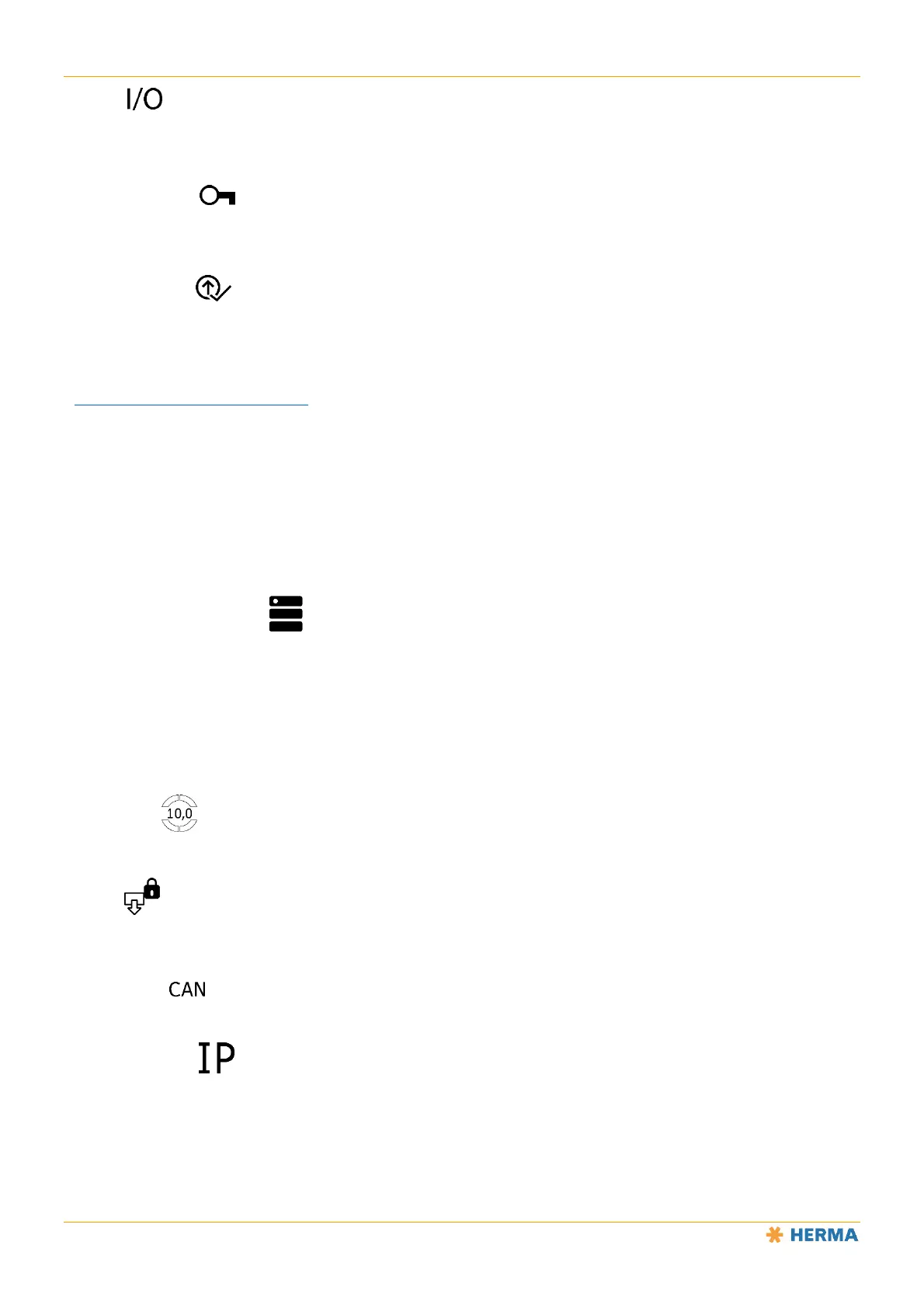
Opening and Editing Parameters
82 1.10 GB (2019/02/28)
I/O Test
Password level 4 and higher.
Enable Functions
In this menu you can enable functions that were added later, e.g. the maximum applicator speed, by entering a
code.
Firmware Update
This submenu appears when you call up the user interface of the applicator via an Ethernet connection. For more
information, see the Ethernet settings.
First, download the latest firmware version for the HERMA 500 applicators from the service portal
https://www.herma.com/machines onto your PC or laptop. The menu items for software/firmware can be found
under the “Start-up” menu item. The menu items are named “Register HERMA 500 basic unit” or “Your HERMA
500 basic units”.
Make sure that you are logged in on the applicator or in your browser with sufficient authorisations.
Call up this menu item in your browser, then follow the instructions on the screen.
This includes selecting the ZIP file that you saved earlier, transferring the data to the applicator, and confirming
that you want to update the firmware.
After the update is finished you will be taken back to the start screen.
You can see the current software version in use in the Imprint menu.
Device backup and restore
This submenu appears when you call up the user interface of the applicator via an Ethernet connection. For more
information, see the Ethernet settings.
Once you call up this menu item, you can back up the active software in the applicator as a ZIP file and save it on
the connected PC or laptop.
In this menu item you also have the option of restoring the software to a previously saved backup version. The
procedure is the same as for a firmware update (see above).
Start Screen
In this menu you can set the parameters for defining favourites on the start screen.
Access
This menu lets you define whether certain parameters or functions can be accessed via the integrated display, via
an external display or with no restrictions at all.
CAN Settings
Various settings for the CAN bus connection.
Ethernet Settings
Various settings for the Ethernet connection.
Standard setting: The applicator’s IP address is 192.168.3.11 and the standard port is 5555.
The connection to a web front end will work with all standard web browsers. The connection is optimised for
Chrome browsers.
To connect, enter the address http://192.168.3.11:5555 into your browser’s address bar.


 To Next Page