LCD Menu Navigation
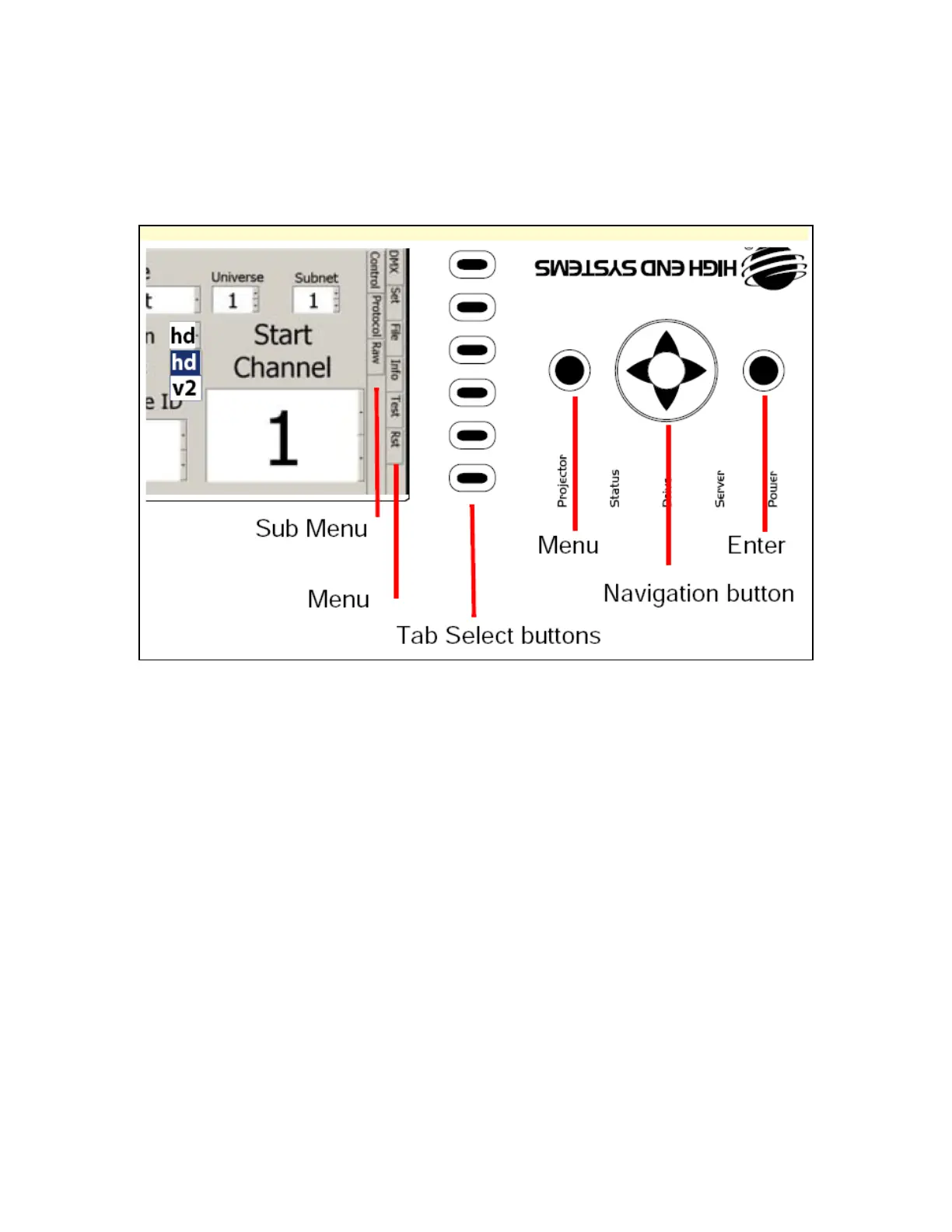
The LCD Menu is subdivided into various parts. Navigation is accomplished with the Tab-Select Buttons and the
Navigation Button. See below for more Navigation tips.
Select any Menu tab by pressing the corresponding button to the side of the display.
A tab will be bold when selected.
Use the left and right arrow keys on the navigation buttons to move to the Sub Menu tab column
Press the Tab select button that corresponds to the Sub Menu tab you want and press the <Enter> button
to select.
Use the Multi-Direction button to move left/right/up/down to a field. The currently selected field will be
highlighted.
Press the <Enter> button to go into edit mode for the selected field. A list box will open to show all the
options for that field.
Use the Up/Down keys to scroll through the items in the list highlighting the current item. Pressing the
<Enter> button again stores the selection and closes the list.
Pressing the <Menu> button instead of <Enter> leaves the original setting and closes the list.
To return to the Menu tab column, press the left direction on the Navigation button.


 To Next Page