09/01/13www.HandiQuilter.com Design Menu | 5.5
Loading the thumbnails may take a few moments, depending on how many designs are stored in
the selected folder and how intricate those designs are. While the thumbnails load, a colored block
with the name of the le type will be visible in place of the actual design thumbnail.
3. Double-tap the name of the desired le or single tap and then press Open to load the design. A
prompt to Clear Area appears on-screen. Choose Yes to clear any area you have dened or No to
leave the area as designated.
To save a design
Pro-Stcher prompts you to save your work when closing the soware or closing a design. However, it is a
good idea to save your work regularly.
• Press Save to save the design in its current state. The design library appears with the name of the
current design loaded.
• To overwrite the exisng design with that name, press Save.
• To save a copy of the design to a new name, enter a new name using the pop-up keyboard and
then press Save.
• To cancel without saving the design, press Cancel.
To save a group as a design or a project
You can save a group of designs as a design or as a project. If you save a group as a design, Pro-Stcher
creates a single design. When you load it again in the future, you will not be able to work with the designs
independently.
• To save a group as a design, select the group, select Save and then select Design before giving it a
lename and saving.
If you save a group of designs as a project, Pro-Stcher saves each design independently so that when you
load the project again, you will be able to modify the designs individually.
• To save a group as a Project, select the group, select Save and then select Projects. Give the group a
le name and select Save on the Save Project screen.
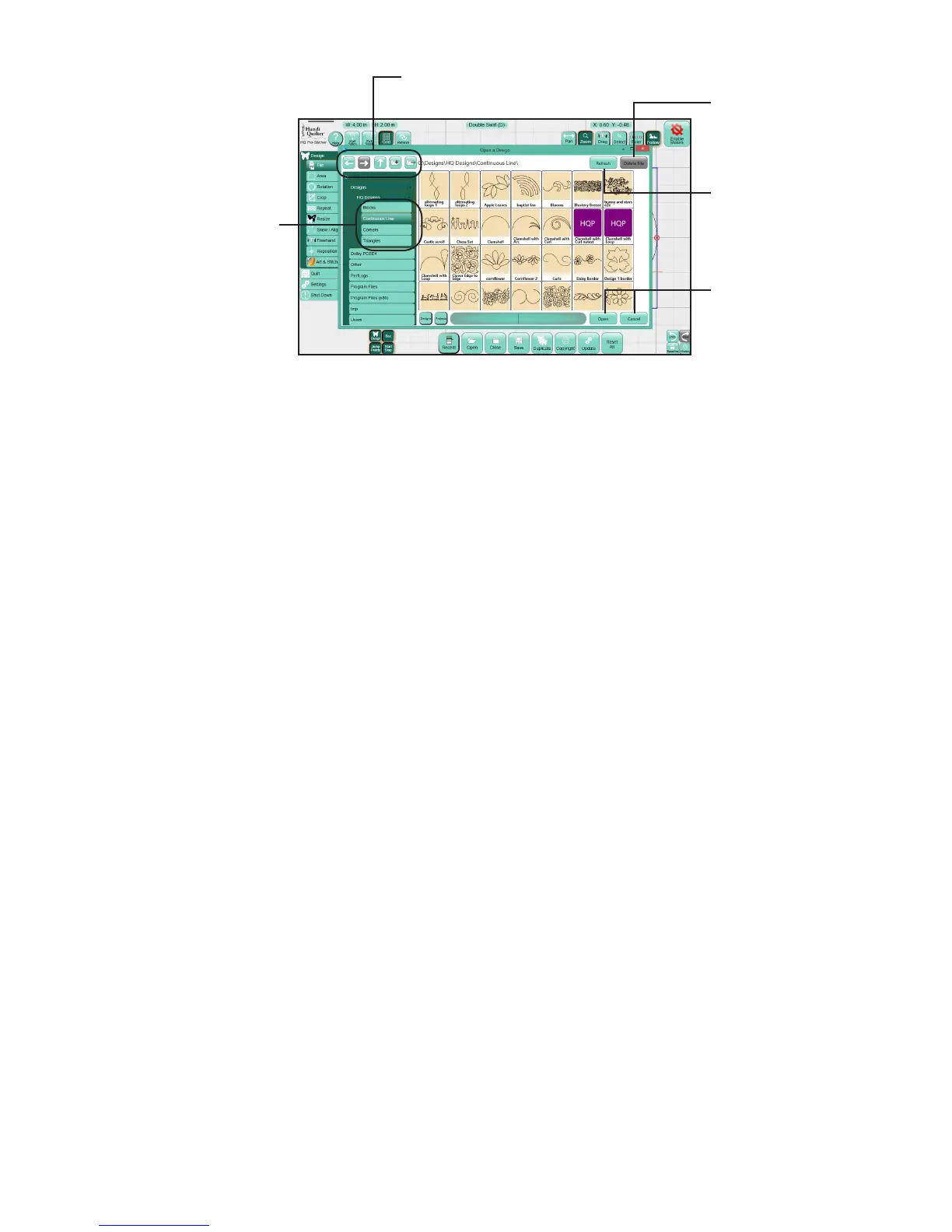
Designs are organized into
four folders: block designs,
connuous line designs, corner
designs, and triangle designs.
Select a design and
then choose Delete
File to remove it from
your computer.
Choose Refresh to
reload the thumbnails
in the selected folder.
Select a design and
press Open to load it
or press Cancel to exit.
Use these buons to navigate among
folders on the current drive or to open
folders on a USB drive.


 To Next Page