Chapter 3 Program Tools 41
FBD Programming Environment
The FBD Programming Environment includes all the functions for programming and testing the iSmart using the
FBD programming language. To begin a new program, select File-->New, and select the desired model of iSmart, as
shown right. FBD programming operation is same as Ladder.
Men
u, Icons and Status Bar
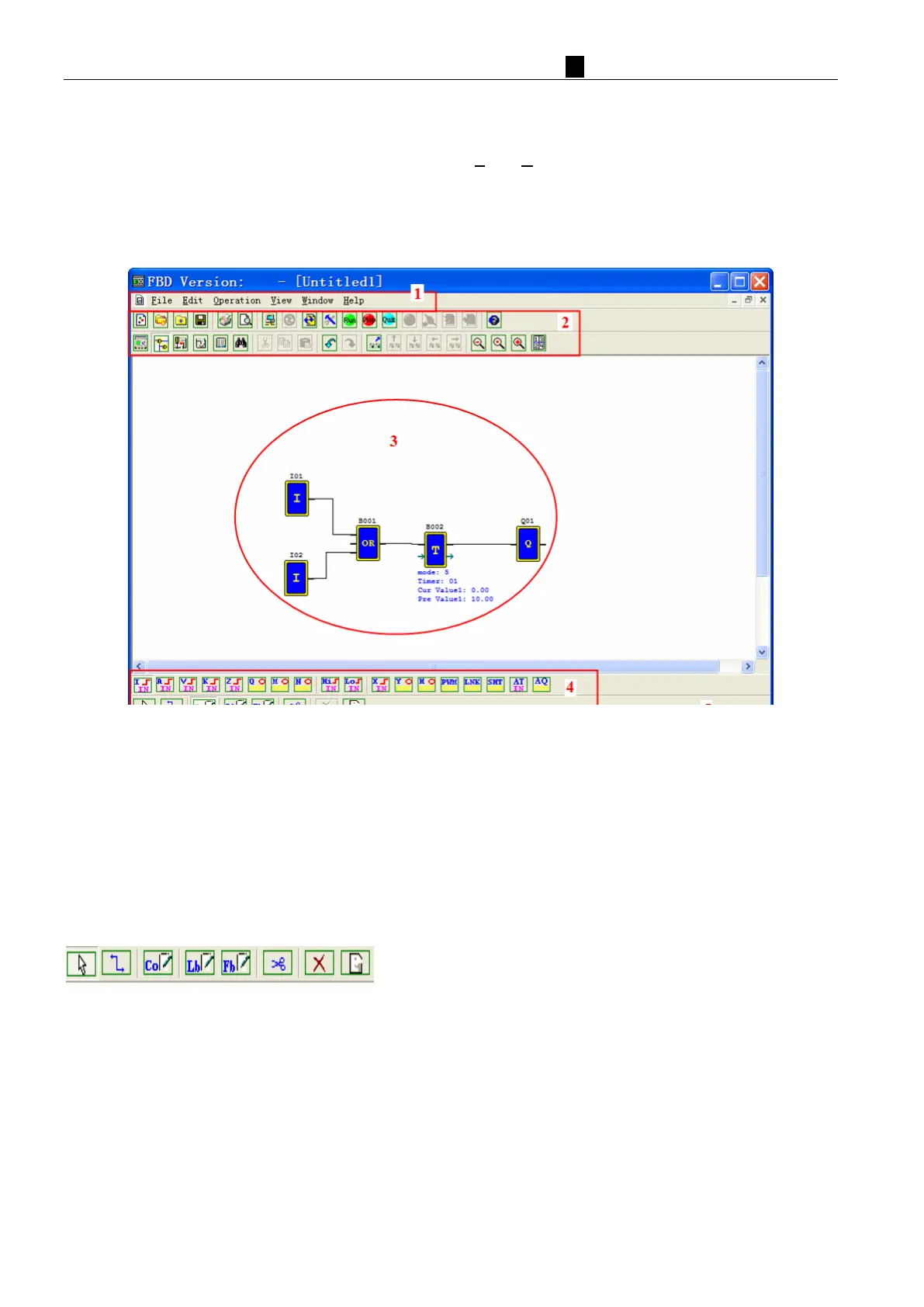
FBD environment include menu, icon and status bar refer to below figure.
1. Menu: 6 menu options, including file operations, editing, and iSmart communications settings, configure the
special features, display settings, help information and other functions.
2. Tools bar: The first line of icons from left to right in turn is expressed as: new, open, save program icons,
monitoring, simulation, control mode change (RUN, STOP, QUIT), read program from iSmart, write program to
iSmart; The second line of icons from left to right in turn is expressed as: button panel displays, FBD display, HMI
/ TEXT editor, comments Symbol Editor icon, the parameter list, etc.;
3. Programming Area: Coils and logic function blocks which need to be edited should put into this area and use the
connection to connect.
4. FBD tools bar: Each option can be chosen to edit the coil and function block instructions.
From left to right for normal selection operation, connection, coil,
logic function blocks, special function blocks, scissors operation,
deletion, and annotation tools.
5. Status bar: Indicates that the current program and the connection status and other information iSmart .
Programming
The program can be edited by mouse, the following example describes the instructions for programming. Click
the right mouse button, selecting “Constants/Connectors” on the appearing screen like below left one, or simply
click on the FBD the toolbar (see below right), then all available coil icons will come out.


 To Next Page