- Digital Microscope VHX-5000 User’s Manual -
Settings
13-5
Configuring the Operating Environment
Configuring the network
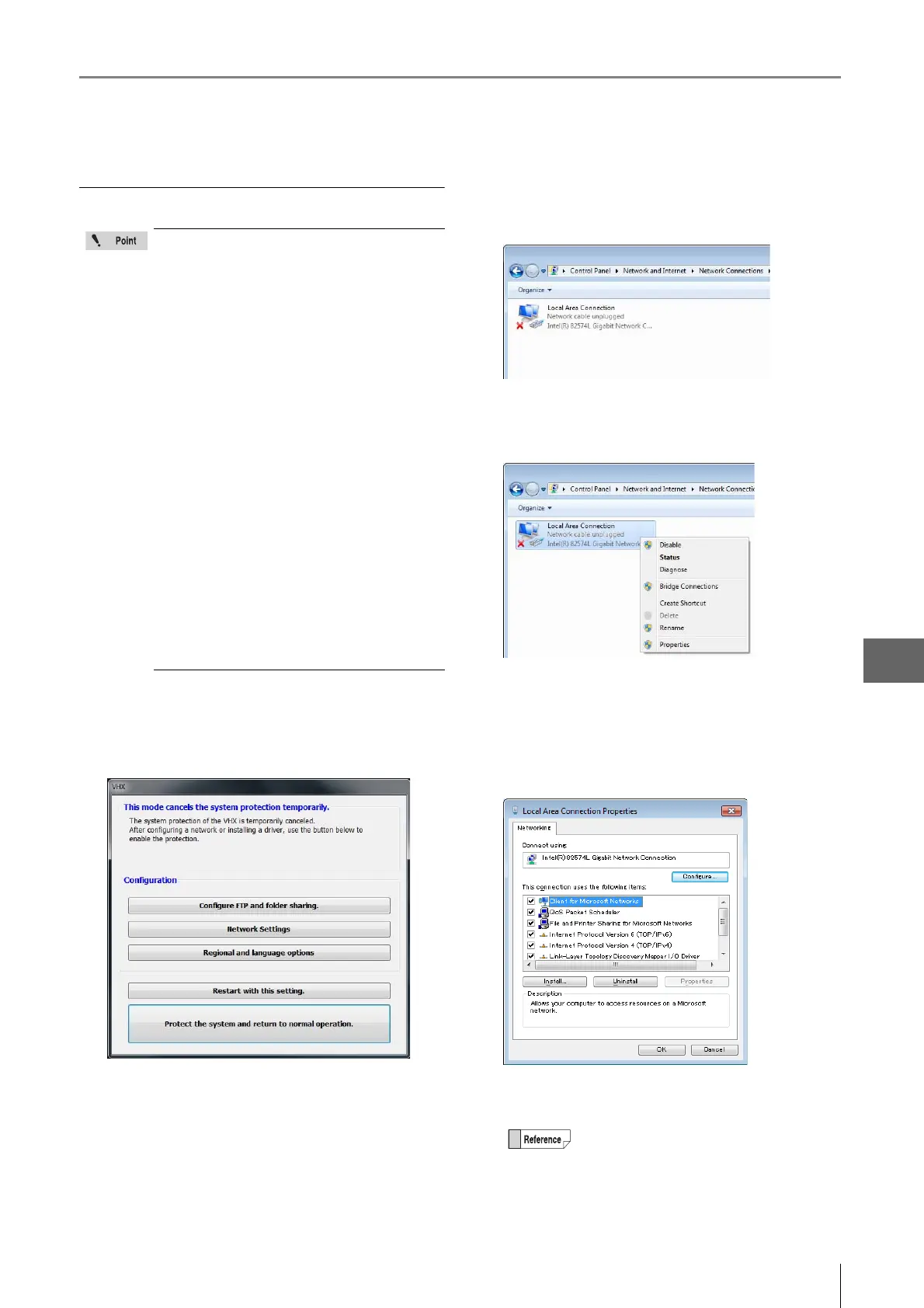
1 Temporarily disable system protection.
Refer to the procedures to temporarily disable system
protection (
Page 13-2).
2 Click [Network Settings].
The [Network Connection] dialog box appears.
3 Right-click [Local Area Connection] and select
[Properties].
The [Local Area Connection Properties] dialog box
appears.
4 Select [Internet Protocol Version 4 (TCP/IPv4)], and
click [Properties].
This displays the [Internet protocol version 4 (TCP/
IPv4)] properties.
• Before connecting the microscope to an
internal LAN, ask your system administrator
to assign an IP address to the microscope,
and to provide you with the subnet mask and
default gateway address. Using incorrect or
illegal settings will cause communications to
fail and may interfere with your LAN.
• To connect the microscope to a PC in a peer-
to-peer connection, use a crossed cable and
assign IP addresses between 192.168.0.1 and
192.168.0.254 under IPv4. For example, set
the microscope's IP address to 192.168.0.1,
and the PC to 192.168.0.2, and set the subnet
mask to 255.255.255.0.
• Use a category 5 or higher LAN cable if using
a 10BASE-T/100BASE-TX connection, or
category 5e or higher LAN cable for a
1000BASE-T connection.
• In order to network the system through a
domain, the system protection must be
disabled permanently. See "Completely
disabling system protection" (Page 13-6). The
system will be added to the domain as a
standard PC. Note that the microscope
capabilities of the system will only be
accessible from the master log in provided in
the "Completely disabling system
protection" section.
TCP/IPv4 is explained below as example.
• For a peer-to-peer connection, select
[Internet protocol version 4 (TCP/IPv4)].
• If TCP/IPv6 has been specified when the
microscope is connected to an internal
LAN, select [Internet protocol version 6
(TCP/IPv6)].



 To Next Page