Section 4 Windows Driver 4-20
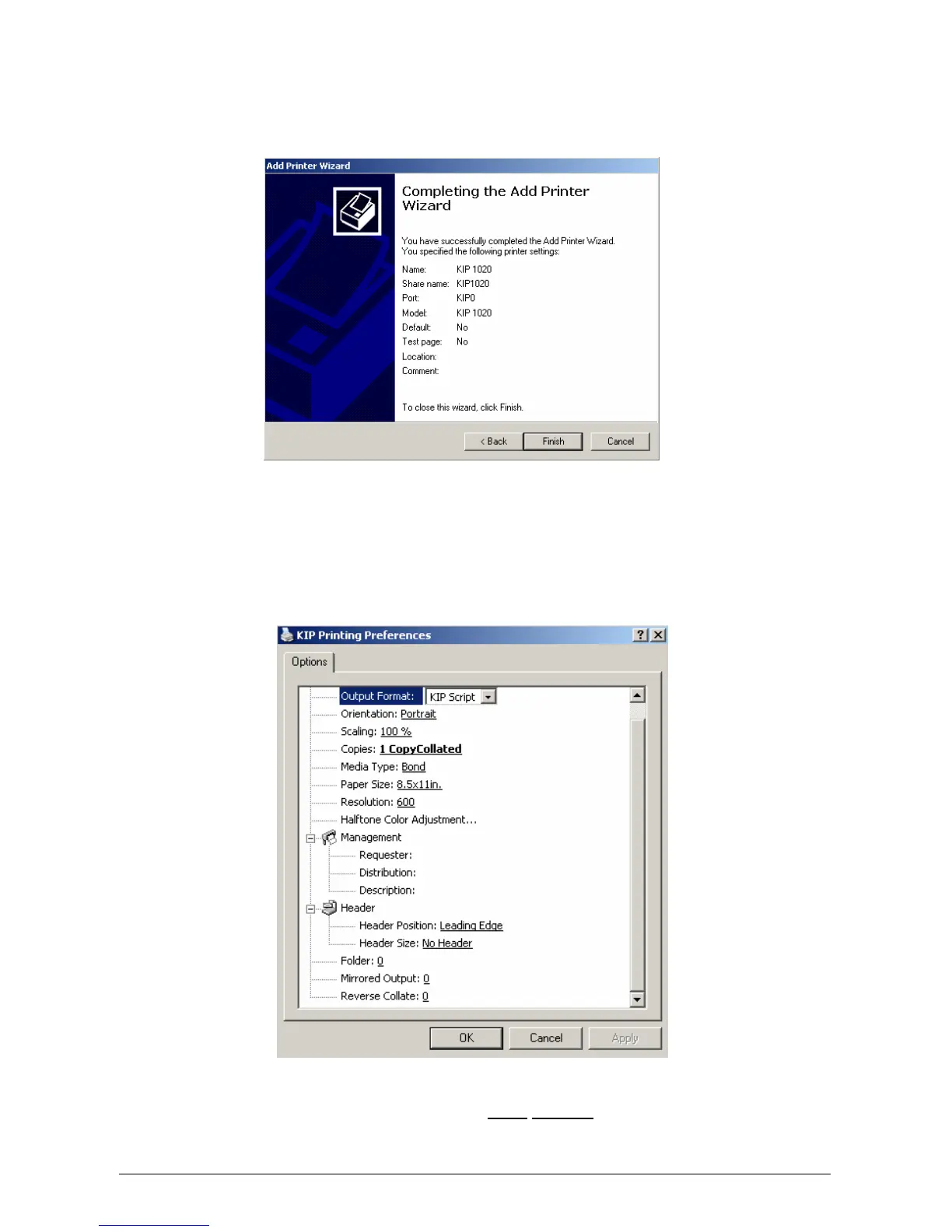
k) Completing the Add Printer Wizard dialog is displayed. Click Finish. Printer Driver is
added to system.
l) Installed printer can now be accessed from the Microsoft Printer Control Panel*
* If printer is not seen, press F5 to refresh the printer list
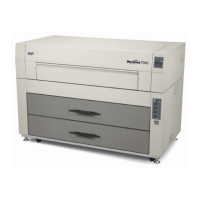
m) Right-Click KIP printer and select Printing Preferences*. User Interface is displayed.
* For Microsoft Windows NT4, select Document Defaults
p) The following settings will determine the initial
defaults for the printer driver. These
defaults are acquired from client workstations connecting to the shared printer driver.


 To Next Page