Section 6 Request 6-10
c) Select a predetermined Fold. (see 2.5.4 to
create Fold Patterns)
d) Please note that the fold parameter can be set in the Printer and displayed as
“Controller” in the Request. This uses the automatic settings of the printer to
determine the fold pattern for standard documents. For documents that may
require special folding please create the pattern in the Request software
2.3.6 File Order
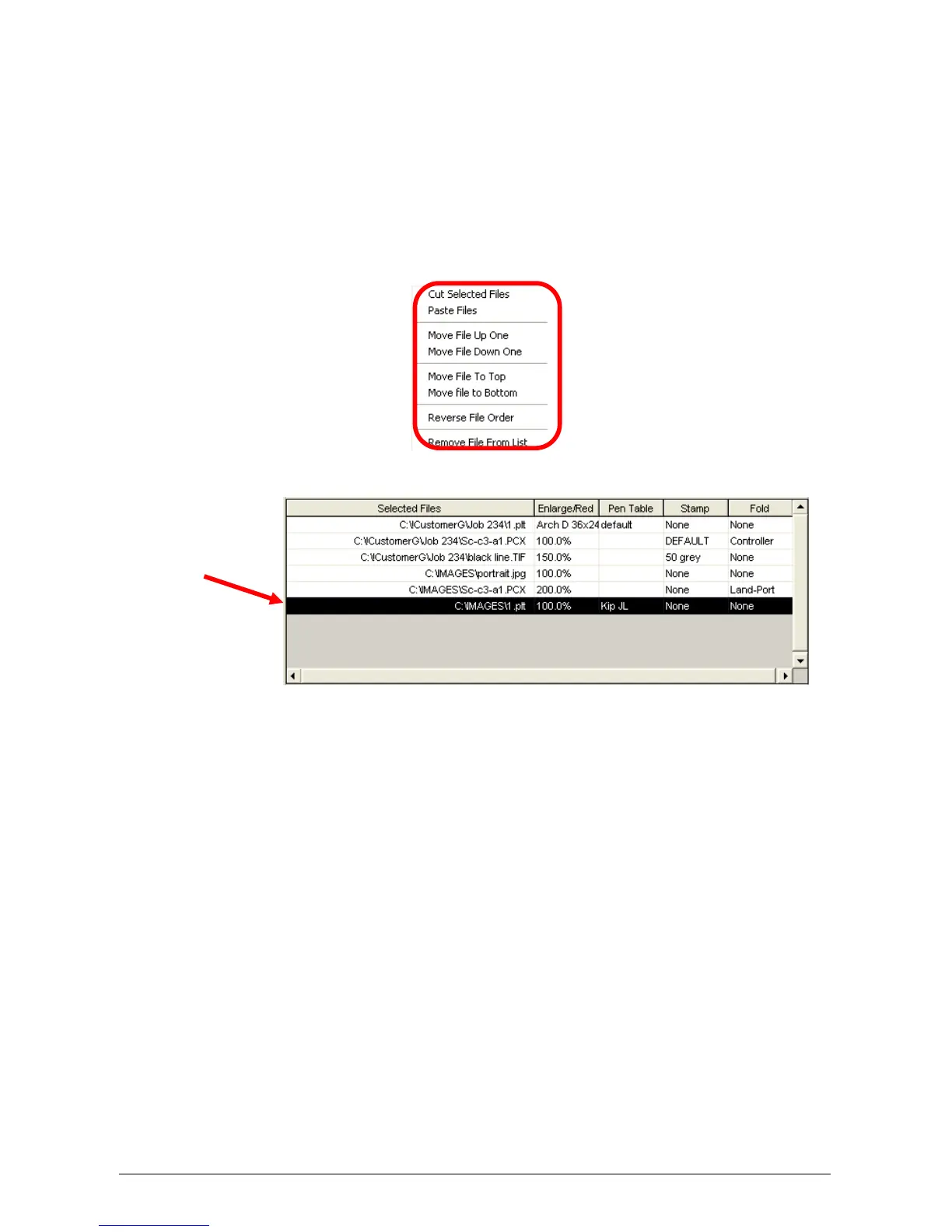
File print order, and removal can be preformed in the JOB list Area. After files
have been selected “right click” in the Job List area.
A menu will appear.
To perform some of the functions in the menu, a file(s) will need to be selected,
a) Cut Selected Files
This is a tool to remove the selected files.
b) Paste Files
This function is used to ‘Add’ new files between files in the selected files
area.
c) Move File Up One
Select a file to move up one in the selected files area.
d) Move File Down One
Select a file to move down one in the selected files area.
e) Move File to Top
Select a file to move up to the top in the selected files area.
f) Move File to Bottom
Select a file to move down to the bottom in the selected files area.
g) Reverse File Order
This tool reverses the entire job list in the selected files area.
h) Remove File from List
This tool is used to ‘Delete’ files from the selected files area list.


 To Next Page