Section 6 Request 6-4
1.2 Main Screen
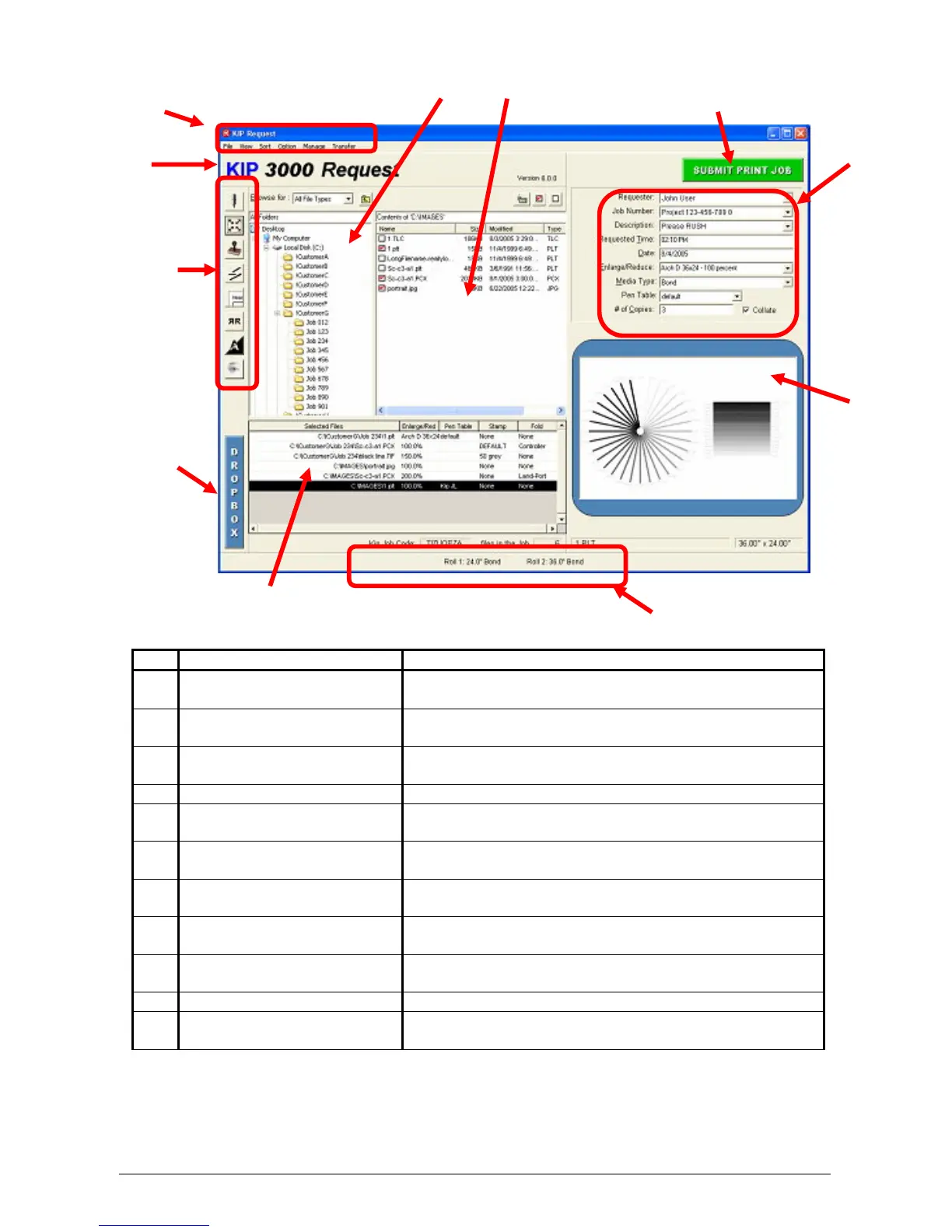
No. Name Function
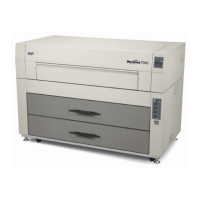
1 Printer Selection Click on the “name” to select the printer you wish to print
to if more than one KIP device installed.
2 Menu Menu for multiply functions in the GUI and configuration
of the software / system.
3 Folder Select Use this region to select the folder you wish to print files
from.
4 File Select Displays the files in a folder to allow selection.
5 Submit After file selection and adjustments, sends job for
printing.
6 Key Job Settings This area allows the key details to be applied to a job, if
so needed.
7 Pre -View Files can be pre-viewed prior to printing. Click on this
area to pre-view a file.
8 Printer / Job Info Displays current printer roll information or status as well
as basic job / file information
9 Job List Displays files for printing and any function applied to the
file
10 Dropbox For drag and drop function of file selection
11 Advanced Job Settings Allows advanced job and print configurations, such as
Zoom, Stamp, Fold, and Pen Control.
2
34
5
61
11
7
8
10
9


 To Next Page