7-17 Section 7 KIP Print Net
5.2 Email Settings
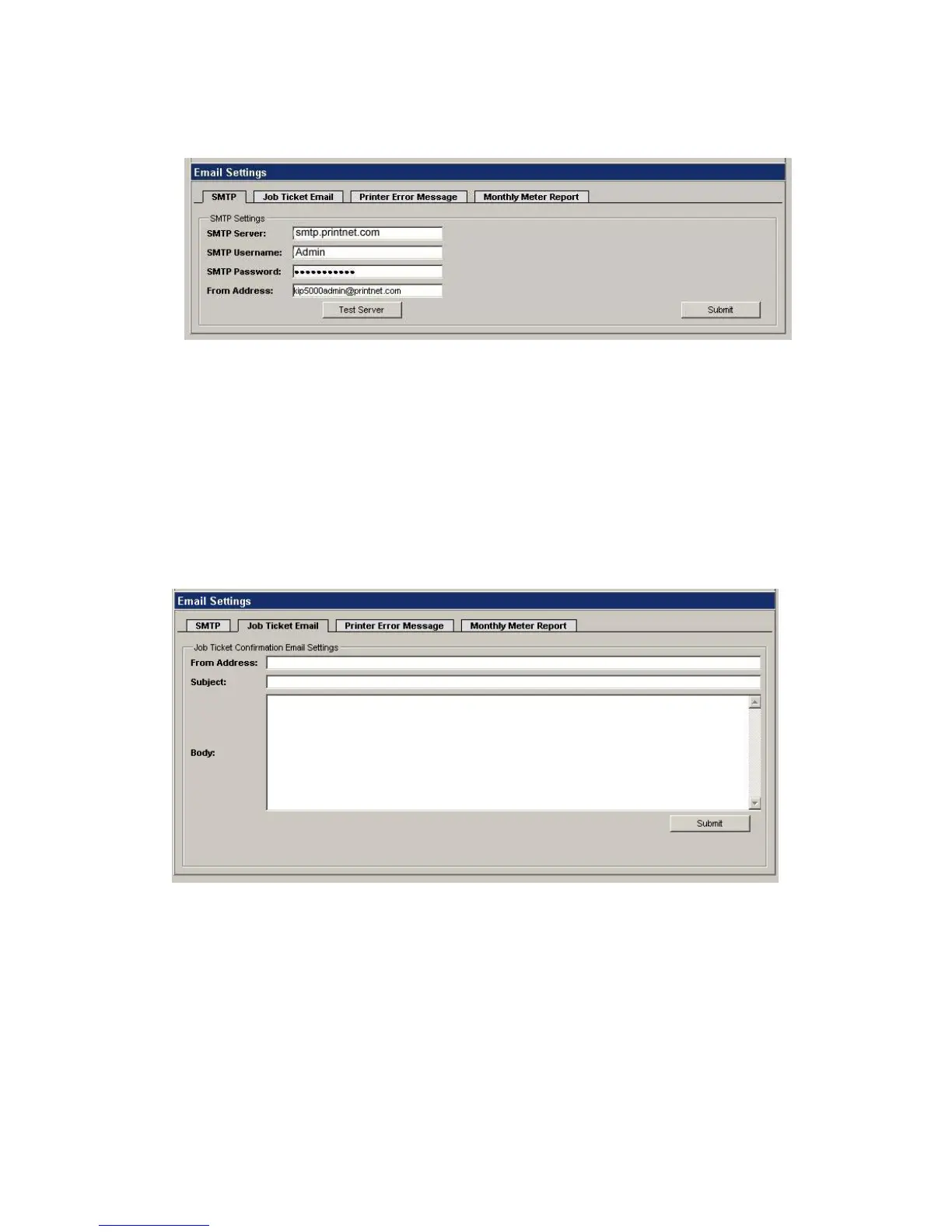
SMTP
Setup SMTP Server and Email settings. Click Submit when finished.
SMTP Server: Name or IP Address of your Email Server.
SMTP Username: Login name for Email Server.
SMTP Password: Password for login.
From Address: Email Address that will show in the from field.
Click the Test Server button to test login credentials.
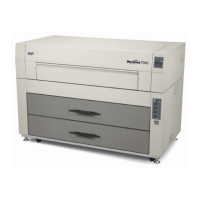
Job Ticket Email
This section sets the E-Mail message that is sent when a job is submitted through PrintNET
and a receipt is requested.
From Address: Email Address that will show in the from field. You can put multiple
address in separated by a semicolon “;”.
Subject: Subject of the Email.
Body: Body of Email.
NOTE: You can right click in the Subject or Body sections and select a macro to be
automatically filled in when message is sent. You can choose from Job Ticket, Requester,
Job Number, and Description.


 To Next Page