156
[Example]
PRELOAD1.* : PRELOAD1.PCG, PRELOAD1.SNG, ...
PRELOAD?.PCG : PRELOAD1.PCG, PRELOAD2.PCG,
PRELOAD3.PCG, ...
When wildcards are used, only files will be subject to
copying. Directories will not be copied.
2 Use the [F5] (“UP”) key and [F6] (“OPEN”) key to select
the copy destination directory.
It is not possible to open .PCG or .SNG files while you
are selecting the copy destination directory. The [F6]
(“OPEN”) key cannot be used for .PCG or .SNG files.
3 If you wish to copy the file or directory with a different
name, use the [F3] (“R.Name”) key (in the lower line) to
access the text dialog box, and specify the name with
which the file or directory will be copied (
☞BG p.39).
If you are using wildcards to simultaneously copy mul-
tiple files, it is not possible to modify the filename.
4 To copy the data, press the [F8] (“OK”) key. To cancel
without copying, press the [F7] (“Cancel”) key.
It is not possible to copy between disks.
Delete
This command deletes the selected file or directory.
If a directory is selected, it can be deleted only if no files
exist within that directory.
This command is valid only if a DOS file or directory is
selected.
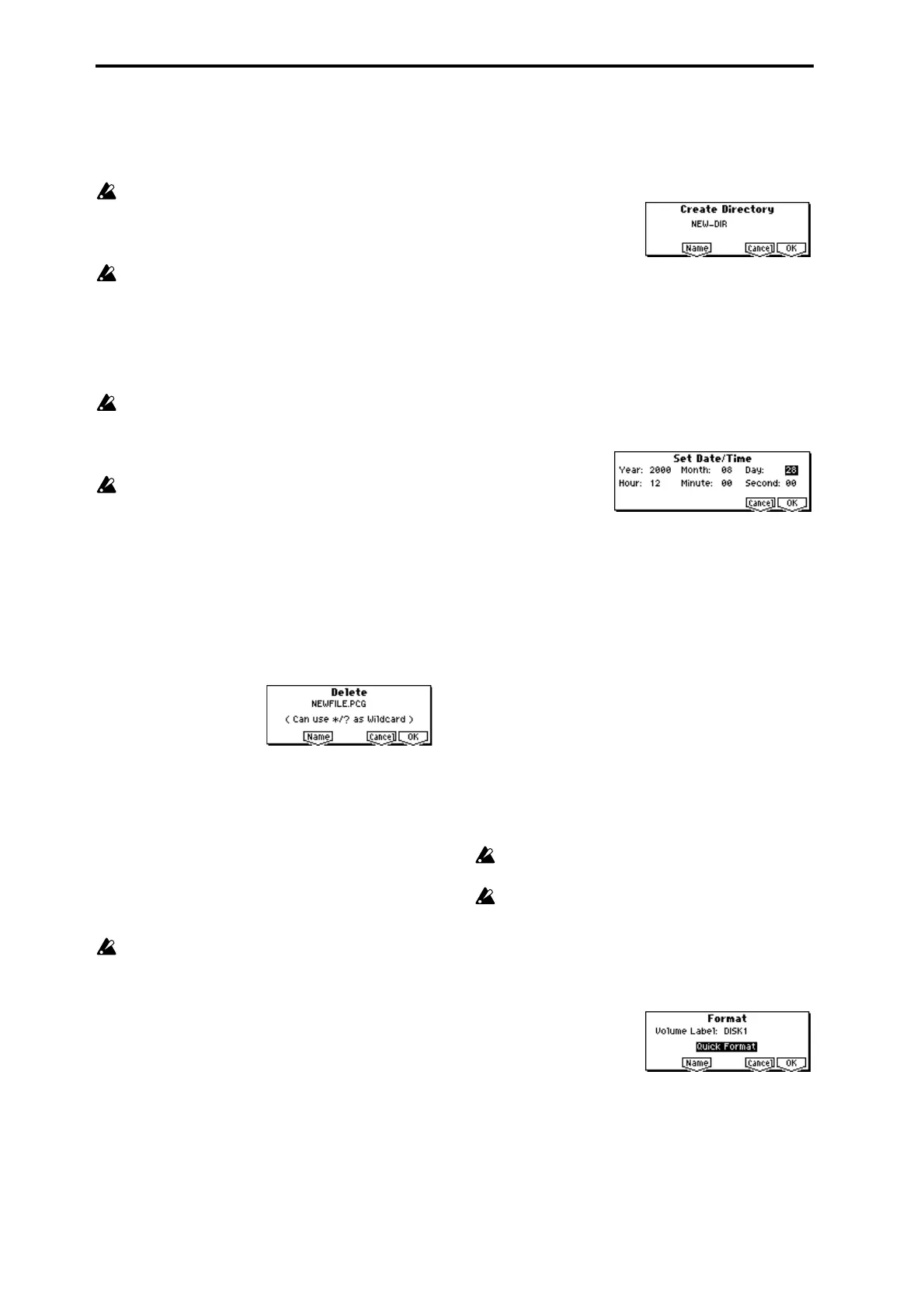
1 Select “Delete” to access the following dialog box.
“Delete” will indicate the name of the selected file or
directory.
2 If you wish to change the file or directory that is to be
deleted, use the [F5] (“Name”) key to access the text dia-
log box, and specify the name of the file or directory that
you wish to delete (
☞BG p.39).
(Can use */? as Wildcard): When you use the [F5]
(“Name”) key to access the text dialog box and specify
the name of the file to be deleted, you can use the “*” or
“?” characters as wildcards. This allows you to simulta-
neously delete multiple files with identical filenames and
different extensions, or files whose names are partially
identical (
☞“Copy” (1.1–3a)).
When wildcards are used, only files will be subject to
deletion. Directories will not be deleted.
3 To delete the selected file or directory, press the [F8]
(“OK”) key. To cancel without deleting, press the [F7]
(“Cancel”) key.
Create Directory
This command creates a new directory within the current
directory.
1 Select “Create Directory” to access the following dialog
box.
2 Use the [F5] (“Name”) key to access the text dialog box,
and specify the name of the new directory (
☞BG p.39).
3 To create the directory, press the [F8] (“OK”) key. To can-
cel without creating the directory, press the [F7] (“Can-
cel”) key.
Set Date/Time
This command sets the date and time that will be used to
time-stamp files that are saved.
1 Select “Set Date/Time” to access the following dialog
box.
2 Set each parameter.
3 To set the date and time, press the [F8] (“OK”) key. To
cancel, press the [F7] (“Cancel”) key.
The seconds (“Second”) will not be displayed in the
directory window.
Format
This command formats the selected media, such as a floppy
disk. The volume label (a name for the entire disk) you spec-
ify will be assigned to the disk. The volume label you assign
here will be displayed in “Label” (1.1–1c). The volume label
can be a maximum of eleven characters.
When you format, all data saved on that disk will be
erased. Be sure to double-check before you format.
After formatting, it is not possible to press the [COM-
PARE] key to return to the previous state.
1 To format a floppy disk, insert the floppy disk to be for-
matted into the floppy disk drive.
2 Press the [DISK] key or a function key to make this
instrument recognize the disk.
3 Select “Format” to access the following dialog box.
4 Press the [F5] (“Name”) key to move to the text dialog
box, and specify the “Volume Label” (
☞BG p.39).
“Year” 1980–2079
“Month” 1–12
“Day” 1–31
“Hour” 0–23
“Minute” 0–59
“Second” 0–59 (only even-numbered second values will
be assigned to a file)




 To Next Page