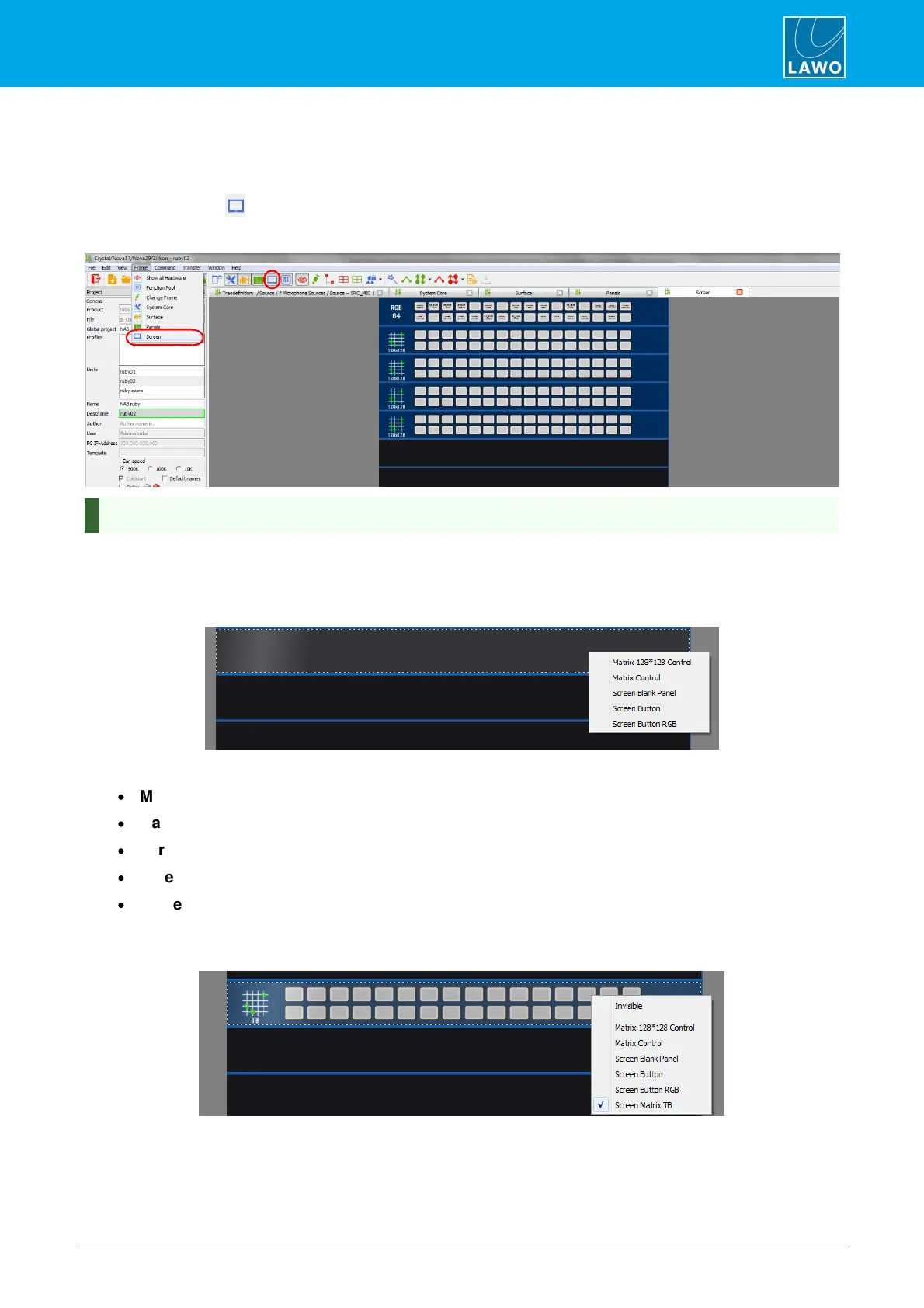
The Screen configuration can be used to create virtual control panels which will be operated from VisTool.
1. Click on the Toolbar icon, or select Frame -> Screen, to open the window:
Screen Configuration Window
The MF Key labels are shown for all existing functions. Drag and drop an MF Key to swap the button functions -
an arrow will appear when valid "drop" position is reached. This works in the same way as the Central Module
MF Key swap described earlier.
2. Right-click on an empty panel slot to assign a Screen Panel:
The available options are:
·
Matrix 128 * 128 Control - an XY matrix panel of 128 x 128.
·
Matrix Control - an XY matrix panel of 90 x 30 (switched in pages).
·
Screen Blank Panel – a blank panel (to replace an existing panel).
·
Screen Button – 32 MF Key functions.
·
Screen Button RGB – 64 MF Key functions with self-labeling, RGB buttons.
3. Scroll down to the lower slots and notice that some additional options become available:
Slot 11: Screen Matrix TB - a talkback switching panel, with 32 buttons:



 To Next Page