Power Core User Manual Version: 6.6.0/3 63/539
8. Configuring Power Core
8.10 Transferring Configuration Data to the Unit
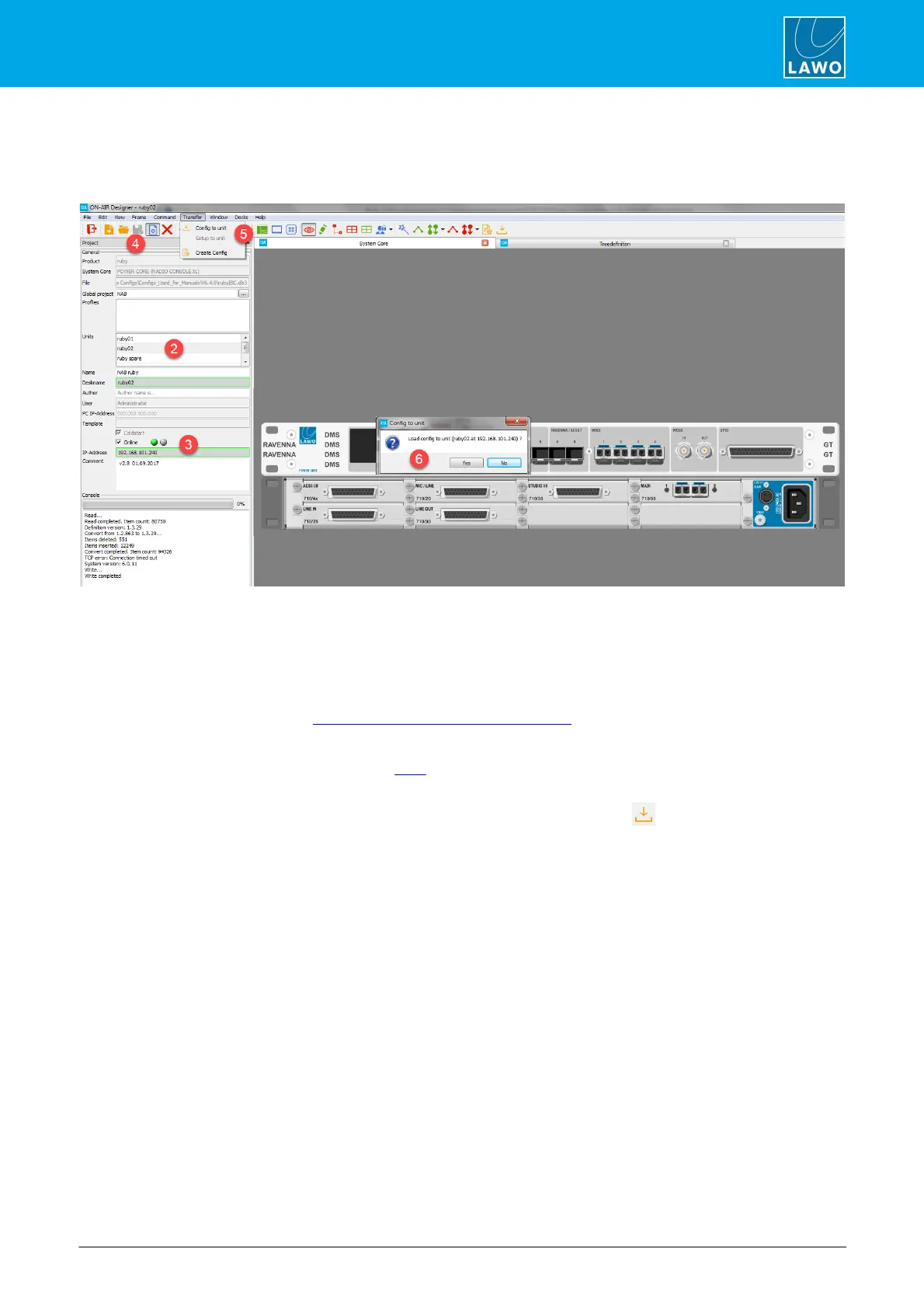
This function transfers the configuration parameters to the selected unit. The screenshot below is taken from
Power Core, but the procedure is identical for all radio on-air systems.
1. Start by opening the project you wish to transfer.
2. In the 'Project' window, select the unit from the Units field (if multiple units are configured).
3. Then tick the Online checkbox and make sure that you have a valid network connection to the device -
the green Online indicator should be lit.
If the red indicator is lit, then check the IP address of the device and edit the IP-Address field to match - the
Online indicators will update. See Checking the Network Communication.
4. If any changes have been made to the configuration, then these must be saved before the transfer.
Use either File -> Save or File -> Save As to save the project. You can use any file name and location, as long
as the file type (.db3) remains unchanged.
5. Select Transfer -> Config to unit from the top menu bar, or click on the Toolbar icon.
If the option is greyed out, then there is no network communication to the device. Go back to step 3 until this is
resolved.
6. A confirmation box appears. Check the details and select Yes to start the transfer.
The software now compiles the necessary files and transfers them to the device. The progress is shown in the
Console status area at the bottom of the 'Project' window. Once the transfer is complete you will see the lines
File loaded to unit and Sending restart. The device will go offline while it restarts. This is perfectly normal but
may take a few seconds. All systems perform a cold start, except for the Nova29 which warm starts (to keep all
matrix crosspoints in place).
7. At the end of the reboot, the new configuration data is loaded and the transfer is complete.
If your computer’s firewall prevents the transfer, then change your firewall settings and retry.



 To Next Page