7. System Setup
Once all of the system components are connected and powered, you should check their firmware revisions
using SoP Explorer. The screenshots below are taken from Power Core, but the procedure is identical for all
radio on-air systems.
1. SoP Explorer starts automatically at the end of the ON-AIR Designer software installation procedure.
Alternatively, select SoP Explorer from the Windows START menu - the application opens with a blank
operating window.
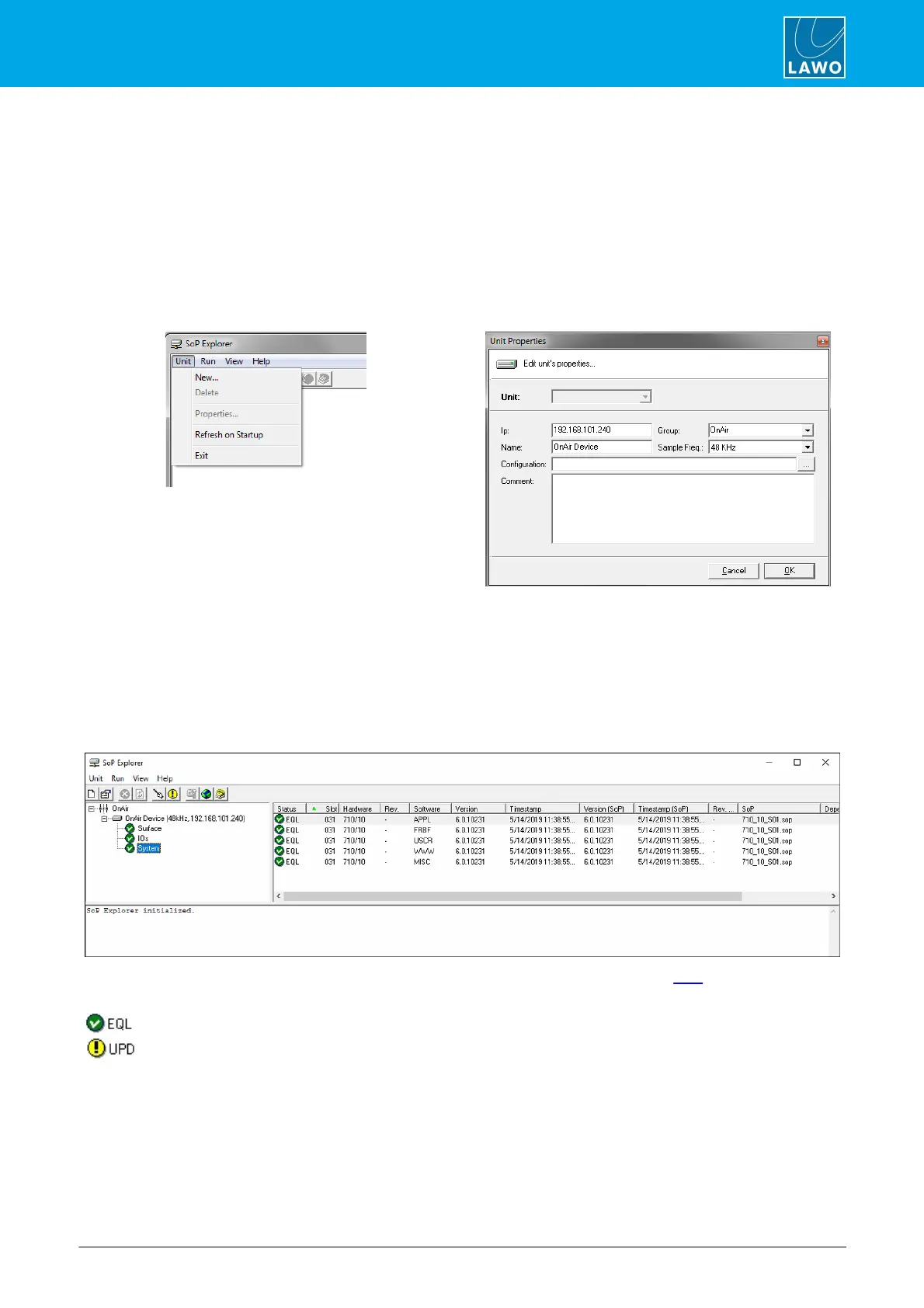
2. Select Unit -> New... from the main menus, enter the IP address of the system and select OK.
The unit is added and SoP Explorer connects to the system and analyses the current firmware revisions.
3. In the system tree (on the left), use the + and - signs to open and close the unit.
For Compact Engine and Nova29 systems, you should see two components: System and Surface. For Power
Core, there is a third component: IOs.
If the Surface branch is missing, then the control surface and Key Panels are not connected.
4. Select a component (e.g. System) to interrogate its software modules.
Several columns of information are provided. These are described in more detail later. For now, use the
"Status" column to check the firmware revisions. Usually you will see one of the following icons:
5. Repeat to interrogate each component as applicable: System, IOs and Surface.
If all modules on all components are up to date, then you can close SoP Explorer. Alternatively, use the
'Software Update Wizard' to update the components.



 To Next Page