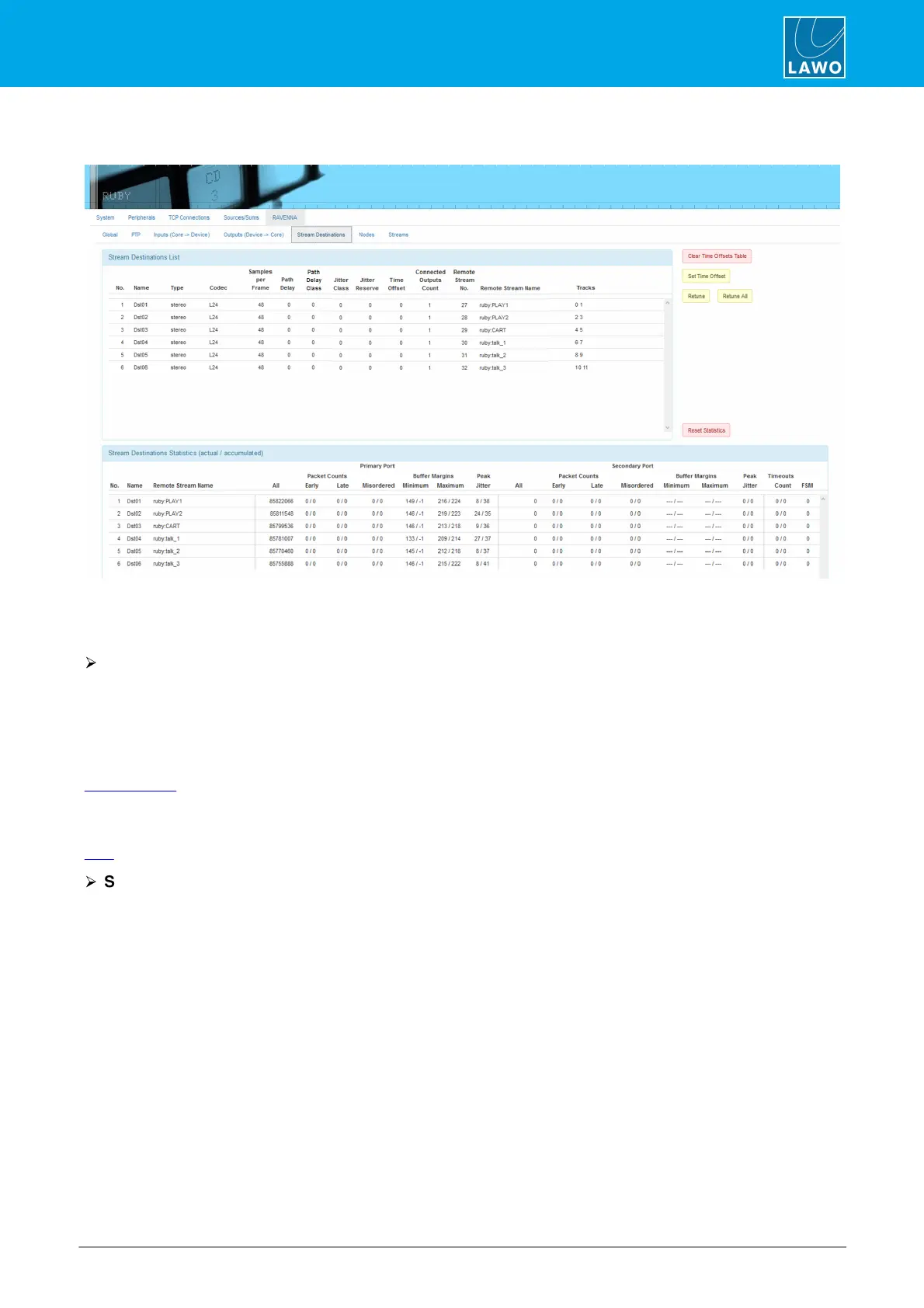
22.7.5 Stream Destinations Tab
This tab shows the statistics for all of the stream destinations which are in use (i.e. all subscribed streams). It
can be used to view information about stream latency and stability, and to “retune” streams which are not
performing properly.
Ø
Stream Destinations List
This section shows information pertaining to individual RAVENNA streams. Data includes the number of audio
channels, codec used, sample rate, number of subscribers listening to the stream, the Remote Stream name
and number, and the numerical designations for the audio channels supplied. Streams with blank Remote
Stream Name values are inactive or unavailable.
Of particular note are the Jitter Class, Path Delay Class and Time Offset values which are applied during
stream tuning.
The Time Offsets for all streams can be cleared by clicking on the Clear Time Offsets Table button.
The Set Time Offset, Retune and Retune All buttons can be used to manually retune streams (as described
later).
Ø
Stream Destinations Statistics
This section provides statistics that report on the health of the received Primary and Secondary streams. Data
includes the Packet Counts for Early, Late and Misordered Packets, Buffer Margins and Peak Jitter.
Of particular importance are the Primary Port Early and Late Packets Counts. If large numbers are seen in
these columns, along with degraded audio performance, the stream should be retuned to fix the problem. The
FSM column indicates the status of the retuning process.
The stream statistics can be cleared by clicking on the Reset Statistics button.



 To Next Page