Power Core User Manual Version: 6.6.0/3 321/539
17. Connecting a VisTool MK2 PC
17.11 VisTool General Settings
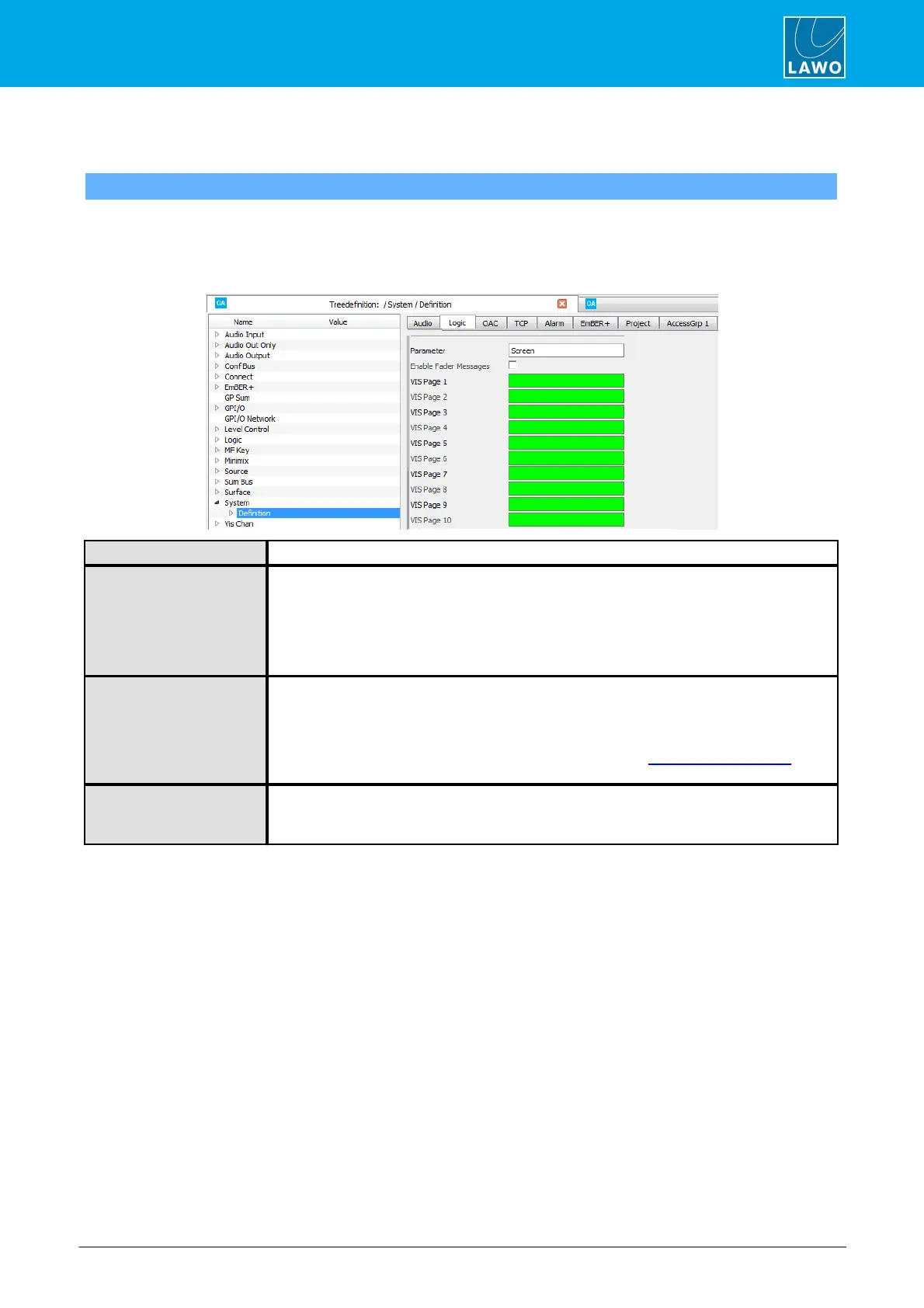
"System -> Definition -> Parameter = Screen"
This branch of the 'Tree Definition' defines general settings for VisTool functions. The options apply globally to
all VisTool instances.
Start by selecting "System -> Definition" in 'Tree Definition' and the Logic tab. Scroll down to access the
"Parameter = Screen" options:
Screen – reference name for the element.
When ticked, messages concerning fader levels are exchanged via DMS. When unticked,
fader messages via DMS are disabled.
The option must be ticked in order to exchange fader values with VisTool (e.g. to/from VisTool
Fader elements). When enabled, there will be an increase in the amount of network traffic.
If fader messages are not required (to/from other DMS devices), then the option should be
disabled to reduce the volume of network traffic.
Available for crystal, sapphire and sapphire compact.
Assigns a control signal (for example, an MF Key) to switch VisTool to a particular page. You
can configure switching for the first 10 VisTool pages – page index 1 to 10. Pages are
switched across all VisTool instances. Thus, if you are connecting more than one VisTool and
wish to configure independent page switching, please use the "Logic -> VispageSwitch"
element instead.
ASSIGN State Key Pressed
Transition
Available for ruby.
Defines whether the console ASSIGN state triggers ACCESS functions in VisTool. There are
two possible states: ASSIGN triggers ACCESS or ASSIGN triggers the normal state.



 To Next Page