5.2011.8583.0 C
5-34 Operating Instructions
3. Push button
Scan.
4. If more than 1 route is available:
Use the buttons
and and push Select to select a route.
The manual task is shown on the page.
5. Push
Done
All tasks are shown in the order of execution.
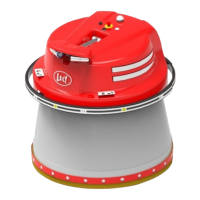
The tasks start when the Mixing and Feeding Robot is in operation and is connected to the charger under
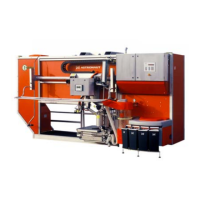
the feed loading point and the feed kitchen is in operation.
When all the tasks are done, the system will continue to work automatically.
5.7 Change the Feedstuff in a Feed Storage Place
1. Put the feed kitchen in the fill mode with the console or the smartphone connected to the Feed
Controller.
2. In the feed kitchen, determine the feed storage places where the new feedstuff will be set and write
down the numbers.
3. Fill the feed storage places, and do not put the feed kitchen in operation yet.
4. Go to the T4C PC and:
• If necessary add the new feedstuff to the library
• On the feed kitchen page click the storage place/block which needs to be changed, and select via
the drop down menu the new feedstuff.
• Remove the old feedstuff from the rations
• Add the new feedstuff to the rations
• The next new feed task received by the MFR can use the new or changed feedstuff from the
storage place(s).
5. Put the feed kitchen in operation.
5.8 Drive the Mixing and Feeding Robot
5.8.1 Drive the Mixing and Feeding Robot Manually
1. Connect the smartphone (see Connect the Smartphone to Device Software on page 5-15) to the Mixing
and Feeding Robot.
2. Go to the page Work.
3. Push the button
two times to go to the tab MANUAL DRIVING.
4. The following message appears on your display: SAFETY WARNING Manual operation is
permitted only with a clear overview of the vehicle. Confirm?
5. Confirm if you have a clear overview of the Mixing and Feeding Robot.
in n o vato rs in agriculture




 To Next Page