5.2011.8583.0 C
Troubleshooting 7-1
7 Troubleshooting
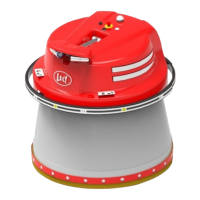
If there is an alarm, follow the instructions in the paragraph Examine the alarm and Report list . This
chapter has a troubleshooting table with some specific problems for the Mixing and Feeding Robot and
the for the Feed Grabber.
For problems with grabbing feed due to feed type settings more information can be found in the T4C
manual.
7.1 Restart the System after an Alarm
You can either use the WebUI or the smartphone to reset alarms on the Feed Controller software.
Restart the System with the WebUI
1. Start the WebUI (see page 5-16).
2. Push the button
Alarms.
3. If there is an alarm on the Feed Controller or another device, it is shown in the list of Active alarms.
4. Read the alarm message and remove the cause of the alarm, if necessary see Troubleshooting to see
what actions should be taken to remove the alarm.
5. If there is an accept button behind the alarm message, push Accept to confirm the alarm message, no
further actions are necessary.
6. If there is an alarm on another device, this is shown in the list Active alarms.
Depending on the location of the alarm see:
• If the alarm is on the Mixing and Feeding Robot, Feed Grabber or Bridge Crane: (see page 7-2)
• If the Mixing and Feeding Robot gives the alarm that the automatic (barn) door is in error state:
(see page 7-2)
• If the alarm is on the additives dispenser (frequency pulse) (see page 7-2)
Restart the system with the smartphone
1. Connect the smartphone (see Connect the Smartphone to Device Software on page 5-15) to the Feed
Controller.
2. If there is an alarm on the Feed Controller it is shown on the display.
3. Read the alarm message, if necessary go to chapter Troubleshooting to see what actions should be
taken to remove the cause of the alarm.
4. Push
to confirm the alarm message.
5. If there is an alarm on another device go to the page Alarms > Active alarms.
6. Check on which device the alarm is generated.
7. Push
. If necessary go to chapter Troubleshooting to see what actions should be taken to remove
the cause of the alarm.
in n o vato rs in agriculture




 To Next Page