5.2011.8583.0 C
Operating Instructions 5-15
5.2 Connect to Device Software with a Smartphone
5.2.1 Connect the Smartphone to Device Software
Unexpected movement of device.
Risk of personal injury.
Only operate the device with the smartphone when it is in your line of sight.
1. Make sure the App is installed (see Install or Update the App on Your Smartphone on page 5-16) on
your smartphone.
2. Make sure you are near the device and you can see the device (power distribution box, Feeding Robot,
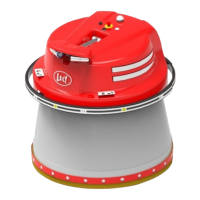
Feed Grabber, Bridge Crane or control box of the Automatic (barn) door) before you start the software.
3. Start the App.
If Bluetooth was not in operation the following question appears:
The application tries to switch on Bluetooth, continue?
1. Push Yes.
4. Push the line: Search for devices
The devices near the smartphone will be found,
if one or more devices are not found, repeat this step.
5. Select the device you want to operate.
A connection will be made with the selected software.
The title is displayed in green letters when the connection is made.
If the smartphone loses connection the green title turns red:
1. Move towards the device to make the connection again.
The smartphone shows a keyboard and a display that can be used to operate the software.
In general the buttons have the following function:
•
Confirms the action on the display above the applicable button.
•
Starts or stops an action.
•
Moves the selector up one item or increases a value by one.
•
Moves the selector down one item or decreases a value by one.
•
Opens the selected function or the next menu screen.
•
Returns to the previous screen and saves the changes.
•
Program button with specific action.
in n o vato rs in agriculture




 To Next Page