9 PC software
98 NBM-550 Narda
9.4 Updating the firmware
You can update the firmware of the NBM-550 in order to
make use of new or improved functions.
You can only update the firmware using a PC on which the
NBM-TS PC software has been installed.
Note: The NBM-550 must be supplied with power via the mains
adapter while updating. This prevents the update from being
interrupted due to discharged batteries. The PC software
checks whether an adapter is connected, and, if not,
displays a warning.
Updating the firmware
1. Save the latest firmware for the NBM-550 on the PC.
The latest firmware is available from the Narda website
at http://www.narda-sts.com.
The NBM-TS software automatically directs you with a
simple mouse click to the corresponding website in order
to search for a newer version of both the NBM-550
firmware as well as the NBM-TS software. Always use
the most recent NBM-TS version to perform a firmware
update.
2. Establish a connection between the instrument and PC
(see “Working with the PC software” on page 97).
3. Start the NBM-TS software.
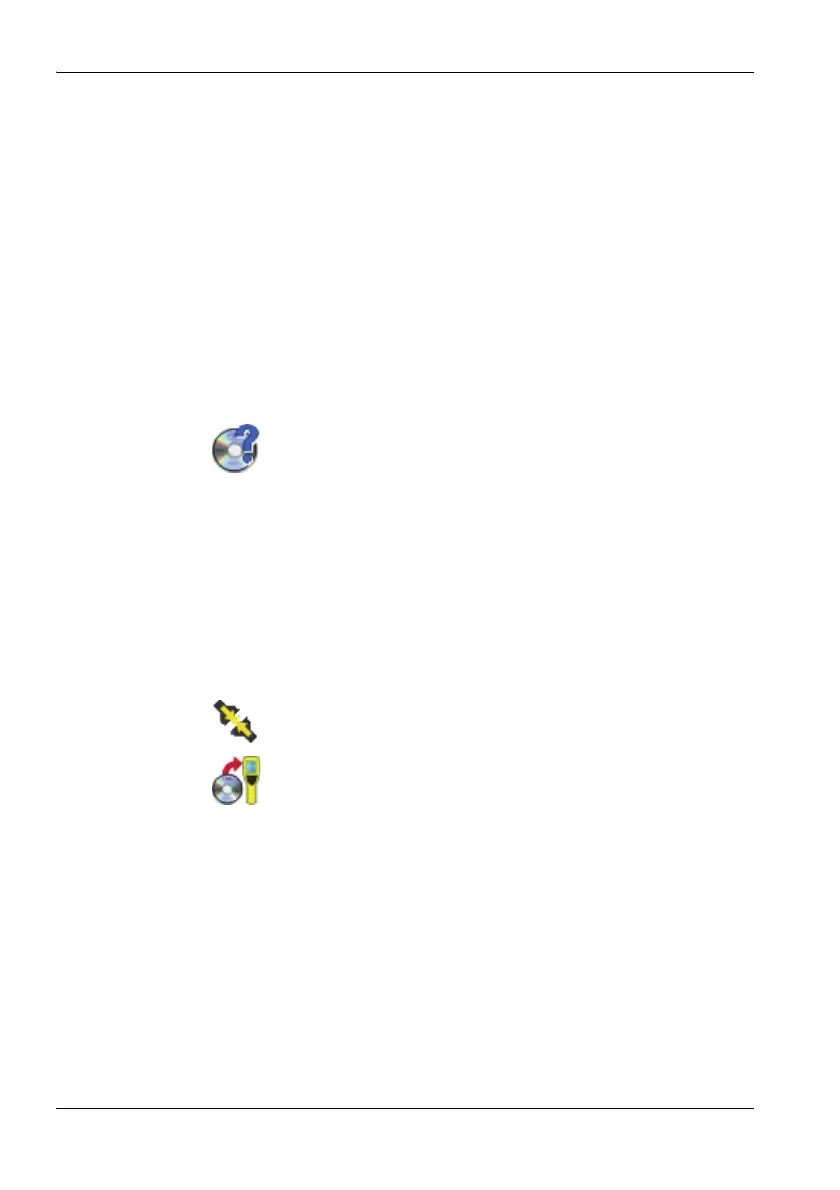
4. Change to the Extras menu and activate the connection
via the Connect icon.
5. Click on the Firmware Update icon and follow the
instructions displayed on the screen
The NBM is initially switched off via remote control
and you will be prompted to switch it on.
The firmware transfer is indicated by the flashing sta-
tus LED.
After a successful transfer, a PC software notice ap-
pears.
6. Switch the NBM-550 on again.
The self test with the new firmware starts.
Note: A firmware update takes about 5 minutes. The NBM-550
display remains blank during update.



 To Next Page