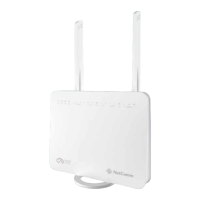
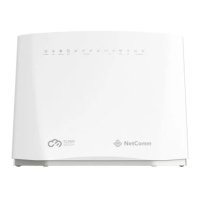
NL1901ACV Enhanced Hybrid 4G LTE Gateway – User Guide
UG01063 v. 1.0 December 2018
Troubleshooting
Using the indicator lights (LEDs) to Diagnose Problems
The LEDs are useful in diagnosing the possible cause of a variety of problems.
Power LED
The Power LED does not light up.
Make sure that the NL1901ACV power adaptor is connected to the device and
plugged in to an appropriate power source. Use only the supplied power adaptor.
Check that the NL1901ACV and the power source are both turned on and device is
receiving sufficient power.
Turn the NL1901ACV off and on.
If the error persists, you may have a hardware problem. In this case, you should
contact technical support.
Table 47 – Power LED trouble shooting table
Web Configuration
I cannot access the web configuration pages.
Check that you have enabled remote administration access. If you have configured
an inbound packet filter, ensure your computer’s IP address matches it.
Your computer’s and the NL1901ACV’s IP addresses must be on the same subnet
for LAN access. You can check the subnet in use by the gateway on the Network
Setup page.
If you have changed the devices IP address, then enter the new one as the URL you
enter into the address bar of your web browser.
If you are still not able to access the web configuration pages, reset the gateway to
the factory default settings by pressing the reset button for ten (10) seconds and
then releasing it. When the Power LED begins to blink, the defaults have been
restored and the NL1901ACV restarts. Navigate to 192.168.20.1 in your web
browser and enter “admin” (without the quotes) as the username and password.
Table 48 – Web Configuration – no access trouble shooting table
The web configuration does not display properly.
Delete the temporary web files and log in again. In Internet Explorer, click
,
and then click the
button.
When a Delete Files window displays, select
Delete all offline content
and click
– Steps may vary depending on the version of your Internet browser.
CORRECTIVE ACTION
Table 49 – Web Configuration – no display trouble shooting table



 To Next Page