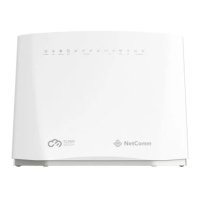
NL1901ACV Enhanced Hybrid 4G LTE Gateway – User Guide
UG01063 v. 1.0 December 2018
Select
to prevent any website containing the
string
in its URL from accessing your entire local area network during the set
time period.
Select
to allow only websites containing one of the
strings in its URL to accessing your local area network .
Keywords can be:
• a URL address – e.g. www.facebook.com
• an IP address – e.g. 226.58.199.68
or
•
string of characters – e.g. ‘adult’, ‘XXX’
– The string of characters Keyword approach will not work for websites
that are secured using the
(Hyper Text Transfer Protocol Secure) protocol.
Therefore any website with
in its URL will not be blocked using keyword(s)
filters containing strings of text or characters.
Enter the port number, the default port 80 will be applied if this is left
blank.
Select the days of the week for which the black or white list will be
applied to the filtered URLs.
The
time expressed in 24 hour time settings.
The
time expressed in 24 hour time settings.
To permanently delete a filter from the list, select its checkbox in the
column and click the
button.
button
Press the
button to open the filter creation dialog.
Table 26 – Advanced – Parental Control – Add URL Restriction Settings
Once you have chosen to add a URL to the list you will be prompted to enter the address. Simply type it in and
select the
Apply/Save button.
Figure 68 – Advanced – Parental Control – Add URL Filter
The URL address of the device you want to black list or white list.
This can also be an IP Address or a keyword(s) which are character
strings.
Note that character string keyword filters will not work on websites
that are secured using the
(Hyper Text Transfer Protocol Secure)
protocol.
The Port Number (Default is
).



 To Next Page