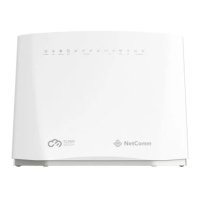
NL1901ACV Enhanced Hybrid 4G LTE Gateway – User Guide
UG01063 v. 1.0 December 2018
Appendix: Quality of Service setup example
The following Quality of Service (QoS) settings offer a basic setup example, setting up 2 devices connecting to an
NL1901ACV gateway, one with the highest priority for data and the other with the lowest priority for data. All other
data packet traffic through the gateway assumes a default best effort setting.
Quality of Service refers to the reservation of bandwidth resources on the NL1901ACV gateway to provide different
priorities to different applications, users or data flows or to guarantee a certain level of performance to a data flow.
In this implementation, QoS employs DSCP (Differentiated Services Code Point), a computer networking
architecture that specifies a simple, scalable and course-grained mechanism for classifying and managing network
traffic.
This example guide sets up QoS with two devices (PC and laptop) connecting via Ethernet cable to an NL1901ACV
gateway. One device (PC) is assigned high priority traffic while the other device (laptop) is assigned a low priority.
Before Quality of Service can be implemented, the first step involves reserving an IP address for each device,
identified by their unique MAC addresses.
Reserving IP addresses
So that QoS settings, custom NAT settings, and parental control settings can be managed for each device, it is
necessary to reserve an IP address for each of the devices connecting to the NL1901ACV.
Reserved IP addresses are not required to be within the DHCP server range, however they are required to be with-
in the LAN subnet range:
1 Navigate to http://192.168.20.1 in a web browser.
2 When prompted, enter admin as both the username and password.
3 Select
Advanced Setup > LAN
Figure 139 – Advanced Setup > LAN page



 To Next Page