Copyright© Orphée SA. All Rights Reserved.
3.3 SET UP
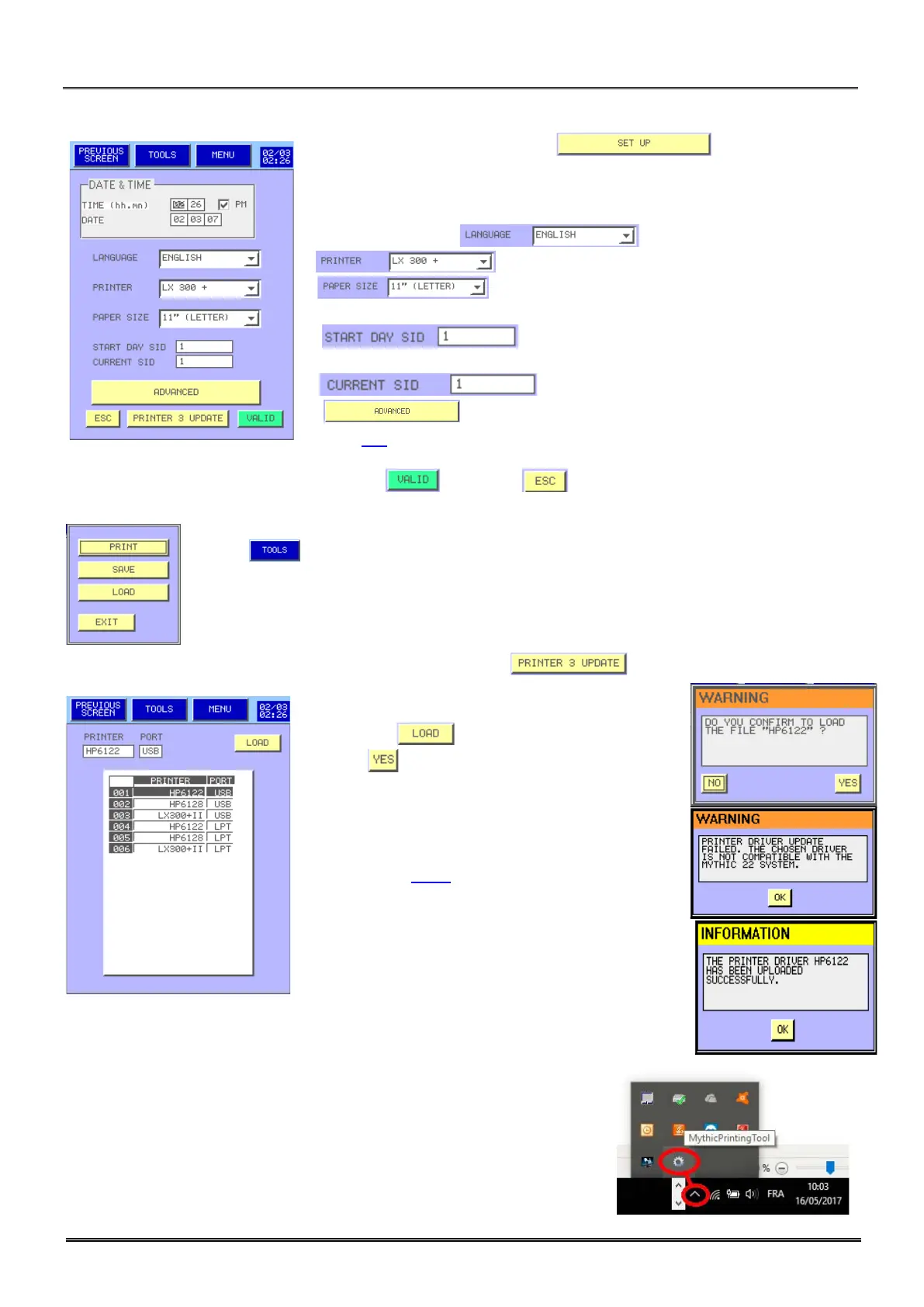
- From the MAIN MENU press on .
- This menu is available for all users.
- The DATE & TIME window enables to modify the time and the date.
- To select the language of the Mythic menu, choose the right one in the
Language combo box.
- : Select the printer or no printing.
- : Select the paper size depending on the number
of results per page.
- : Two SID are available; Start day SID
enables to select the first SID for each new day.
- : If you want to select a new SID number.
- : Biologist reserved for complete settings. (See
section 3.4).
- Once modifications are done, press either to valid or to exit keeping the previous setting.
- Press to print, save or load from an USB key all the set up.
USB KEY HAS TO BE FIRST FORMATTED ON THE MYTHIC (section 3.4.7).
- To load new printer drivers plug the USB key then press on in the previous screen.
- Select the printer and its connection mode.
- Then press .
- Press then, the driver is loaded in the
MYTHIC 22.
- This prompt appears if the release is failed.
Check the USB connection or change the USB key
(see section 3.4.6. ) or call your Orphée’s
representative.
This prompt appears if the release is done
successfully.
MythicPrintingTool :
As space is often limited in labs, you can connect by RS232 cable your Mythic to any
PC in the lab in order to directly print the results on the printer connected to this
PC. MythicPrinting Tool is small software easy to install and which will not
affect the functionality of the PC.
It is downloadable free of charge directly from ORPHEE web site at
orphee-medical.com


 To Next Page