All-New Event Presentation Switching Solutions
User Manual
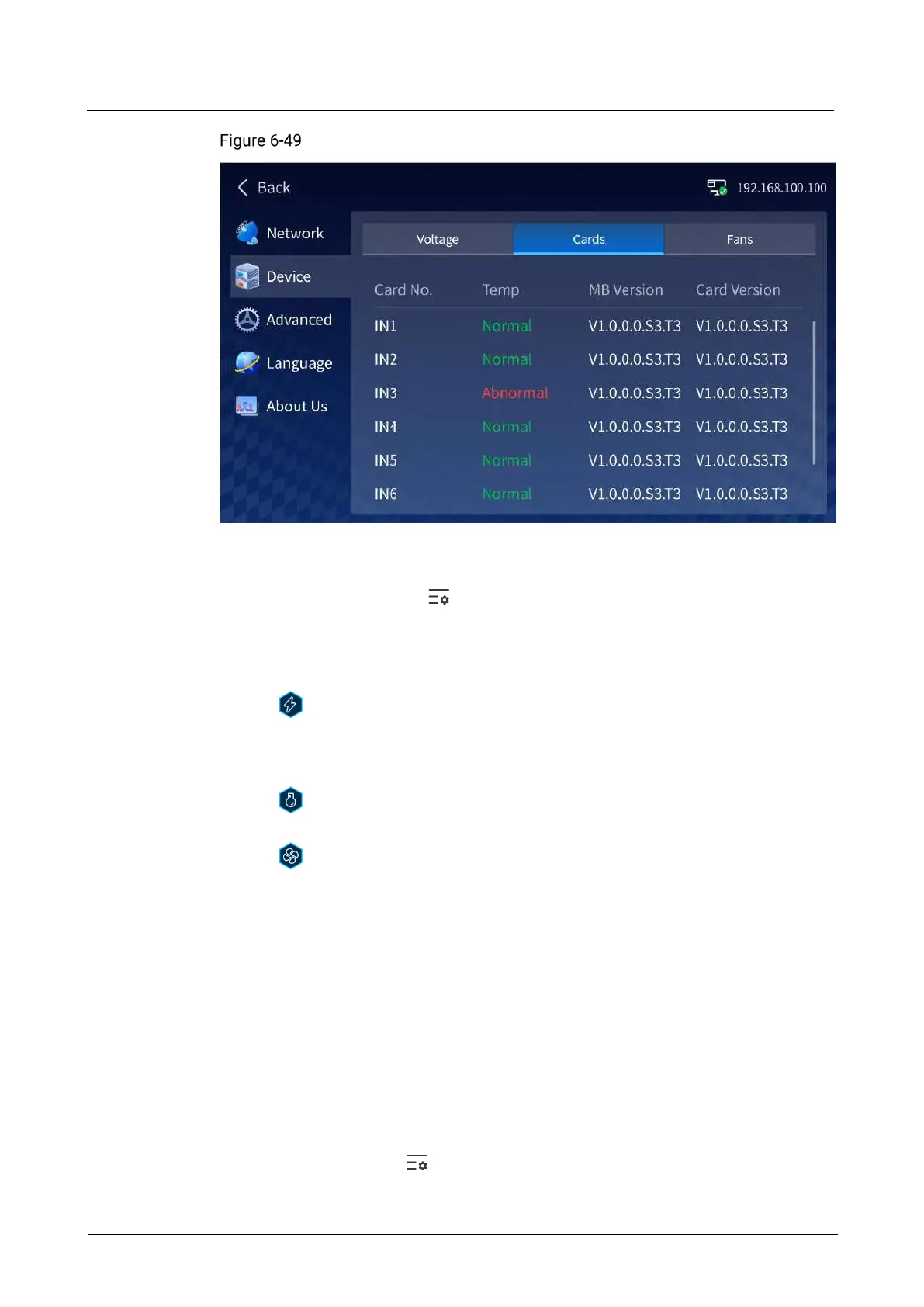
Device information
Two ways to enter the Device screen:
On the home screen, tap located at the bottom right corner to enter the
settings screen. Then, tap Device on the left.
On the home screen, tap the icon in the status bar on the right to enter the
corresponding screen under Device.
− : Displays the voltage status of the connected power supply. Tap this icon
to enter the Voltage screen under Device, where you can check the
connection status of the three power supplies and whether the power
connector voltage is normal.
− : Displays the device card temperature. Tap this icon to enter the Card
screen under Device, where you can check the card temperature and version.
− : Displays whether the device fans are running normally. Tap this icon to
enter the Fans screen under Device, where you can check the status of all the
device fans.
6.2.5 Advanced Settings
In advanced settings, you can do the following operations:
Factory reset
Update firmware
Import and export project files
Export log files
Set the device status after AC power back
On the home screen, tap located at the bottom right corner to enter the settings
screen. Then, tap Advanced to enter the advanced settings screen.



 To Next Page