All-New Event Presentation Switching Solutions
User Manual
7 Event Management Software PixelFlow
The Import Project button on both the Online Projects and Virtual Projects tab
interfaces serves the same purpose and has the same functionality.
In the dialog box that appears, select a project file (.uprj) and click OK.
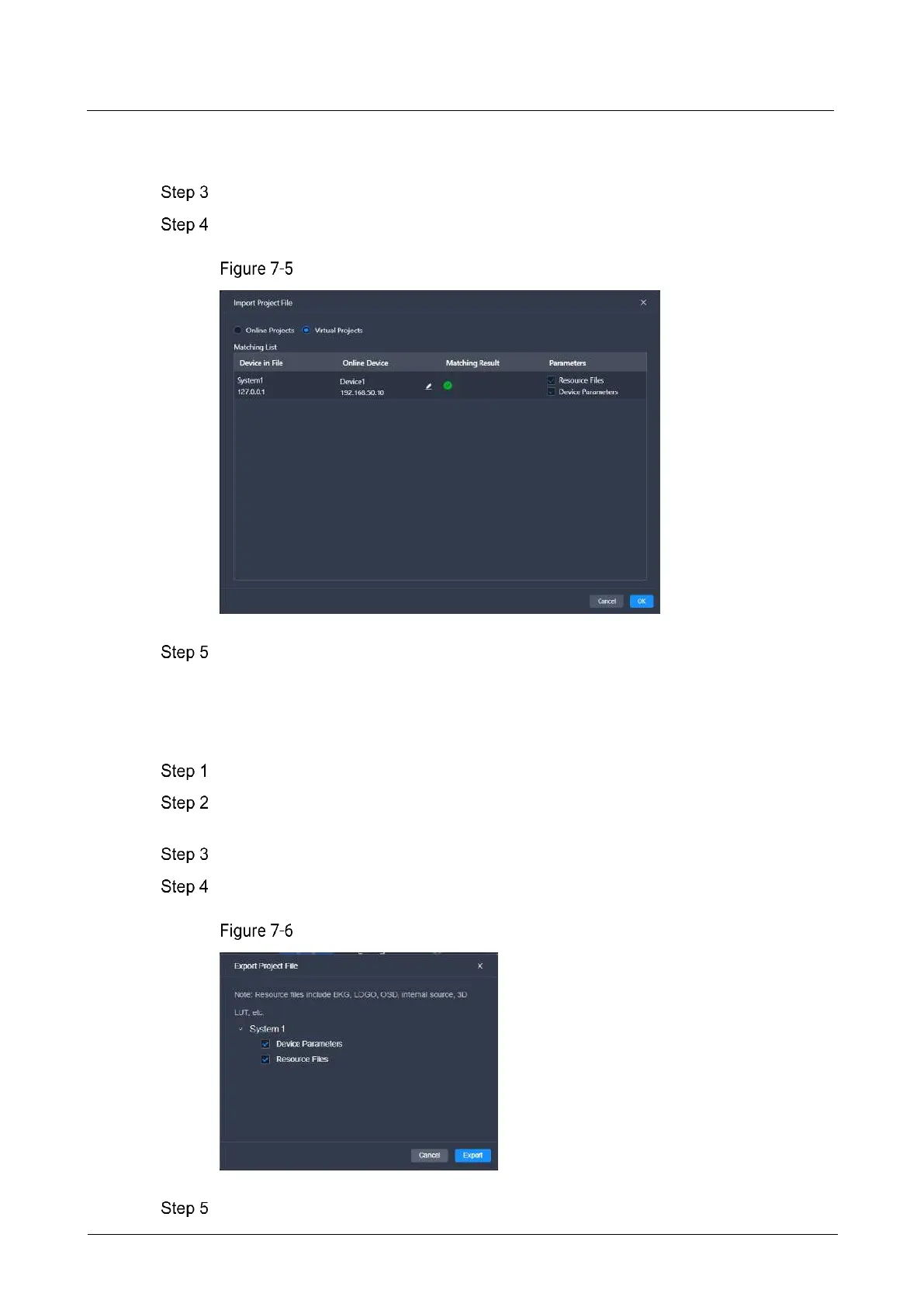
In the displayed Import Project File box, select Online Projects or Virtual Projects.
Import project files
After successful device matching, select the data you want to import and click OK.
7.2.3 Export Projects
Export the device project files to your local computer.
Select Projects on the left side of the interface to show the project list.
Select the Online Projects or Virtual Projects tab, double-click the project name or
click Enter in the Action column to enter the device configuration interface.
From the menu bar, select Projects > Export.
In the displayed dialog box, select the desired data.
Export project files
Click Export.



 To Next Page