All-New Event Presentation Switching Solutions
User Manual
8 U5/U5 Pro Event Controllers
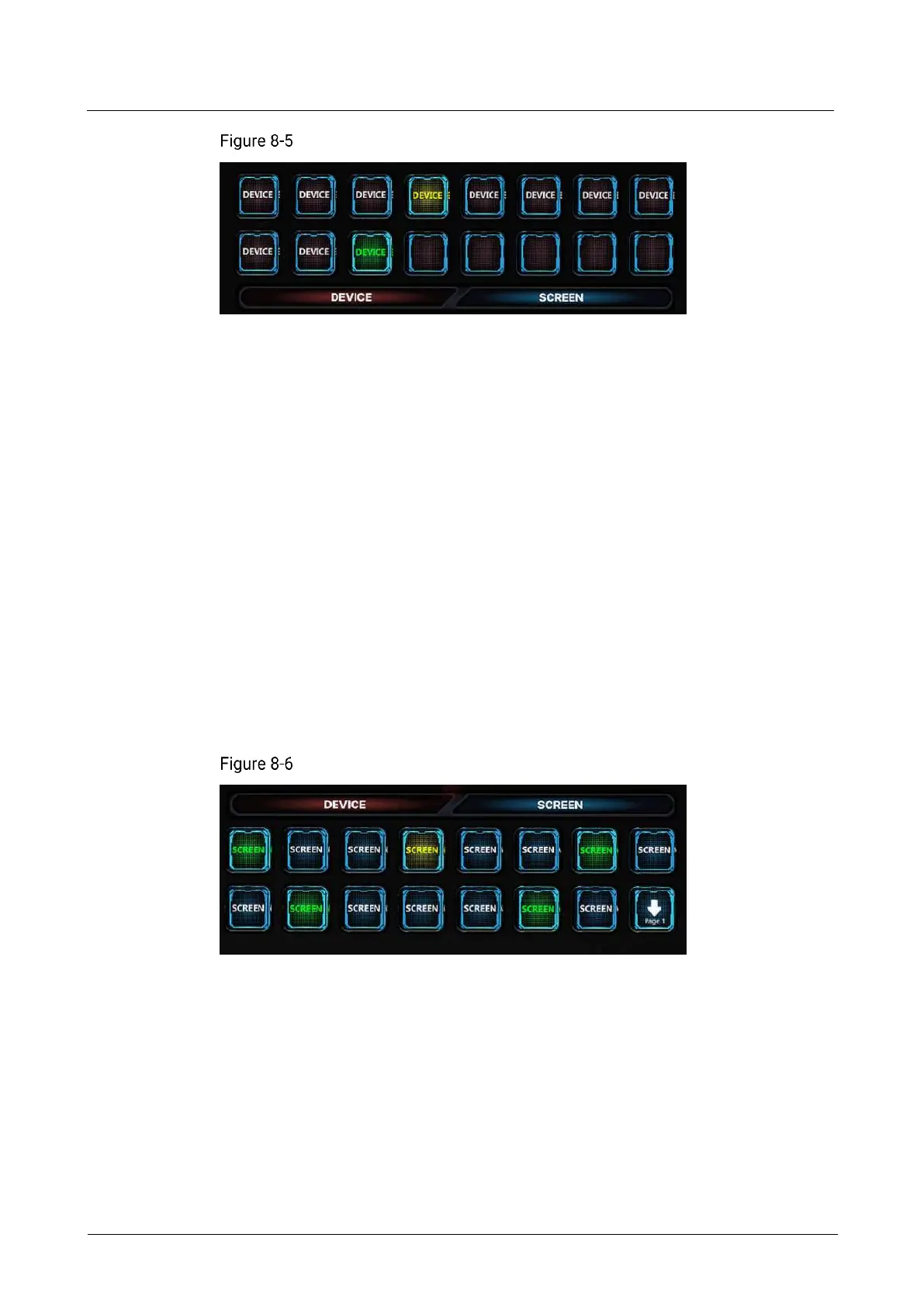
Device buttons
Operations and status description of the 16 Device buttons:
The LCD button displays the device name. Pressing the button switches to the
device corresponding to the button name for you to control that device.
White: A device is bonded to this button but not selected.
Green: A device is bonded to this button and is being operated.
Yellow: A device is bonded to this button, but the device is offline.
Blank button: No device is bonded to this button.
8.3.5 Screen Buttons
Pressing a screen button selects the corresponding screen, and the PVW page of
that screen will be displayed on the main touchscreen.
The screen name displayed in the screen button can be modified through the screen
editing page.
The screen quantity and screen name depend on the selected device connected to
the event controller.
Screen buttons
Screen Button Status
The screen buttons have the following statuses:
Green: Screens are added to this button and being operated.
Yellow: Screens are added to this button but not selected.
Blank: No screens are added to this button.



 To Next Page