All-New Event Presentation Switching Solutions
User Manual
P20 Hardware Introduction
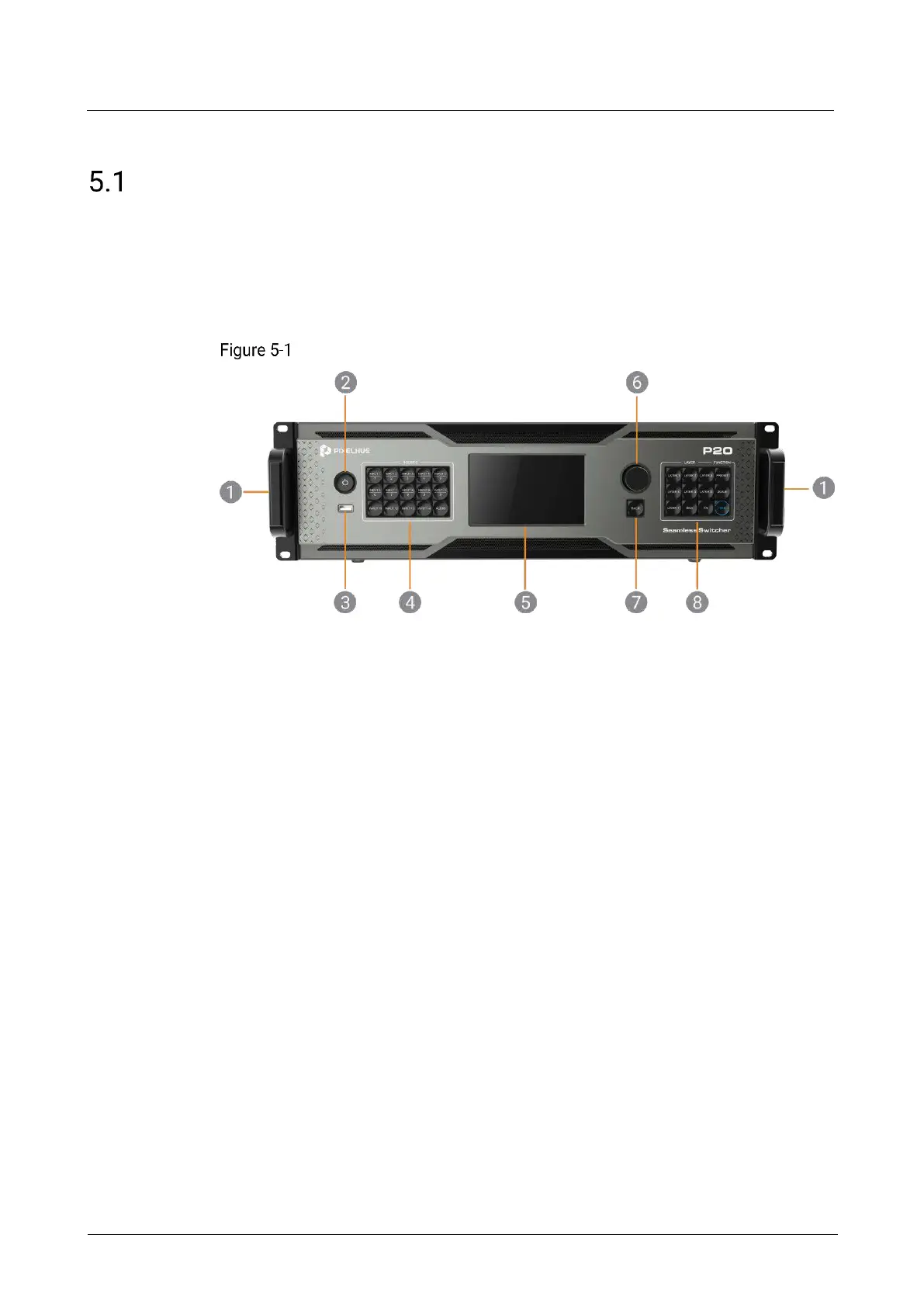
5.1.1 Front Panel
The P20 front panel is designed with a 5-inch graphical LCD, a knob and a variety of
function buttons that allow for menu operations by button presses. A USB port is
provided on the front panel for updating device firmware, import and export files.
P20 front panel
8. Layer and function buttons
Chassis Handles
Two handles are provided for easy installation and transportation.
Power Button
Press the button to turn on/off the device. To turn off the device, press the button
and select OK from the dialog box displayed on the LCD screen to confirm your
operation.
Breathing dim white: The power supply is connected.
Bright white: The device is turned on.
USB Port
A Type-A USB 2.0 port is provided for updating device firmware, import and export
project files, EDID files, BKG files, LOGO files and logs via USB drive.
Source Buttons
Press a button to access the input settings menu or select the source. These buttons
can also be used to enter numbers.



 To Next Page