All-New Event Presentation Switching Solutions
User Manual
8 U5/U5 Pro Event Controllers
Layer Button Status
Green: The layer is selected.
Yellow: The layer is added but not selected.
Blank button: The button does not have corresponding layer.
Layer Button Operations
Pressing the layer button (yellow) bound with layer selects this layer. After the
layer is selected, the layer button turns green. On the main touchscreen, the PVW
area of the screen where the layer belongs to enters the activated status and the
corresponding layer is selected.
Pressing the button with no layers bound (blank button) quickly creates a layer.
The system uses an unused and top-ranked source with signal as the source for
that created layer.
The default source used by the system is the one connected to the input
connector that has the smallest number on the input card with the smallest
number as well.
8.3.8 Preset Buttons
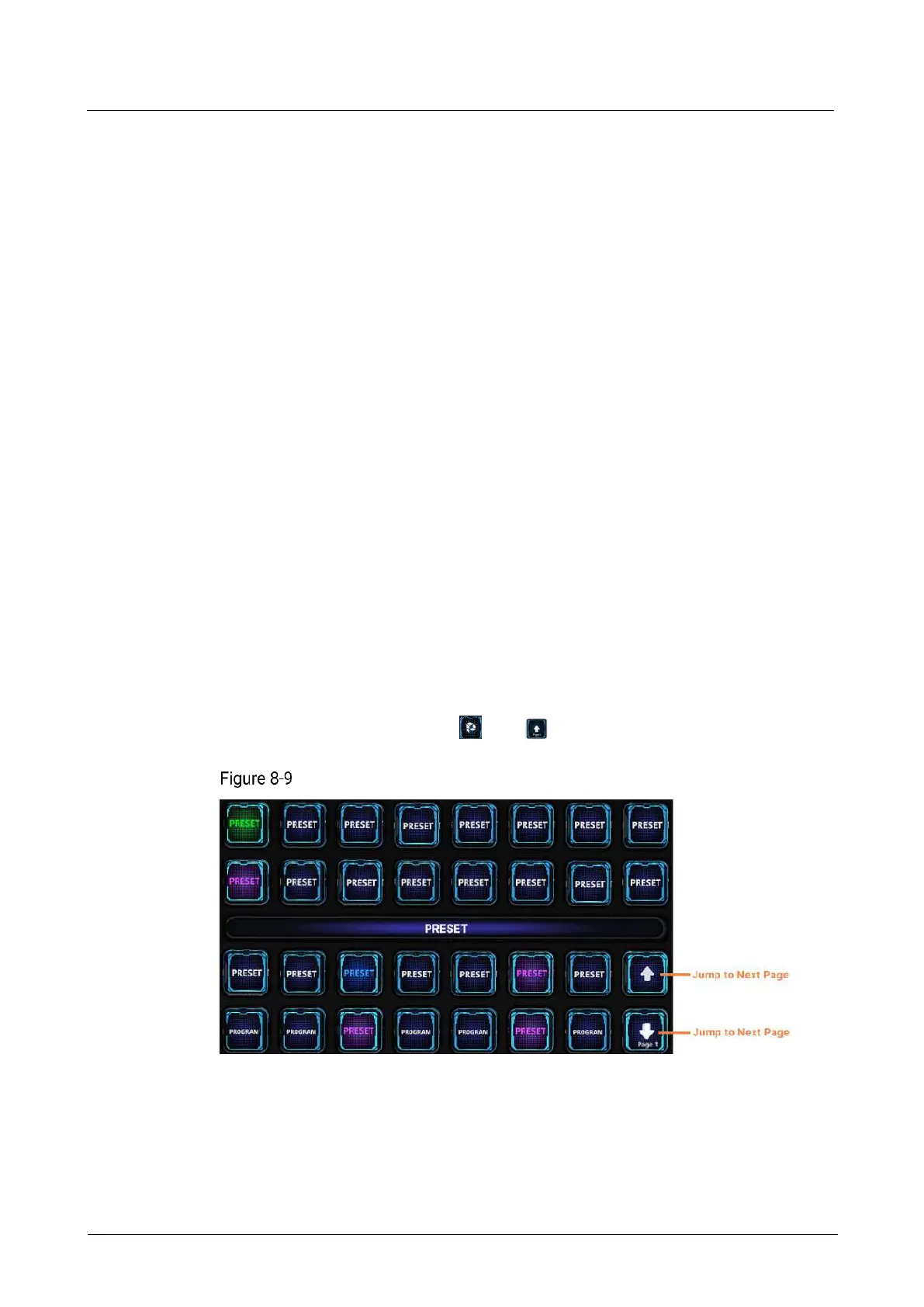
Pressing the preset button loads a saved preset to the screen PVW area.
The preset name displayed in the preset button can be modified on the preset list
page.
The U5 Pro has 34 preset buttons and 2 page turning buttons.
The U5 has 15 preset buttons and 1 page turning button. To jump to the previous
page, use the combination of and buttons.
Preset buttons
Preset Button Status
Green: The preset has been loaded to the screen PVW.
Yellow: The preset is saved but not loaded.
Red: The preset has been loaded to the screen PGM.



 To Next Page