All-New Event Presentation Switching Solutions
User Manual
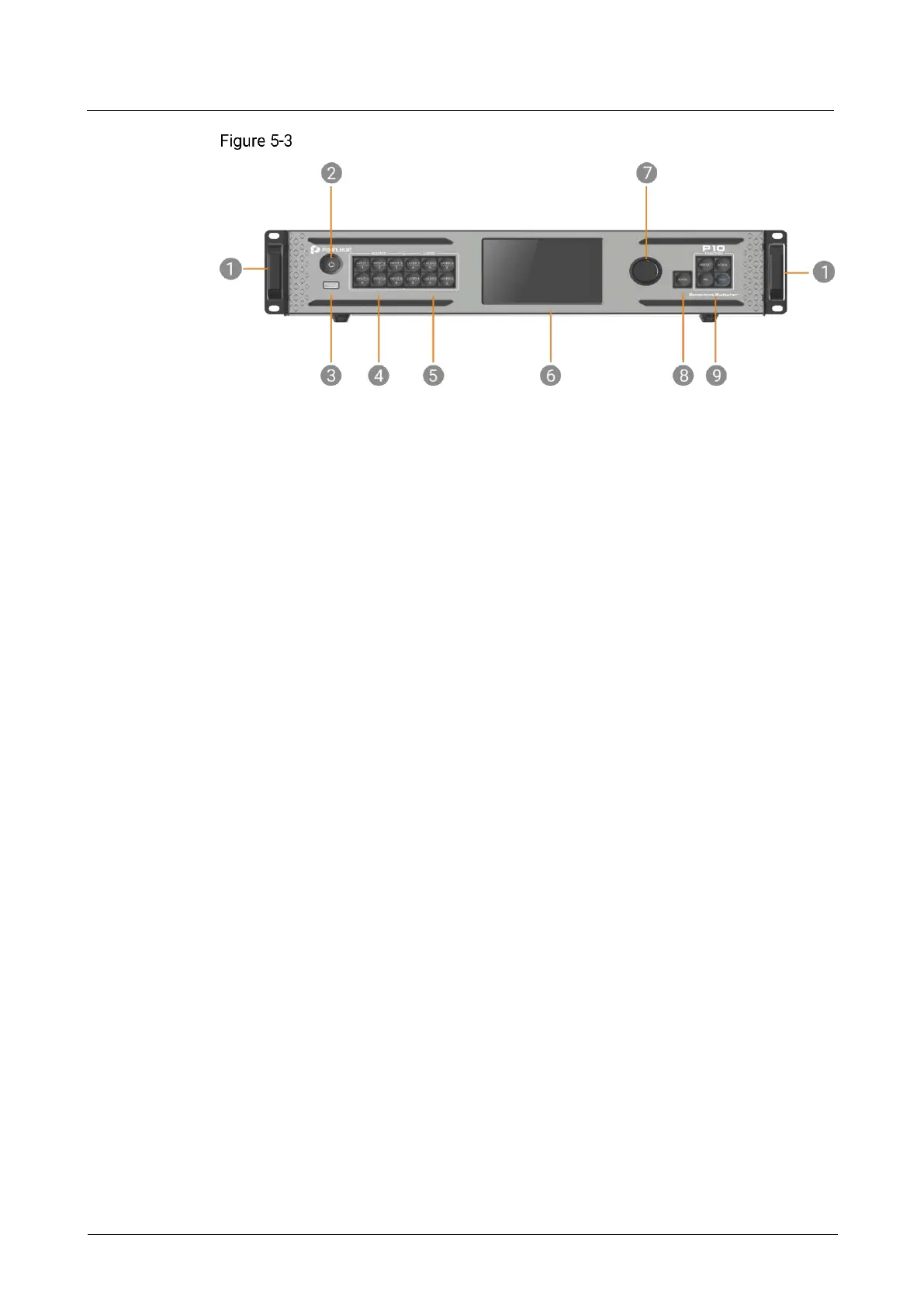
P10 front panel
Chassis Handles
Two handles are provided for easy installation and transportation.
Power Button
Press the button to turn on/off the device. To turn off the device, press the button
and select OK from the dialog box displayed on the LCD screen to confirm your
operation.
Breathing dim white: The power supply is connected.
Bright white: The device is turned on.
USB Port
A Type-A USB 2.0 port is provided for updating device firmware, import and export
project files, EDID files, BKG files, LOGO files and logs via USB drive.
Source Buttons
Press a button to access the input settings menu or select the source. These buttons
can also be used to enter numbers.
Button LED color and source status (INPUT 1 to 6):
Dim white: No signal and not in use
Breathing blue: Signal accessed and not in use
Blue: Signal accessed and in use



 To Next Page