All-New Event Presentation Switching Solutions
User Manual
The offset in lines between the end of the
output active area and the beginning of V
sync
Polarity (active high or low) of the vertical
sync pulse
After the settings are completed, select Apply for the settings to take effect.
Export EDID
When the input connectors of the connected device has good EDID compatibility, the
P20/P10 can learn the EDID of the connected device via the output connectors and
the EDID information can be exported to a USB drive so that other input connectors
of the connected device can use the EDID information.
Prerequisites
A USB drive is inserted into the USB port on the front panel of the P20/P10.
The input connectors and the connected device are connected correctly.
An output is selected.
Note
The USB port on the front panel of the device does not support USB HUB.
Menu Orientation
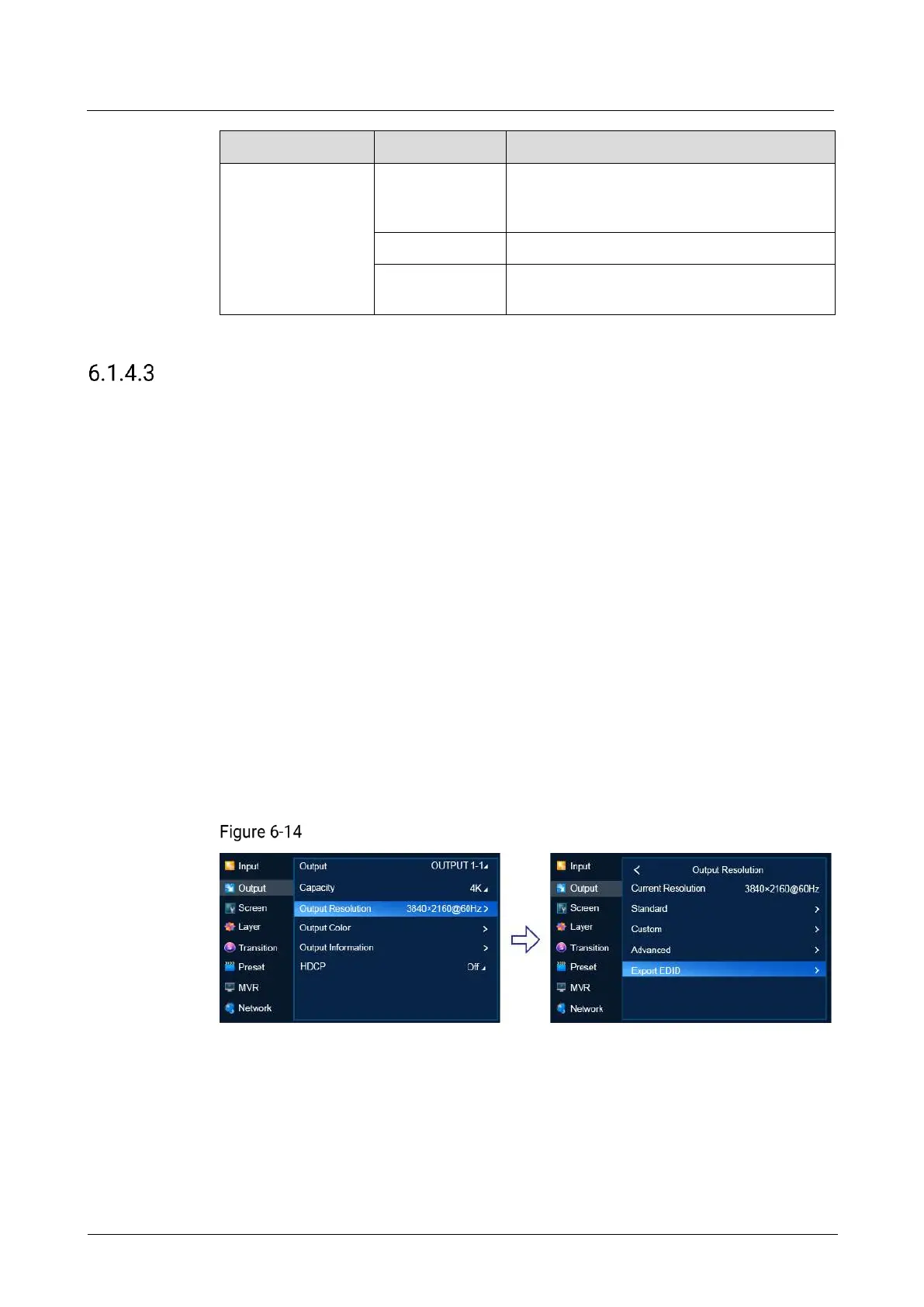
On the main menu screen, scroll to and select Output > Output Resolution > Export
EDID.
Exporting EDID (P20)
Description
Select Export EDID to access the submenu, then select a file format (.bin or .dat) and
output connector, and select Apply to export the EDID information to the root
directory of the USB drive.



 To Next Page