Programming and Operation, continued
24
6. Use the down arrow to move to the Year
Delimited.
7. Use the up and down arrows to change the
Year Delimited format and select OK.
8. Press – to exit Date/Time Formats screen.
Setting the Date and Time
1. From the Main Menu, move the indicating
arrow to 2. Setting Date/Time and select
OK. The first active field is the year, which
is indicated by alternating blinking arrow
markers.
2. Use the up and down arrows to change the
year.
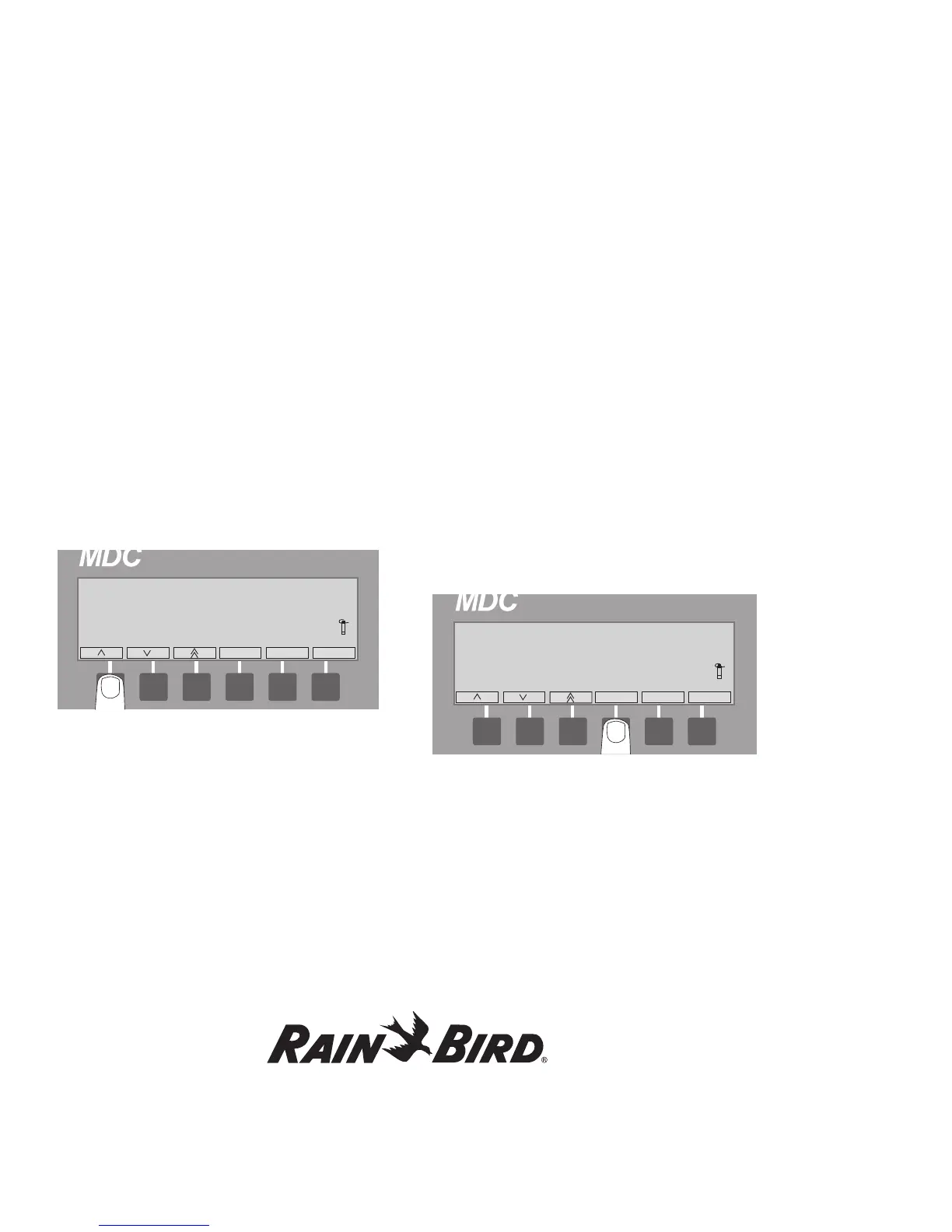
Note: The double arrow label lets you move
through the date and time quickly. Pressing the
button pointing to the double arrow label once
increases or decreases the date and time by five
digits. To switch the direction of the double arrow
label, press the button pointing to the up and down
arrow labels. Holding in the button pointing to the
double arrows lets you scroll through the numbers
quickly.
3. OK moves the blinking markers to the month.
Scroll to the correct month and select OK to
move the markers to the day.
4. Scroll up or down to the correct day. OK accepts
the change and moves the markers to the hour,
which reads in 24-hour military time. Please see
Appendix I: Conversion Chart from Standard
to Military Time on page 91.
Note: The year, month and day you choose directly
affects the day of the week (Monday-Sunday).
Changing any of those variables also changes the
day of the week. The number next to the day of
the week represents the specific day in the 14-day
calendar.
5. Scroll up or down to the correct hour. OK
moves the markers to the minutes. Change
the minutes the same way then move to the
seconds. OK locks in the new date and time and
returns you to the Main Menu.








 To Next Page