Using the Controller with a PC, continued
61
Verifying the Time and Date
Once you establish a communication link between
the controller and PC, you then need to verify the
controller’s time and date. Time and date directly
affect irrigation Schedules. If either is incorrect, the
irrigation Schedules are also incorrect.
1. From the Rain Bird Remote Access window,
select Controller.
2. Select Get Set Time/Date from the pull-down
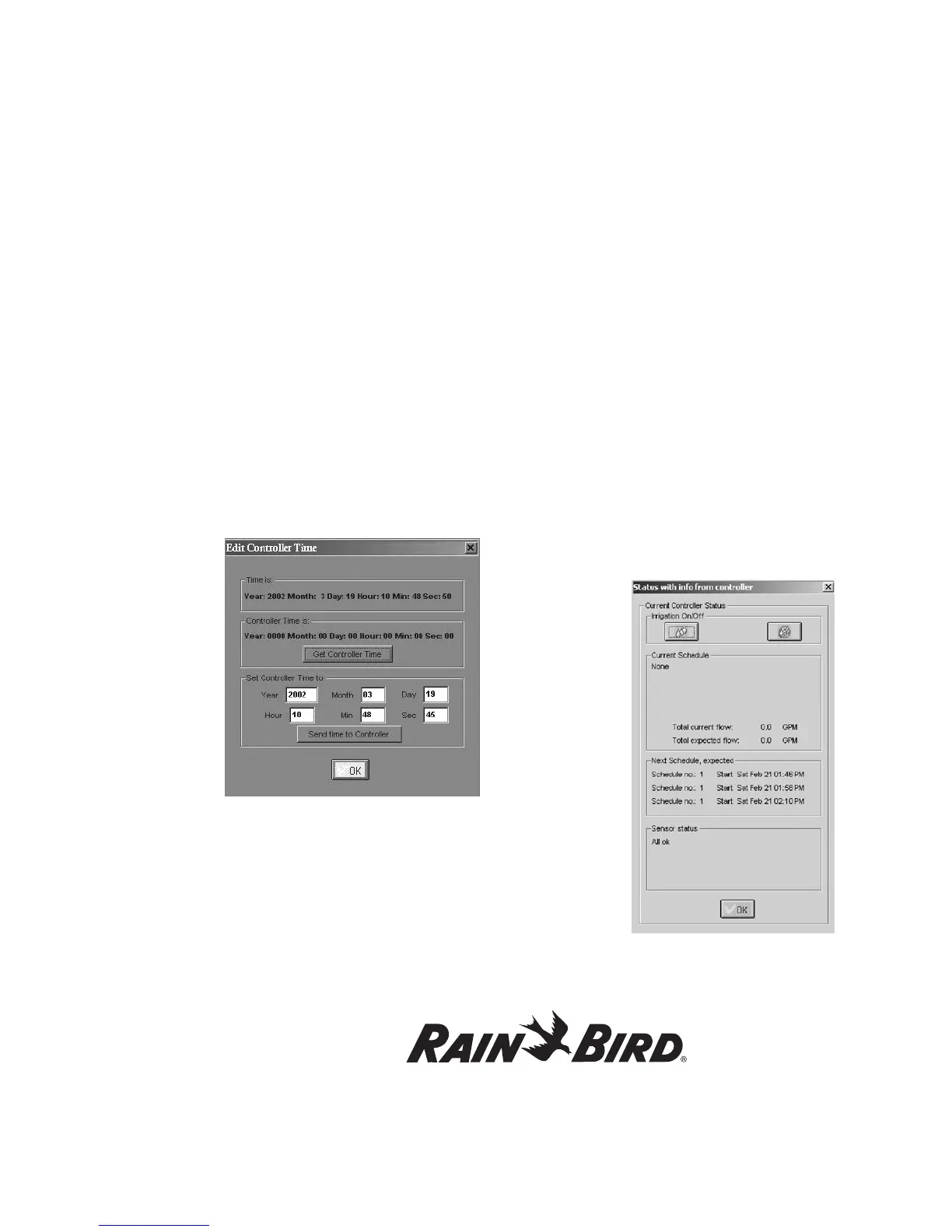
menu to reach the Edit Controller Time
pop-up window. This can be set up for either US
or international (24-hour) time formats.
3. Select Get Controller Time and verify that
the Controller Time matches Time is (PC time).
4. If necessary, adjust the date and time and select
Send time to Controller.
5. Select OK once the two times match.
Controller Status Observation
You can get information about the current status of
the controller, including the Start and Stop times
of the Current and Next Schedule, Total Current
Flow, Total Expected Flow, and Sensor Status.
1. From the Rain Bird Remote Access window,
select Controller and then Controller
Status. You will be presented with the status
information retrieved from the controller as seen
below.
Note: While the PC is retrieving status data from
the controller, the Communications Status pop-up
window appears visually showing the progress. The
window disappears once the status data is retrieved.
Selecting Disconnect from the Controller pull-
down menu disconnects the PC connection to
the Controller.




 To Next Page