Programming and Operation, continued
36
Note: Select Normally open if the Rain Sensor
is open all the time. Select Normally closed if the
sensor opens only when it rains.
3. Select OK to return to the Switch Setting menu.
Turning on an installed alarm sensor
1. From the Switch Setting menu, move the
indicating arrow to 3. Alarm Sensor and select
OK. The current setting appears between the
two markers. A blinking black box in the first
character position shows the field is active.
2. Use the up and down arrows to select between
Normally open or Normally closed.
Note: Use Normally open if the Alarm Sensor
is open all the time. Select Normally closed if
the Alarm Sensor opens only when it receives a
specific signal.
3. Select OK to return to the Switch Setting menu.
4. Move the indicating arrow to 4. Return to
return to the Set-up Data menu.
Note: If you press the button pointing to the
minus (-) label after you change the
Switch
Settings
, a screen appears asking if it is OK to
Restart System? If not, Press ‘-’. Select OK to
restart the system or ‘-’ to cancel.
Erasing All the Data
If you wish to delete all the data, such as testing or
demo data, from the MDC Controller before you
install the actual values, you can do so quickly and
easily.
Note: Be careful when you erase data. Once erased,
you cannot retrieve it again.
1. From the Main Menu, move the indicating
arrow to 1. Set-up Data and select OK.
2. Move the indicating arrow to 9. Erase All and
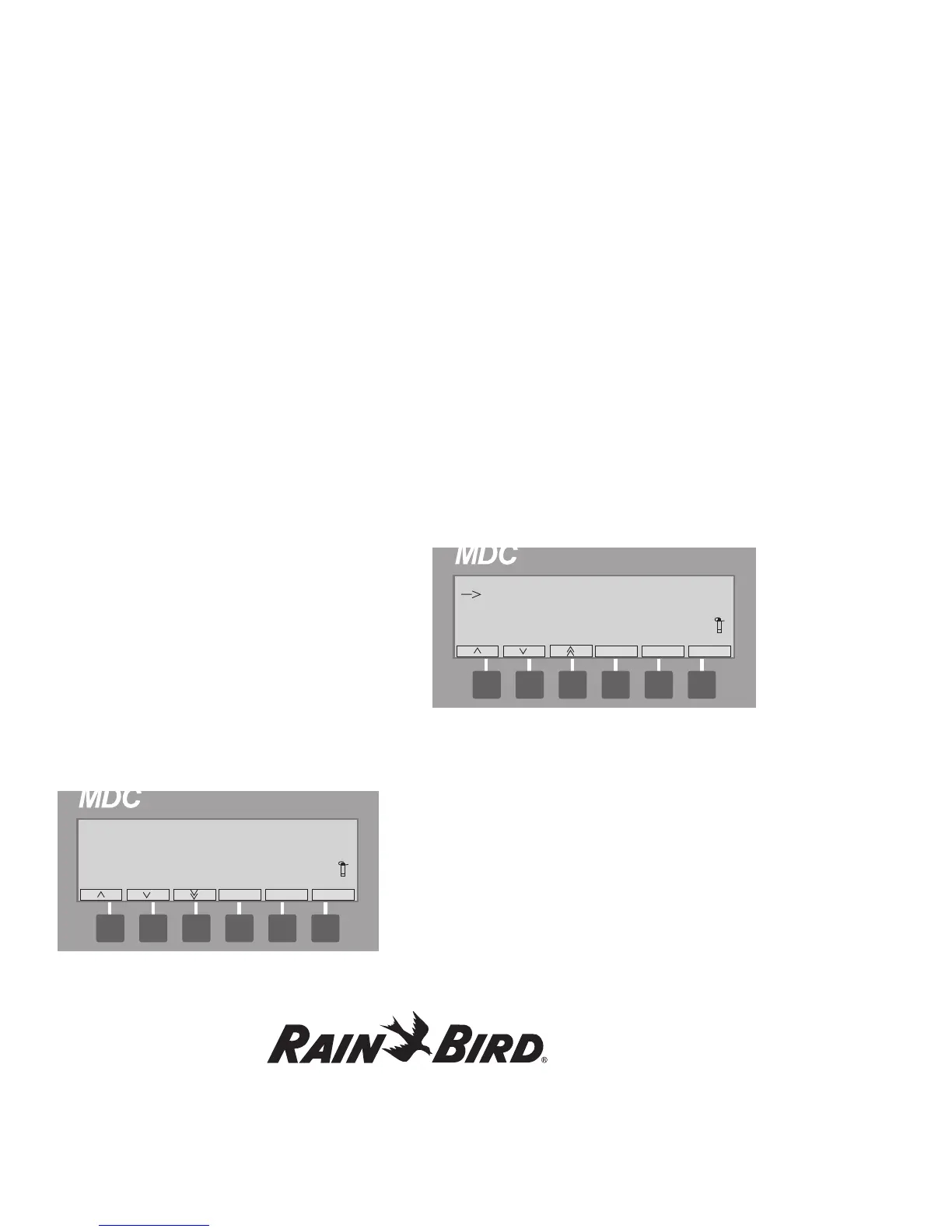
select OK. The display screen now reads, OK to
Erase All Data? Use ‘-’ to cancel.
3. Select OK to Erase the Data and return to the
Set-up Data menu. The minus (-) label cancels
the action and returns to the Set-up Data menu
without erasing any data.




 To Next Page