Using the Controller with a PC, continued
70
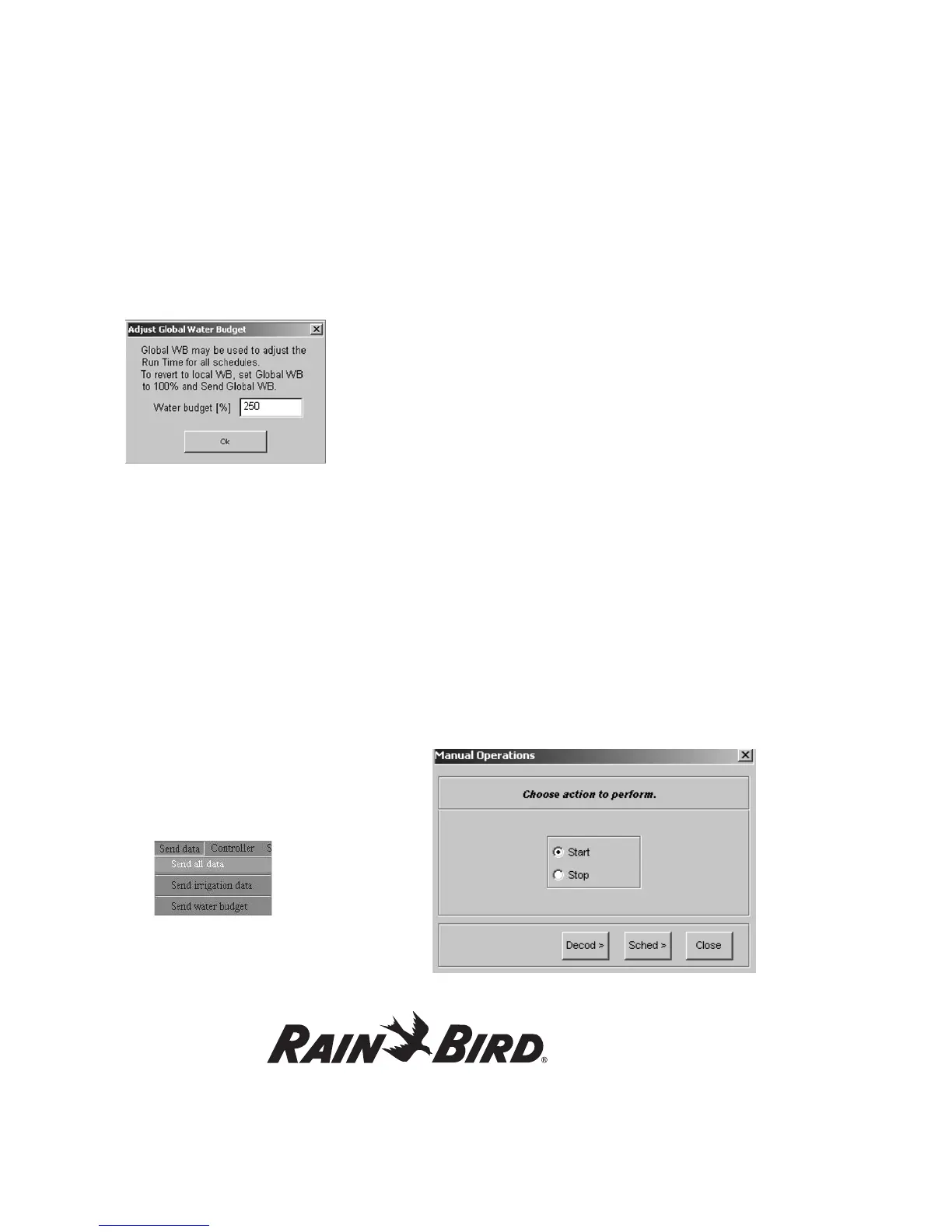
2. Select Edit Global Water Budget and an Adjust
Global Water Budget pop-up window appears.
3. Change the Water budget percentage and
select OK.
Note: You must send the water budget changes
to the controller before updates to the Global Water
Budget can take affect.
Sending Data to the Controller
Once you edit the controller information, you must
then transmit or send the new information to the
controller. From the Send data pull-down menu,
you can Send all data (which includes set-up and
irrigation data), Send irrigation data only, or Send
water budget data. The sending procedures are
identical.
1. From the Rain Bird Remote Access window,
select Send data.
2. Select Send all data from the pull-down menu.
3. If you have changed the Global Water
Budget, Send the water budget data to the
controller.
Note: While the PC is sending data from the PC to
the controller a Communications Status pop-up
window appears visually showing the progress. The
window disappears once the data is sent.
Note: If the PC loses communications with the
controller, an Error message appears, asking to
make sure the Connection Information is correct.
Note: If an irrigation Schedule is running or the
controller is set in the Automatic mode when you
send data, you will be asked if you want to: Take
the controller out of manual or auto mode to
send set-up data? Select Yes to send the data or
No to continue the irrigation Schedule. If you select
No, no data will be sent.
Manual Operations
You can start any schedule or activate any decoder
manually when your MDC2 controller is in Auto
mode.
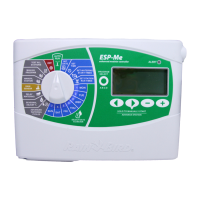
From the Rain Bird Remote Access window, select
Controller and then Manual Operations. The
Manual Operations screen appears.




 To Next Page