Operating the Controller, continued
74
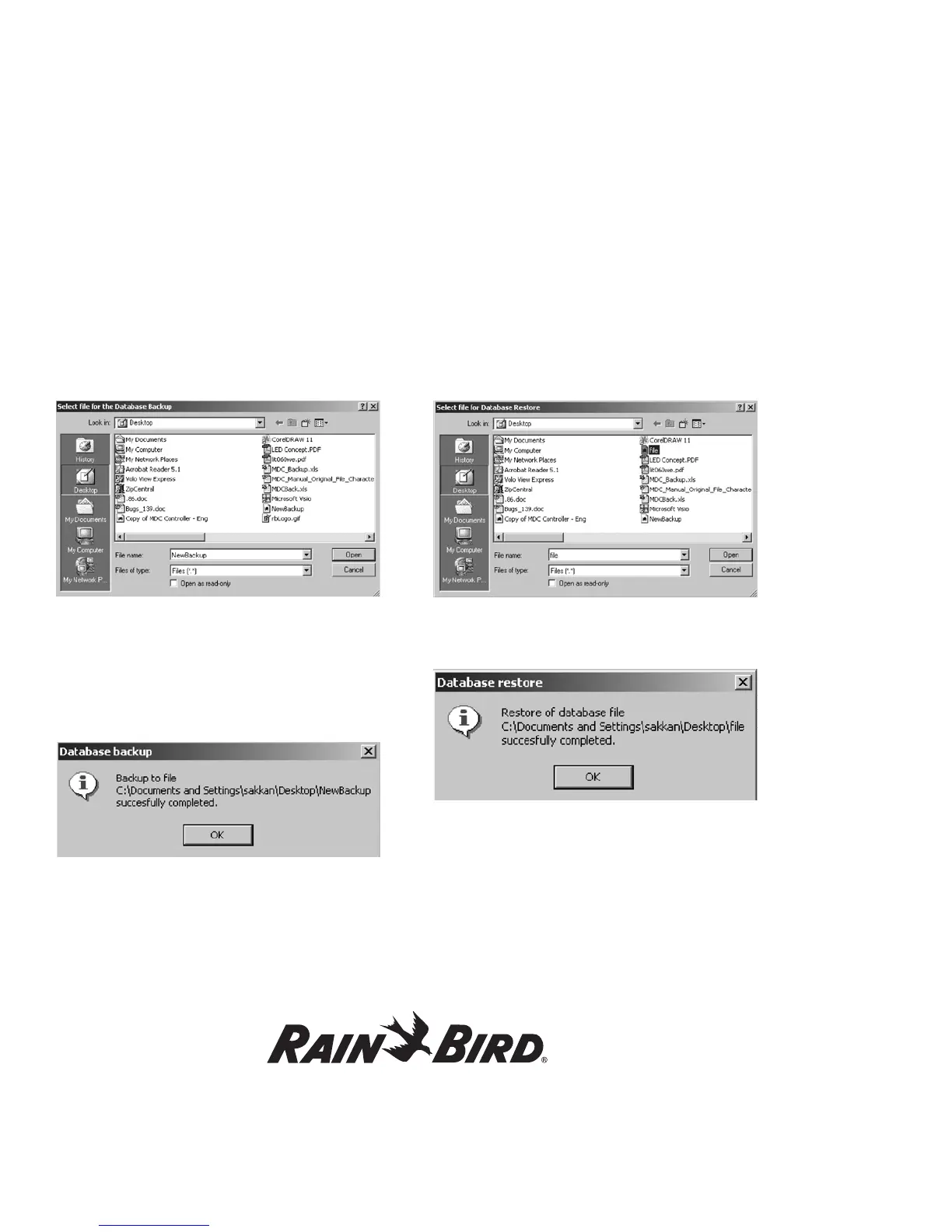
Backing Up MDC Database
1. From the Rain Bird Remote Access window,
select Setup and then Backup database. The
Select File for the Database Backup window
appears for you to name the backup database
file and decide on its location in your system.
2. Give file a name.
3. Choose a location to save it.
4. Click on Open.
You will be presented with the message below
confirming your successful saving of the backup
file.
5. Click OK.
Restoring Database
1. From the Rain Bird Remote Access window,
select Setup and then Restore database. The
Select File for Database Restore window
appears for you to locate the backup database
file to be restored into your MDC system.
2. Choose the file and click Open. Database restore
pop-up shall appear confirming the successful
restoration of your backup file.




 To Next Page