Using the Controller with a PC, continued
69
Note: Start times must be separated by a minimum
of two minutes.
Note: A drop-down box appears when you select
the Decoder columns. Use the drop-down boxes
to make your selections from the decoders you
already programmed into the controller.
4. Select OK to save the irrigation Schedule changes.
Note: Please see Creating Irrigation Schedules
on page 41.
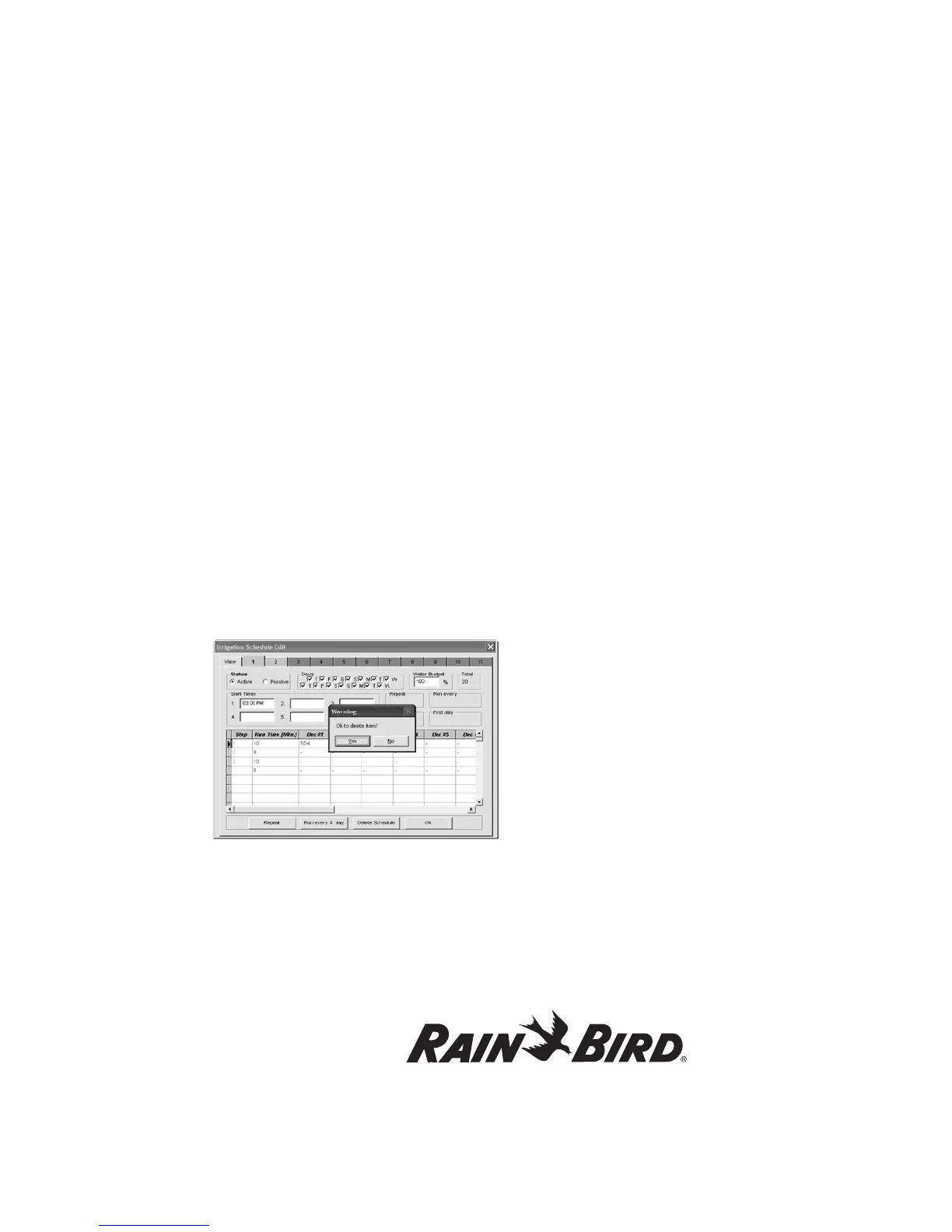
Note: To insert or delete a line in a schedule, click
on the column immediately to the left of the step
number. An arrow pointing to the right will appear.
Then press the insert or delete key on the computer
keyboard. Pressing the insert key will immediately
insert a blank line above the step selected. Pressing
the delete key will cause a warning box to appear.
To confirm deletion of that line, click on “Yes”. Using
this method will ensure that the database is properly
updated.
Deleting a Schedule
When you delete a schedule, all irrigation
programming information is erased from that
schedule. You can return to the schedule at a
later time and create a new program under the
same irrigation schedule number. The Irrigation
Schedule Edit screen employs color coding to
indicate the status of irrigation schedules. The tab of
each Schedule will be one of these colors:
Green - indicates the Schedule is Active
Red - indicates the Schedule is Passive
Gray - indicates the schedule has no information in it.
To erase all data for a particular schedule:
1. On the Irrigation Schedule Edit window, click
on the tab of the Schedule you want to view.
2. Click Delete Schedule. You will be asked to
confirm the deletion of the schedule (MDC
Notice).
3. Click OK. Note that the color of the tab of the
deleted schedule changes to gray.
Erasing all irrigation schedules
You can erase ALL IRRIGATION SCHEDULES and
IRRIGATION SCHEDULE CONTENTS stored on the
PC.
1. From the Rain Bird Remote Access window,
select Edit data.
2. Select Edit irrigation data and Erase all from
the pull-down menus to reach the Erase
Irrigation Schedules window.
3. Select Yes to erase the information. Select No to
cancel the action.
Editing the global water budget
Editing global water budget lets you adjust all the
Schedules quickly and easily. If you design individual
Schedules with a nominal run time for each decoder
and valve, and set the water budget at 100%, you can
easily adjust to changes in weather conditions.
1. From the Rain Bird Remote Access window,
select Edit data.




 To Next Page