Manually Starting an Irrigation Schedule
Operating the irrigation Programs Manually
overrides all Automatic Programs. When you
manually start an irrigation schedule, the running
programs are paused and the remaining parts
are stacked to run after the manually started
schedule(s) finish. It is possible to start up to three
(3) schedules manually and they will all be stacked
in the order that they are entered, but all prior to the
stacked auto-schedules.
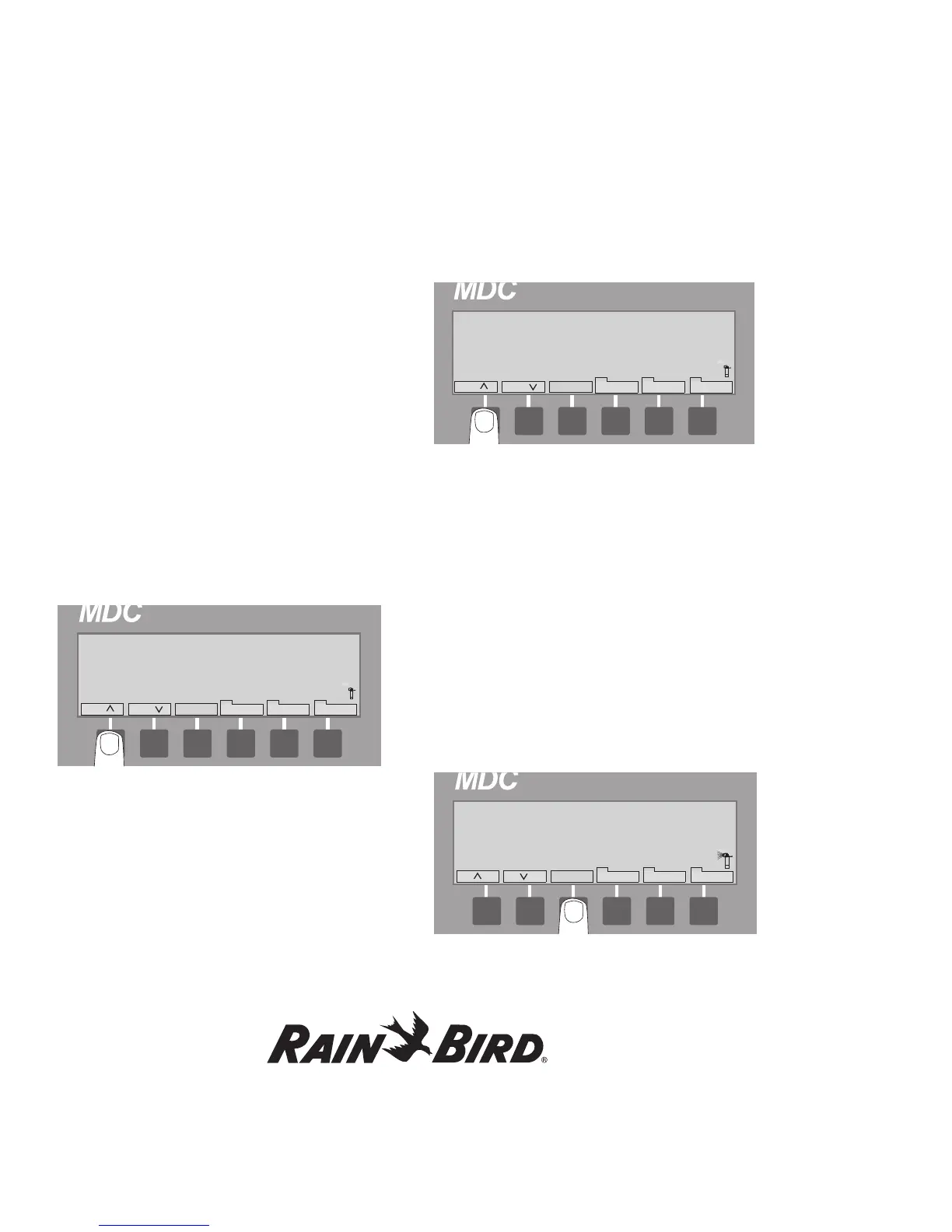
1. From the Main Operating Screen, select
Manual. The Manual label is highlighted and
you are asked to Select Program or Decoder.
2. Use the up and down arrows to select an Active
Program.
3. Select OK. The display will show the number of
the steps in that program and will ask you which
step you would like to start the irrigation with.
4. Use the up and down arrows to change the step
number.
5. Select OK.
Note: The Manual Program starts at the first full
minute. The Program starts by displaying the first
decoder in the Step along with the Remaining
run time for that Step. You will also see the Total
Remaining Time for the complete Program. The
sprinkler icon starts to “sprinkle.” Please note that
it is not possible to pause a manually activated
irrigation schedule.
6. Select Pause to pause the current Program
Schedule. The display asks if it is OK to Pause
Current Schedule. If you select Cancel to
Abort, you will return to the Use Manual Display
Screen.
Creating Irrigation Schedules, continued
52







 To Next Page